What Is Git? Version Control From Zero — Let CLI Tools Type the Commands, Push to GitHub, Sync Two Machines
You can start using Git without memorizing commands. This guide covers the concepts first: how Git differs from cloud storage, how Git differs from GitHub, and how a file travels from your working directory all the way to GitHub. Then you'll build your first versioned project entirely from the command line (including with AI CLI assistants like Claude Code), push it to GitHub, and pick up work on a second machine. Includes three red lines for the AI era and six common mistakes.
 卡住很正常——點段落旁的 😵 卡關 讓我們知道,或直接往下滾到問答區發問。
也可以用 👍 看懂 / 😢 看不懂 告訴我們哪裡寫得好、哪裡要改。
卡住很正常——點段落旁的 😵 卡關 讓我們知道,或直接往下滾到問答區發問。
也可以用 👍 看懂 / 😢 看不懂 告訴我們哪裡寫得好、哪裡要改。
In one line: Git creates save points for your project, stored on your own computer. GitHub keeps a copy of those save points in the cloud so another machine can pick them up. In 2026 you barely need to memorize commands — CLI tools type them for you — but you do need to understand what they did, because the speed of breaking things went up 100x too.
Keywords: Git, version control, Git tutorial, what is Git, git init, git add, git commit, git push, git pull, git status, GitHub, gh CLI, Claude Code, clone, rebase, merge conflict, .gitignore, leaked .env
Why Learning Git in 2026 Is a Different Job
Five years ago, teaching Git meant teaching commands. Today you open a terminal, tell an AI CLI assistant like Claude Code “save what I just changed,” and it runs git add, git commit, and git push for you. The command layer is solved.
But something else got worse:
An AI can edit 12 files in 20 seconds.
When you edited by hand, Cmd+Z was enough — you only changed one thing at a time. Now you say “switch the login flow to Google,” and it touches 8 files, deletes 2, and creates 3. It breaks. You want the version from 20 seconds ago:
- Cmd+Z can’t do it (the editor’s undo stack doesn’t span files and terminals)
- Cloud storage can’t do it (it already synced the broken version)
- Ask the AI to revert? It just guesses again, and the guess won’t match the original
That’s why the concepts matter more than they did five years ago, not less. Commands are outsourceable; judgment isn’t. Which save point to return to, which changes belong in this one, whether a command will destroy something — only you can decide those three.
What Problem Git Actually Solves
You’ve seen this folder:
proposal.docx
proposal_revised.docx
proposal_revised2.docx
proposal_final.docx
proposal_final_REALLY_final.docx
proposal_final_REALLY_final_boss_edits.docx
That’s version control done by hand. It fails, not because it’s ugly, but because of three things it can’t do:
- You can’t go back: three days later you want the version before the boss edits. Which file was that?
- You can’t see the difference: what actually changed between
finalandREALLY_final? Two windows side by side and your eyeballs. - Two people or two machines break it instantly: you edit
final, your colleague editsREALLY_final. Now what?
Git automates all three: every save point is kept, every difference is computable, and two sets of changes can be merged.
How Is This Different From Cloud Storage?
Cloud storage (Google Drive, iCloud, Dropbox) does syncing: every device sees the same files as of right now. Git does history: it keeps every save point you deliberately declared.
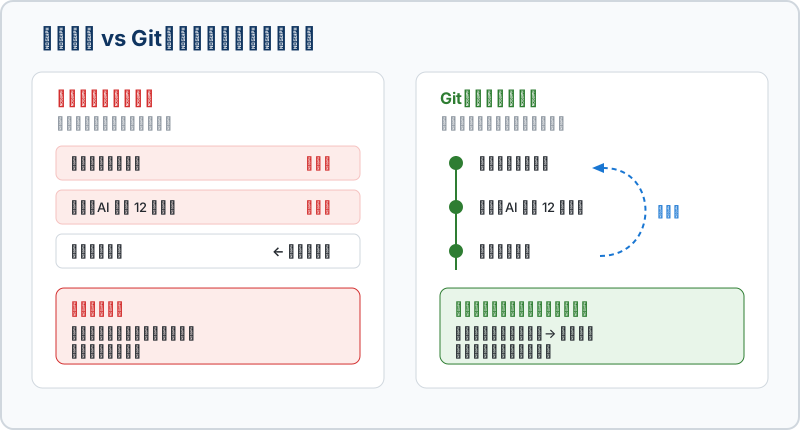
The key word is deliberately. Cloud storage syncs the moment you hit save, including the second you broke everything. Git records a state only when you declare it worth recording — so every entry in your history is meaningful, not noise.
Git ≠ GitHub
| Git | GitHub | |
|---|---|---|
| What it is | A program on your computer | A website / cloud service |
| Where it lives | Your hard drive (the .git folder) | Someone else’s servers |
| Offline | Works fully — save and restore included | Unusable |
| Who made it | Linus Torvalds, creator of Linux, in 2005 | A company (now owned by Microsoft) |
| Cost | Free and open source | Free for personal use |
| Its job | Recording history | Hosting a copy + collaboration UI |
A useful analogy: Git is the photo album in your house. GitHub is backing that album up to a cloud photo service. The album is complete on its own; the cloud copy exists so another device can reach it and so you can show people.
GitLab and Bitbucket do the same job. They all host Git repositories — switching providers doesn’t change a single Git command you know. Nothing in this guide locks you into GitHub.
Four Places, Three Commands (The One Concept Worth Memorizing)
This is the three most valuable minutes in this article. Eighty percent of Git confusion comes from not knowing which of these four places your work is currently in.
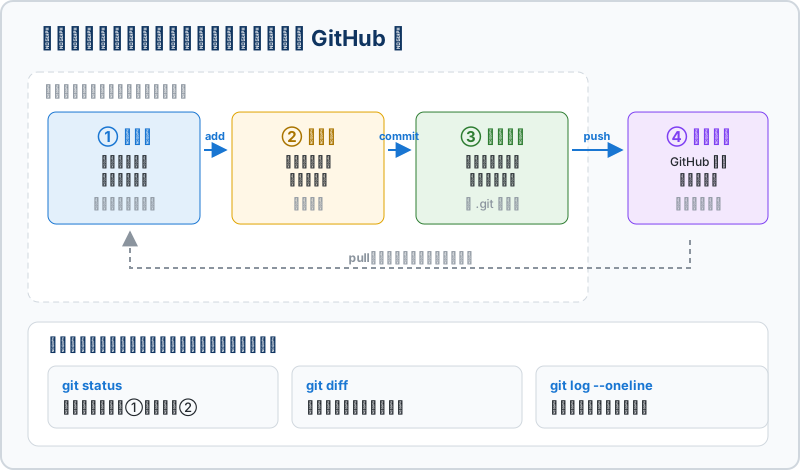
| Place | In plain words | How things get in |
|---|---|---|
| ① Working directory | The files you’re editing, the ones you see in the folder | (you just edit them) |
| ② Staging area | The sorting table: which changes go into this save point | git add |
| ③ Local repository | The save point exists. You can return to it now. | git commit |
| ④ Remote repository | The same copy on GitHub, reachable from your other machine | git push |
Three of them live on your computer (①②③) and work with no internet. Only ④ needs a network.
Why Is There a Staging Area? It Looks Redundant
Beginners always ask this, and the AI era gives the clearest answer:
You ask the AI to fix a bug. Along the way it also tweaks a config file and reformats three others. Now you want to save — but only the bug fix. You haven’t decided about the config change yet.
That’s the staging area: you pick which changes go into this save point, and the rest stay in the working directory.
git add src/login.js          # stage only this file
git commit -m "fix: login button not responding"
# every other change is still sitting untouched in your working directory
The shortcut git add . stages everything at once. Convenient — and the number one cause of accidentally committing your .env secrets (see the 🚨 section below).
How Big Should a Commit Be?
One rule: one commit = one thing you can describe in a single sentence.
- “Fix login button not responding” ✅ one thing
- “Fixed login, also changed the homepage colors, also upgraded three packages” ❌ three things, three commits
Why split? Because a commit is your granularity of undo. Bundle three things together and you can’t roll back the colors without also losing the login fix.
Common commit message prefixes (not a rule, but the whole industry uses them, and AI recognizes them):
feat: add newsletter signup form
fix: login button unresponsive in Safari
docs: add screenshots to the install steps
chore: upgrade astro to 5.x
This part you can fully outsource to AI. Tell it “read git diff and write commit messages in this format” and it will do it better than most people — because it actually read every line of the diff. Your job is only to decide whether these changes are the same piece of work.
Branches: Just Know What main Is
A branch is a parallel universe of your project. You can experiment freely on one without touching the main line, then merge back when you’re happy.
But if you’re working alone and just starting: do everything on main. Learning branches too early only makes you hesitate when you should be saving. Three things are enough for now:
mainis the default main line (older tutorials saymaster— same thing, old name)- Which line am I on?
git branch --show-current - When you do need a branch:
git switch -c new-branch-name, andgit switch mainto come back
Come back to branches when you’re doing two conflicting things at once, or collaborating. It’ll click instantly then.
Hands On: From Nothing to Version Controlled, All From the CLI
Prerequisites: a terminal (new to it? read the CLI guide first) and a GitHub account.
Step 0: Confirm Git Exists, and Introduce Yourself
git --version
# git version 2.49.0   ← a version number means you're set
macOS usually ships with it (if not, it offers to install the developer tools — just accept). On Windows, download from git-scm.com, or work inside WSL.
Then tell Git who you are — every save point gets stamped with this:
git config --global user.name "Your Name"
git config --global user.email "[email protected]"
git config --global init.defaultBranch main
🚨 This email becomes public on GitHub with every commit you make. If you’d rather not publish a personal address, go to Settings → Emails on GitHub and turn on the option to keep your address private. That page shows you a
@users.noreply.github.comaddress to use instead — put that in the command above.
Step 1: Write .gitignore First, Then Start Tracking
The order is deliberate. .gitignore lists files that must never enter Git, and writing it before your first commit is a hundred times cheaper than cleaning up afterward (see 🚨 #1 below).
cd ~/your-project-folder
git init                      # this folder is now managed by Git (a .git folder appears)
Create .gitignore with at least these entries:
# Secrets: never version these
.env
.env.*
*.key
*.pem
credentials.json
service-account*.json

# Dependencies: huge, and reinstallable
node_modules/
venv/
__pycache__/

# OS junk
.DS_Store
Thumbs.db
Not sure what your project should ignore? Fastest path is to ask the AI: “generate a .gitignore for a Next.js project.”
Step 2: Your First Save Point
git status                    # look first: what isn't tracked yet
git add .                     # stage everything (fine this time — .gitignore is already in place)
git status                    # look again: confirm .env is NOT in the list ← don't skip this
git commit -m "chore: initial project state"
When git status says nothing to commit, working tree clean, this exact moment is recorded. No matter how badly things get mangled later, you can come back here.
Step 3: Push to GitHub (No Browser Required)
Most tutorials send you to the browser to click “New repository.” With the GitHub CLI (gh), it’s one line:
gh auth login                 # first time only, just follow the prompts
gh repo create --source=. --private --push
That means: take this folder (--source=.), create a private repo on GitHub (--private), and push the local commits right after (--push). Swap --private for --public if you want it public.
No gh? Create an empty repo on the GitHub website and it hands you these lines:
git remote add origin https://github.com/your-account/your-repo.git
git branch -M main
git push -u origin main
You only need -u once — it remembers where this line pushes to, so plain git push works from then on.
Step 4: Pick It Up on a Second Machine
This is what remote syncing is all about. On the other computer:
gh repo clone your-account/your-repo      # or git clone https://github.com/...
cd your-repo
clone pulls down the entire history, not just the latest files. So on this machine too, you can return to any save point — even offline.
From here, your daily loop is three steps:
git pull --rebase             # ① first thing, every time: bring in the other machine's work
# ...do the work (yourself, or via AI)...
git add . && git commit -m "feat: today's work"   # ② save
git push                      # ③ publish so the other machine can get it
Step ② can be fully delegated to AI. Build muscle memory for ① and ③ yourself — especially ①, for the reason in the next section.
Letting CLI Tools Type the Commands: How, and Three Red Lines
Good Delegation Sounds Like This
Say these directly to an AI CLI assistant such as Claude Code:
"Run git status and show me what's unsaved right now."
"Read git diff and split my changes into one to three commits,
 each containing only one piece of work, with fix:/feat: prefixes."
"I want to get back to the working version from yesterday afternoon.
 Run git log --oneline and show me the candidates. Don't change anything yet."
"When was line 40 of this file last changed, and by whom?"
Notice the pattern: look first, act second. “Show me first, don’t change anything yet” is the most valuable sentence you can say in the AI era.
Four Messages You Must Be Able to Read Yourself
You can skip memorizing commands. You cannot skip reading the output — otherwise you’re signing with your eyes closed:
| What you see | What it means |
|---|---|
nothing to commit, working tree clean | Everything is saved. This moment is safe. |
Changes not staged for commit | Changes are still in the working directory (①), not staged |
Your branch is ahead of 'origin/main' by 3 commits | 3 save points aren’t pushed yet — your other machine can’t see them |
Your branch and 'origin/main' have diverged | ⚠️ You’ve diverged. See the next section. |
🔴 Three Red Lines: Never Let AI Run These Unsupervised
What these three share: they permanently destroy work that isn’t saved yet, and Git’s “you can always go back” promise doesn’t cover them — because what they delete is precisely the unrecorded part.
| Command | What it does | How to protect yourself |
|---|---|---|
git reset --hard | Wipes all unsaved changes | Run git status first and confirm nothing there matters |
git push --force | Overwrites the remote’s history with yours | In a shared repo, that deletes other people’s work. Don’t, unless you’re certain. |
git checkout -- file / git restore file | Throws away that file’s edits, back to the last save point | Confirm you really don’t want those edits |
Standard instruction for your AI assistant: “Stop and ask me before running any of these three.” Most CLI tools already prompt before destructive operations — your job is to actually read the prompt instead of reflexively pressing yes.
The One Iron Rule of Remote Sync: Pull Before You Start
A laptop and a desktop, or one machine at work and one at home — the moment two computers touch the same project, you’ll hit divergence.
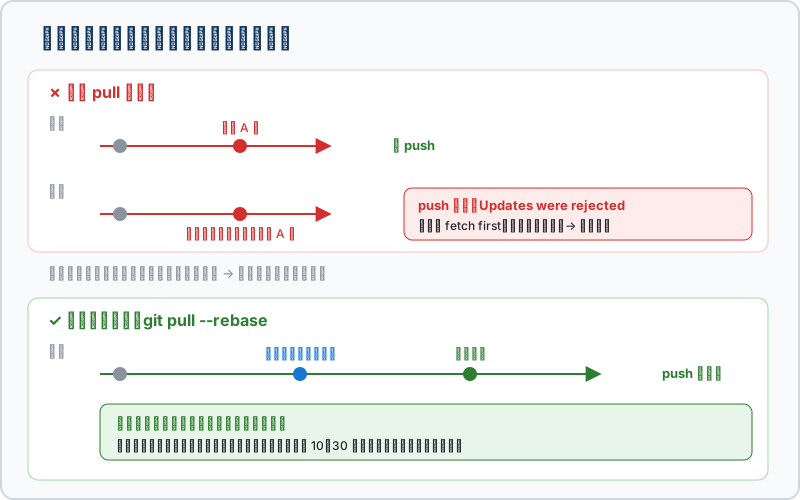
The cause is always the same: you started working on a stale copy. The desktop is still on Monday’s version, you edit it on Wednesday, but the laptop already pushed something on Tuesday. Now the remote doesn’t know which one to trust.
git pull --rebase # always the first line of the day--rebase means “replay my changes on top of the latest work,” keeping history as a straight line — much cleaner than the default merge. Make it the default if you like:
git config --global pull.rebase true💡 We’ve actually paid for this one: one machine accumulated 6 unpushed commits while the other kept working, oblivious. Untangling it burned most of an hour. Two rules came out of that: pull before you start, push before you leave. An unpushed commit doesn’t exist.
When Your Push Is Rejected
! [rejected]  main -> main (fetch first)
error: failed to push some refs to 'https://github.com/...'
This isn’t a failure — it’s Git protecting you: the remote has something you don’t, and pushing would bury it. The standard fix:
git pull --rebase     # bring the remote's work in, replay yours on top
git push              # then push
A Conflict Is Not a Disaster
If both sides edited the same line of the same file, Git can’t decide for you. It stops and writes markers into the file:
<<<<<<< HEAD
this is the version from this machine
=======
this is the version from the remote (the other machine)
>>>>>>> origin/main
Reading it is simple: the top half is yours, the bottom half is theirs. Decide which to keep (or keep both, merged by hand). Then delete the three marker lines (<<<<<<<, =======, >>>>>>>) and:
git add that-file
git rebase --continue        # if you got here via pull --rebase
This part suits AI well, but be specific: “This file has a conflict. The top half is what I changed on my laptop, the bottom is from the desktop. Keep my logic from the top but add the new field from the bottom.” You decide what you want; it does the typing. Don’t just say “fix the conflict” and walk away — it will guess, and you won’t notice when it guesses wrong.
🚨 Common Mistakes
🚨 1. Committing .env or an API Key (The Expensive One)
We’ve paid for this one for real: deleting a file from your project does not delete it from Git history. Anything ever committed stays in the history, and anyone who clones your repo can dig it out.
If the repo is public and you’ve already pushed, treat that key as leaked:
- Immediately go to the service (OpenAI, Google Cloud, OpenRouter…) and revoke or regenerate the key. This is the only real fix.
- Then clean up the repo (add it to
.gitignore,git rm --cached .env) - Rewriting Git history is just tidiness — it won’t un-leak what’s already been scraped
Cost of prevention: the 30 seconds it takes to write .gitignore before your first commit. That’s why Step 1 comes before Step 2.
🚨 2. A Commit With Hundreds of Files
If git status fills the screen, it’s usually node_modules/ or venv/ that isn’t ignored. Those are reinstallable and don’t belong in version control (they’ll bloat your repo by hundreds of MB). Add them to .gitignore, and for anything already tracked:
git rm -r --cached node_modules
git commit -m "chore: stop tracking node_modules"
--cached means “remove from Git only” — the files stay on your disk.
🚨 3. push Keeps Asking for a Password, or Auth Fails
GitHub stopped accepting account passwords from the command line long ago. Two fixes:
- Easiest: install
ghand rungh auth login— it configures Git’s credentials for you - Or set up an SSH key, or use a personal access token (PAT) as the password
🚨 4. The AI Ran git reset --hard and Your Work Vanished
If those changes were ever committed, you can get them back:
git reflog                    # every step this repo has taken, including discarded ones
git reset --hard <the hash from that line>
reflog is Git’s black box, and most people learn it exists on the worst possible day. But if the work was never committed, it’s genuinely gone — which is exactly why you commit often.
🚨 5. Two Machines Pushing at Each Other, History Tangled
See the section above. Prevention is one sentence: pull —rebase before you start, push before you leave.
🚨 6. Running git init in the Wrong Folder
Run git init in your home directory by accident and Git will try to manage your entire computer. If you spot it (git status listing thousands of unrelated things), confirm where you are and delete that .git folder: rm -rf ~/.git — verify the path before deleting; this is destructive.
In One Line
Git is your save point; GitHub is the off-site copy of it. The commands can be outsourced to CLI tools, but three judgments are always yours: when to save, what belongs in this save, and whether a command will destroy something.
One thing to do tomorrow: pick a folder you’re actively working in and run Steps 0 through 3. Ten minutes, and you’ll have your first save point you can actually return to.
Git FAQ
What’s the difference between Git and GitHub?
Git is the version control program on your computer and works offline. GitHub is a website that hosts a copy of your Git repository and adds a collaboration interface. You can use Git without GitHub (purely local version control), but not GitHub without Git.
I don’t write code. Do I need Git?
Only if you have something that changes over time and that you’d want to roll back. Documents, an Obsidian vault, a config file, copy you’re drafting with AI — all qualify. Git works best on plain text (.md, .txt, .csv, source code). It can store Word files, PDFs, and video too, but it can’t show you “what changed on which line,” so you lose half the benefit.
If AI runs the commands, do I still need to understand Git?
Yes, but a different part of it. You don’t need the flags for git rebase -i. You do need to read what git status says, know that git reset --hard destroys things permanently, and judge whether a set of changes is one commit or three. Commands are outsourceable; judgment isn’t.
What’s the difference between git pull and git fetch?
fetch downloads the remote’s latest state so you can look at it, without touching your files. pull downloads and applies it to your working directory. pull ≈ fetch + merge. Use pull --rebase day to day; use fetch when you want to peek before deciding.
I committed but didn’t push. Can my other machine see it?
No. A commit only reaches your local repository (place ③), inside the .git folder on that machine. The other machine needs you to push to the remote (place ④). This is the single most common source of divergence — an unpushed commit doesn’t exist as far as the world is concerned.
I deleted a file by accident. Can I get it back?
If it was ever committed: git restore filename brings it back to its state at the last save point. If you want the whole project back at some earlier point, run git log --oneline to find that version’s hash first. In that situation, paste the hash to your AI assistant and ask it to “explain which command you’d run and why, without executing it” — far safer than typing from memory.
Further Reading
- 💻 What Is CLI? Get Comfortable With the Command Line — start here if the terminal is new to you
- 🐙 Sign Up for a GitHub Account — five minutes if you don’t have one
- 🛠️ Essential CLI Tools for Mac Developers — includes the GitHub CLI (
gh) used here - 🚀 Deploy a Static Site to GitHub Pages — the natural next step after learning to push
- 🔑 GitHub Personal Access Tokens — the other route when auth blocks you
這篇文章對你有幫助嗎?
💬 問答區
卡關了?直接在這裡問,其他讀者和作者都能幫忙解答。
載入中...
Found this useful? Share it with a friend who’s also getting their hands dirty
Share on LINE