How to Set a System Prompt in ChatGPT, Claude, Gemini & Grok
Stop re-explaining who you are every time you open an AI. A system prompt (custom instructions) is set once and applies to every chat after. This guide walks you through setting one in ChatGPT, Claude, Gemini, and Grok, with a copy-paste starter template.
 卡住很正常——點段落旁的 😵 卡關 讓我們知道,或直接往下滾到問答區發問。
也可以用 👍 看懂 / 😢 看不懂 告訴我們哪裡寫得好、哪裡要改。
卡住很正常——點段落旁的 😵 卡關 讓我們知道,或直接往下滾到問答區發問。
也可以用 👍 看懂 / 😢 看不懂 告訴我們哪裡寫得好、哪裡要改。
Tired of re-explaining yourself to the AI?
Open ChatGPT, and first you spell it out: “Reply in Traditional Chinese, get to the point, skip the fluffy intro.” Switch to Claude, say it again. Start a new chat tomorrow, and there you go again.
There’s a fix, and you only do it once. It’s called the system prompt. In consumer AI apps it usually goes by custom instructions or saved instructions — different names, exact same job:
A standing instruction you write once, and it applies automatically to every future conversation, so the AI knows who you are and what you want the moment you start typing.
Think of it this way: a normal chat is like re-introducing yourself at every meeting; a system prompt is saving your details into the AI’s address book so it remembers you every time. This is the first step from “chatting with AI” to “AI that actually gets you.”
This guide finds that one field for you in the four most-used AIs and sets it once in each. The entry points differ, but you’ll notice it’s the same thing everywhere. A copy-paste starter template is at the end.
ChatGPT: Personalization → Custom instructions
- Click your avatar in the bottom-left corner, then choose Personalization.
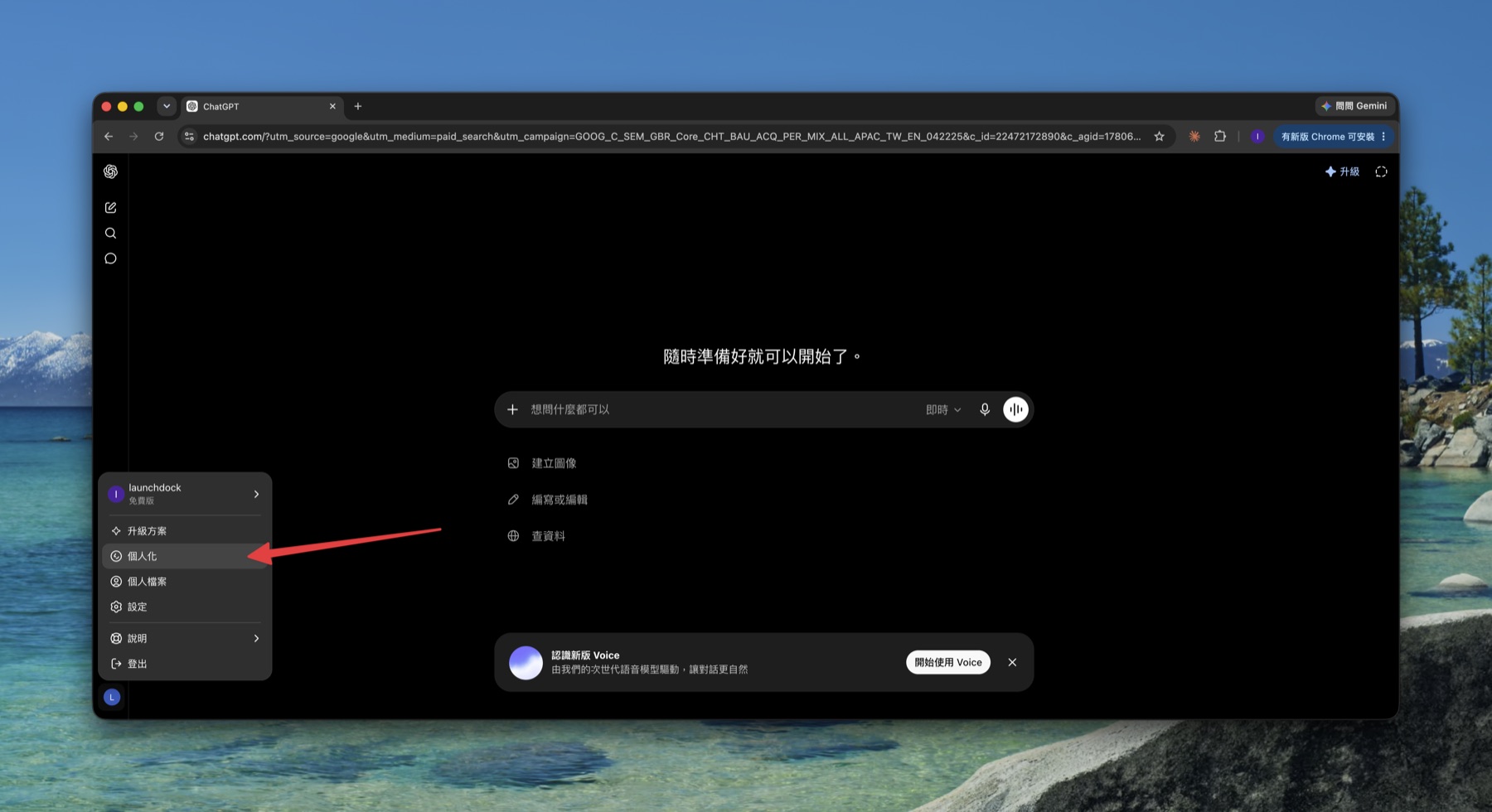
- Scroll down the personalization panel to the Custom instructions field (described as preferences for behavior, style, and tone) and type in your standing instructions.
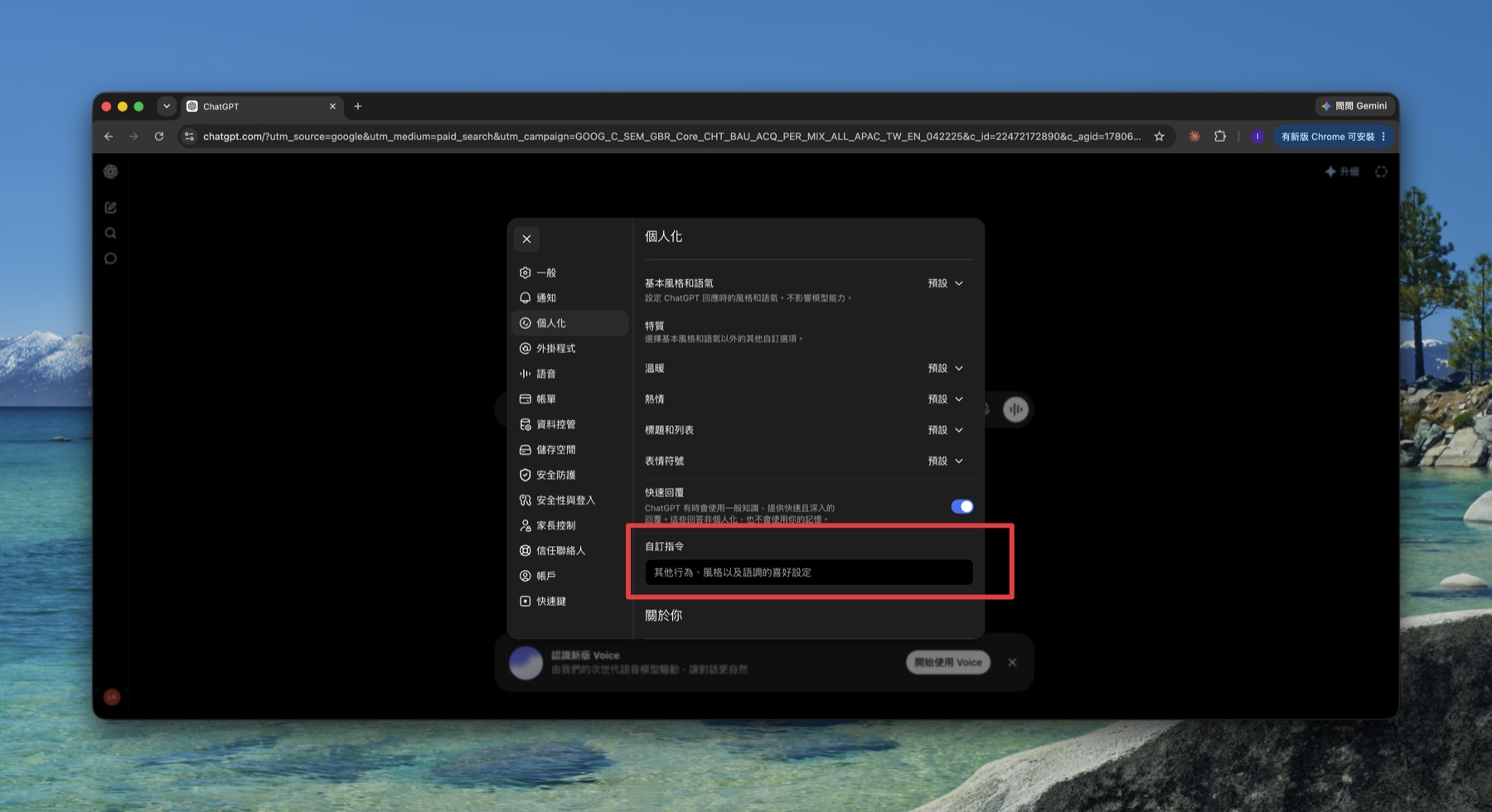
It takes effect immediately and is applied to every new chat. The free plan supports it too.
Claude: Settings → Instructions for Claude
- Click your avatar in the bottom-left → Settings → stay on the General tab.
- Below Profile, find Instructions for Claude (the note says it applies across chats and Cowork) and fill it in.
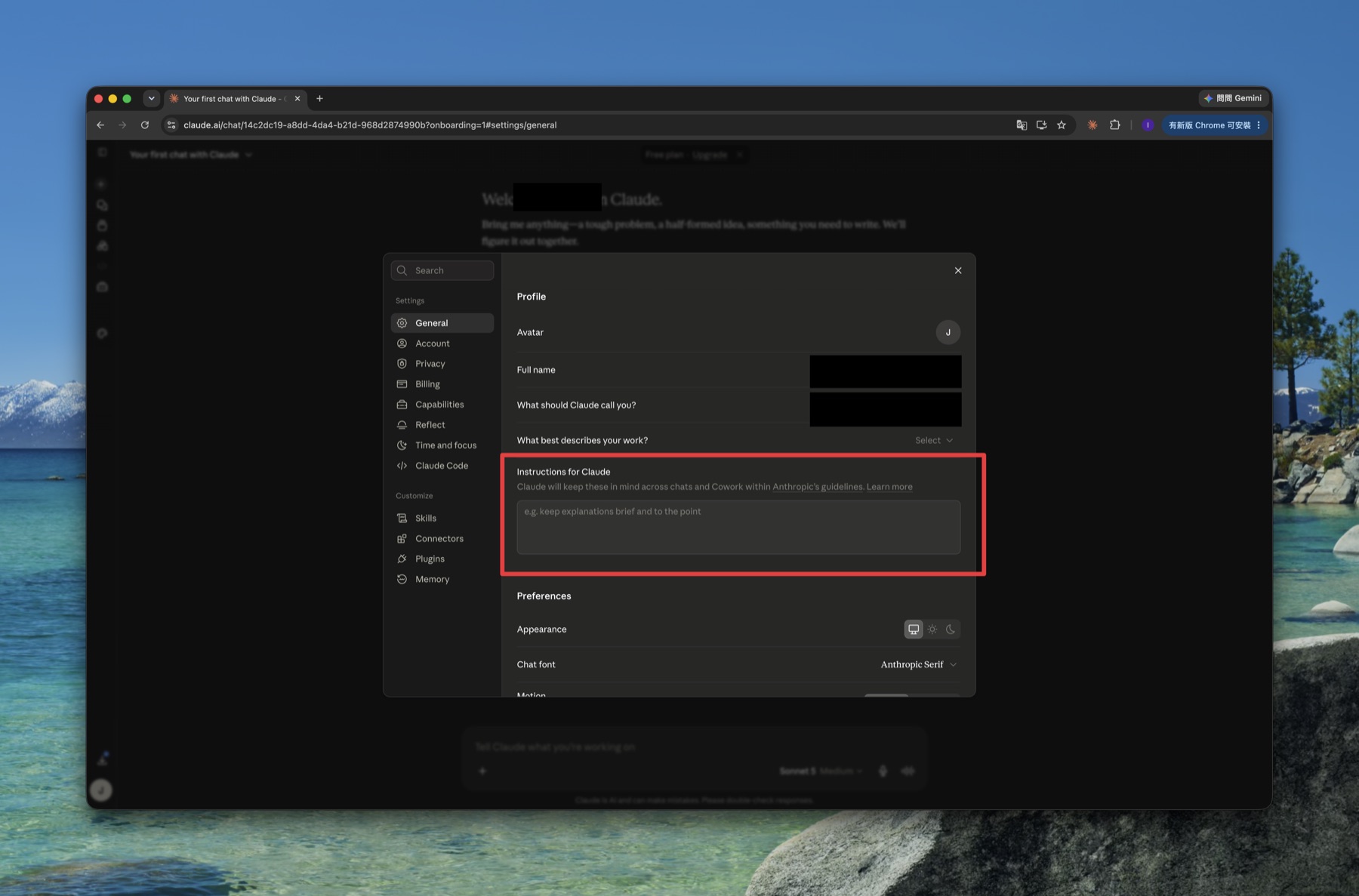
Claude’s interface is in English, but you can absolutely write the instructions in Chinese (or any language you use).
Gemini: Personalization → Saved instructions
Gemini buries the entry a little deeper — three steps:
- Click the gear (Settings) in the bottom-left, then choose Personalization.
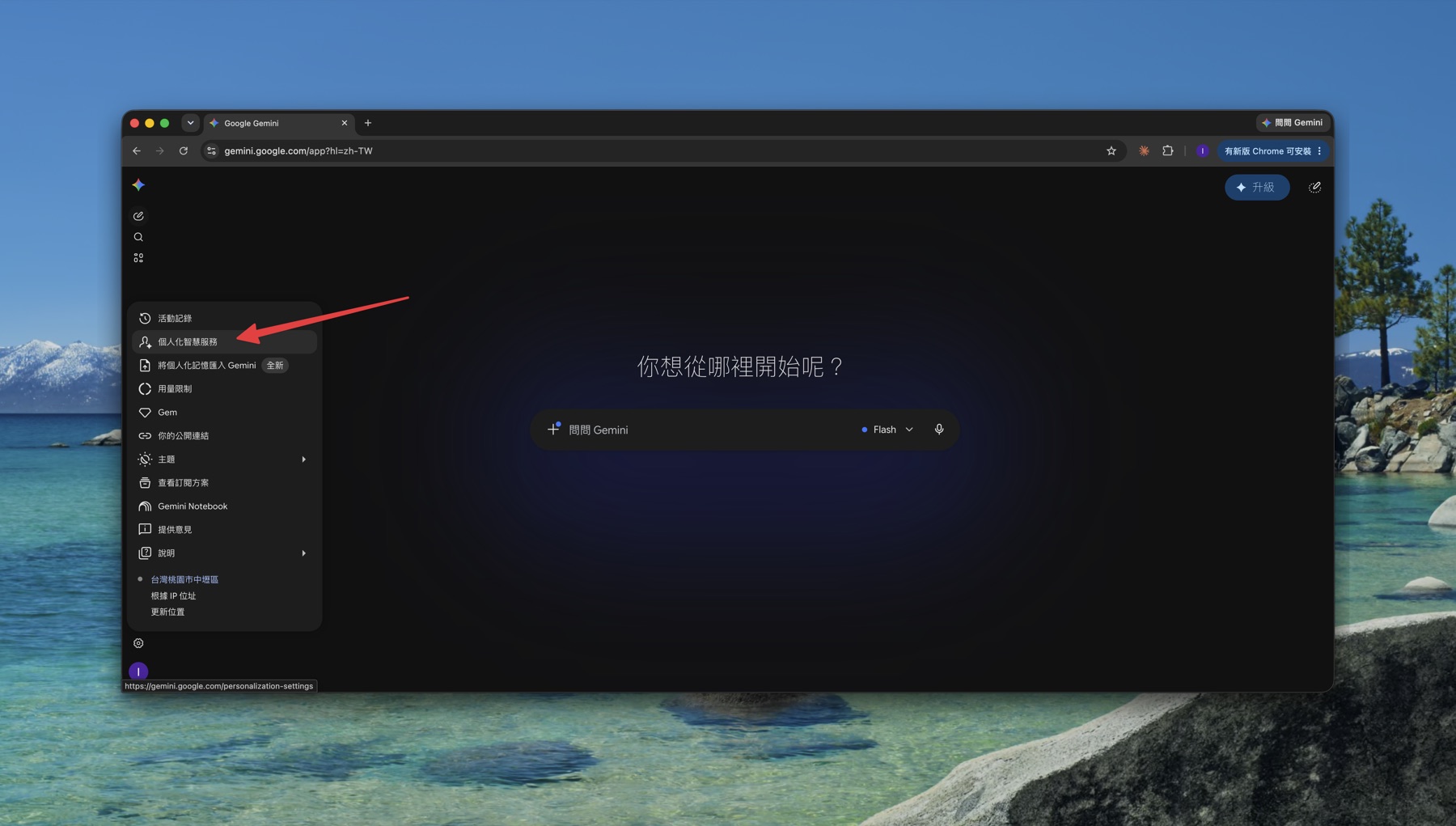
- At the bottom of the page, open Saved instructions for Gemini.
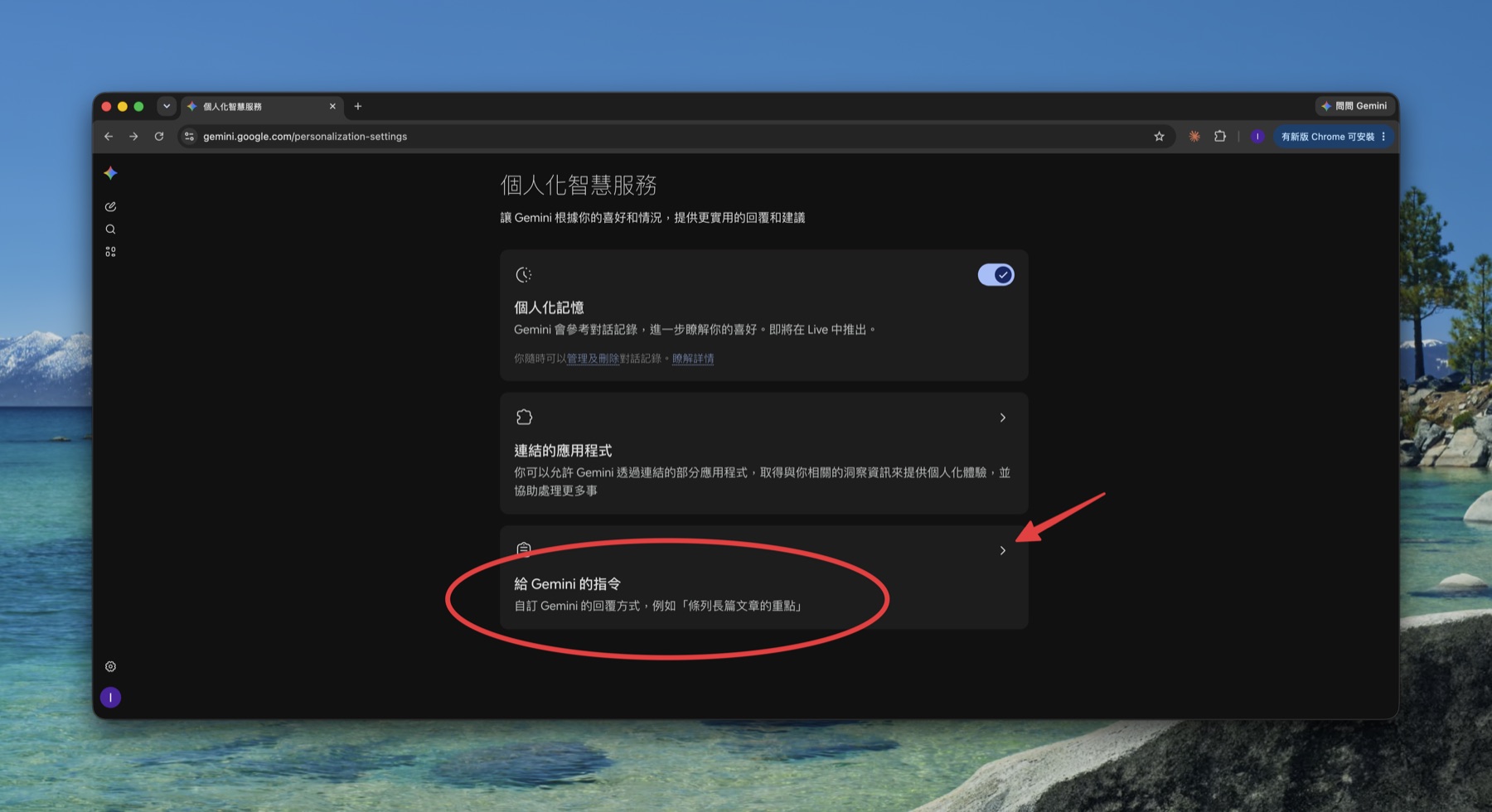
- Click Add, type your instruction into the “What would you like Gemini to remember?” box, and submit.
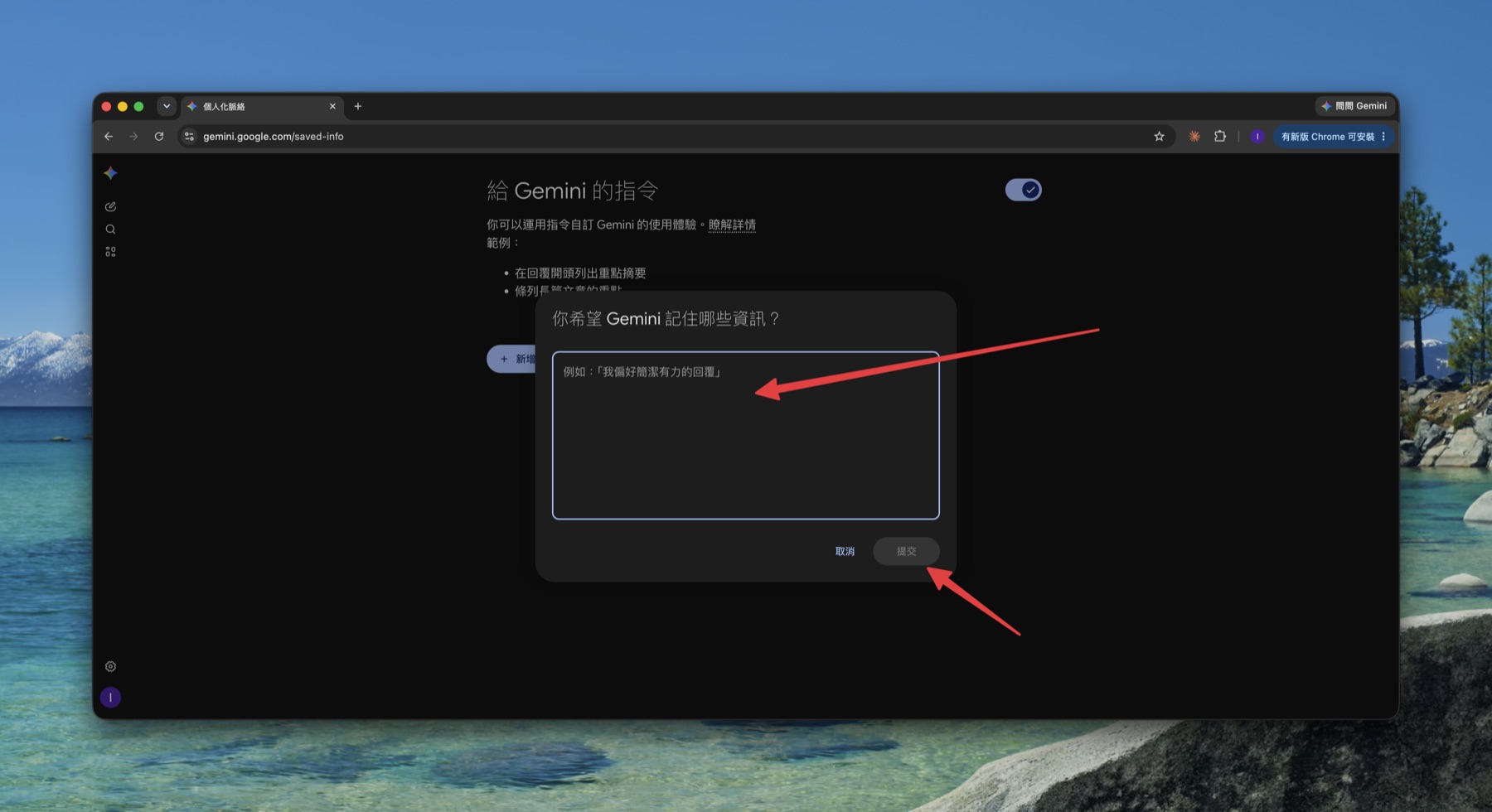
🐤 Don’t confuse this with a Gem: a Gem is a mini-assistant packaged for one specific task (like a GPT) that you open individually; “saved instructions for Gemini” here applies globally to all chats. Start with the global one.
Grok: Settings → Customize
- Click your avatar in the bottom-left → Settings.
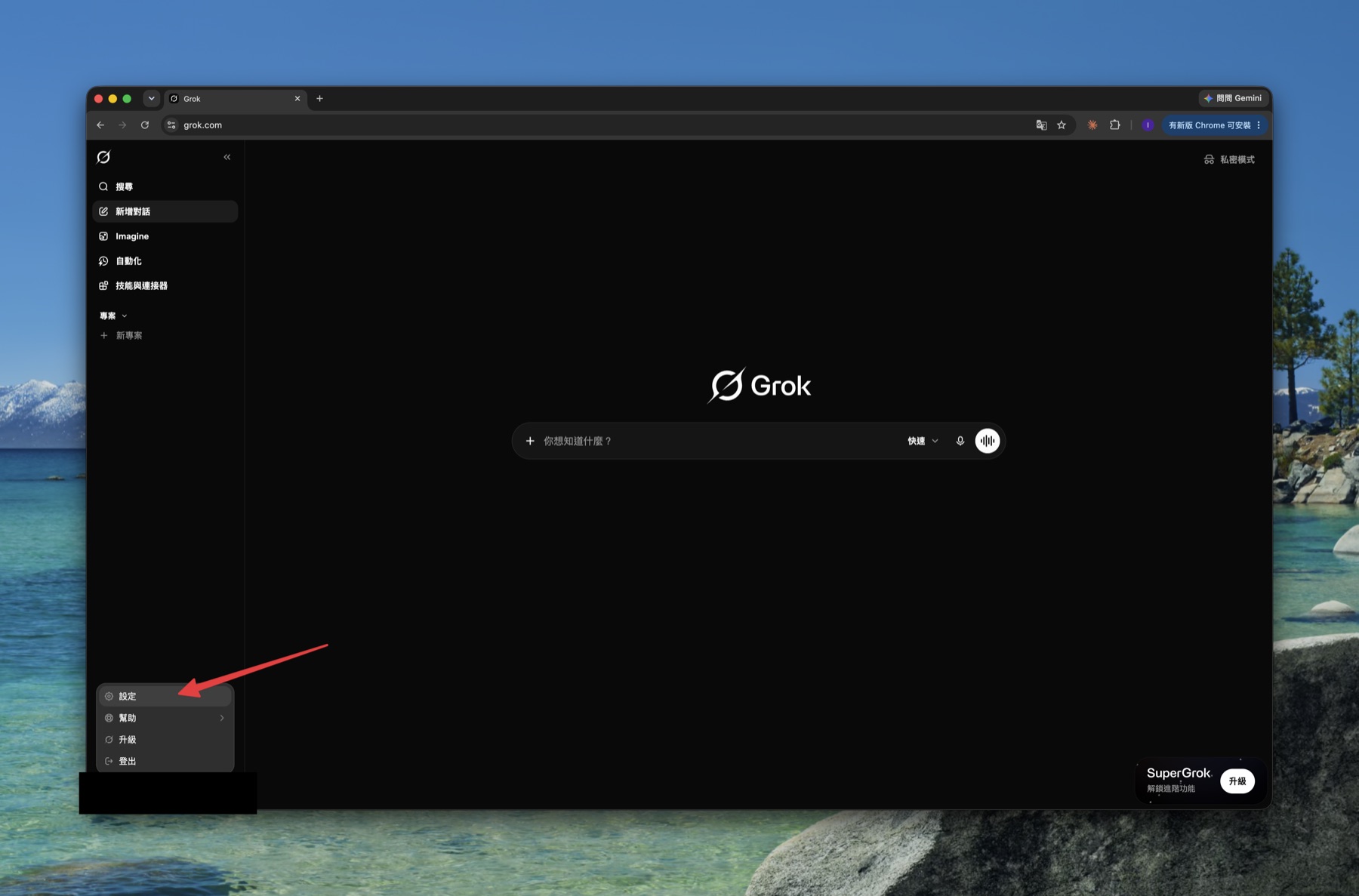
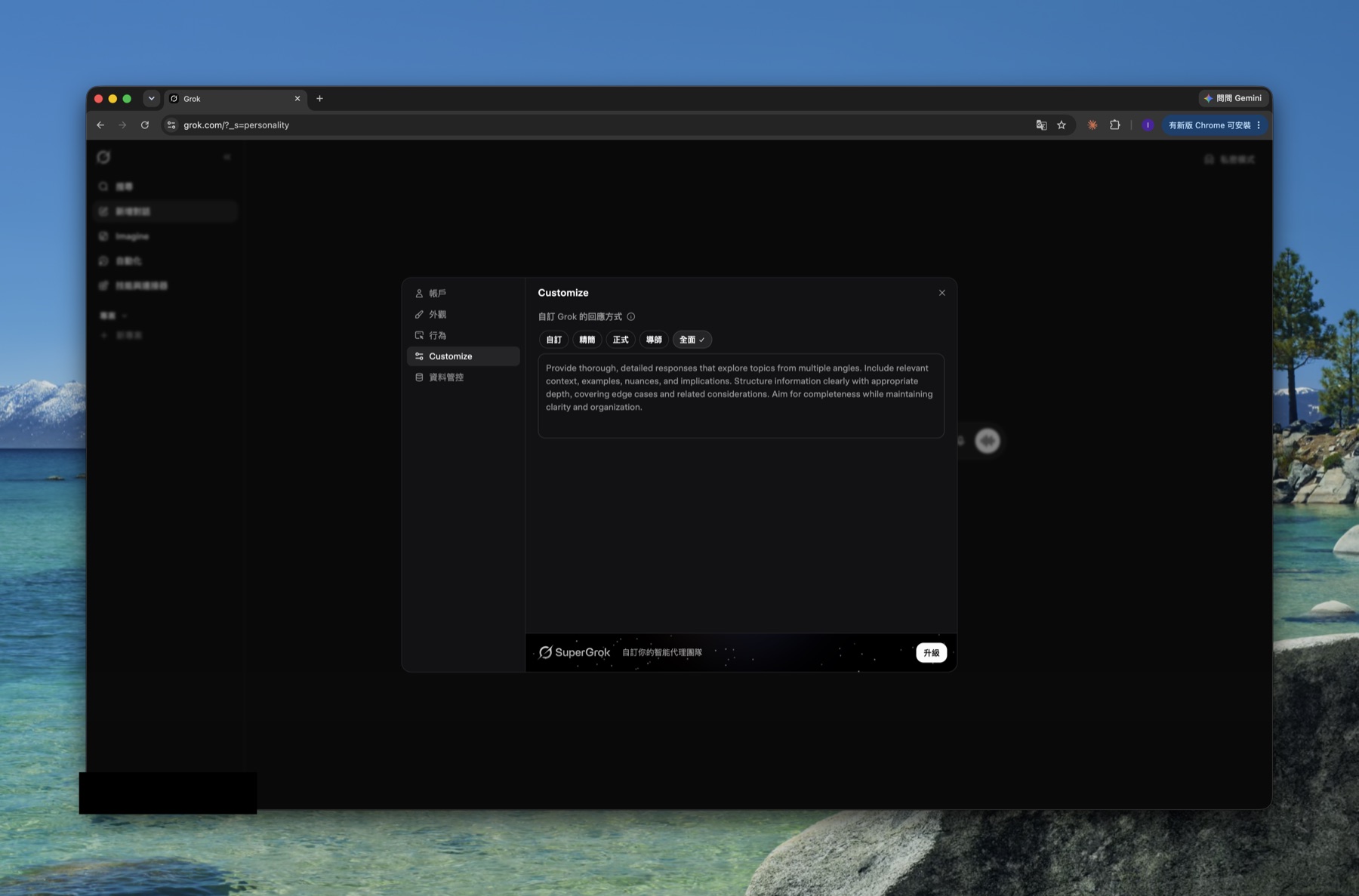
- Switch to Customize on the left. Grok offers a few ready-made presets here: custom, concise, formal, mentor, comprehensive.
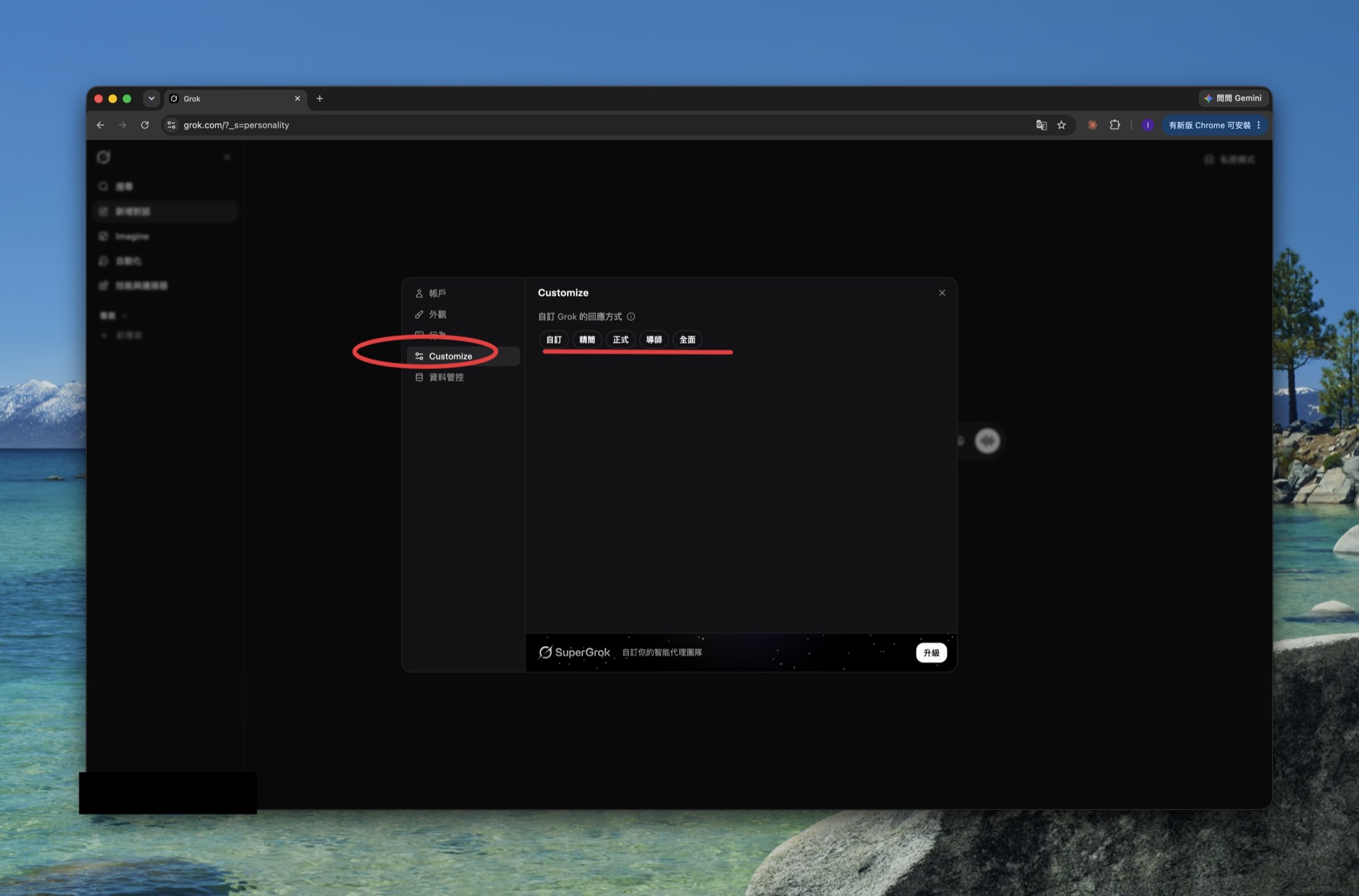
- To write your own, stay on the Custom tab and type it in; if you’d rather not, just pick a preset (e.g. “Comprehensive” makes it answer more thoroughly, from multiple angles). Pick one or the other.
So what should you actually write? Start with this template
A system prompt doesn’t need to be poetic. Just write down “the few things you keep re-explaining to the AI.” Here’s a starter template for complete beginners — copy it and replace each ___ with your own:
[About me]
- I'm ___ (your role/job), and I mostly use AI to ___ (what you do most).
- Always reply in Traditional Chinese (Taiwan usage).

[How to answer]
- Conclusion first, then the reasoning; use bullet points, no rambling.
- Plain language, few jargon terms; if you must use one, explain it in a sentence.
- If you're unsure, say "not sure" — don't make things up.

[Tone]
- Like a friend who gets to the point, no polite filler intros or outros.
All four fields accept this. After setting it, open a new chat and ask one thing — feel the difference. That’s the “set once, understood ever after” moment.
To push answer quality even higher (roles, examples, step-by-step reasoning), read Prompt Engineering next.
🚨 Common mistakes
- Putting a one-off task in it: a system prompt holds preferences that are always true (language, tone, who you are). A one-off like “rewrite this email” belongs in the chat, not the standing setting.
- Writing an essay: too long dilutes the point. Start with 5–8 lines, add more only when you notice something missing.
- Storing secrets: this setting lives on that AI provider’s servers. Never put passwords, API keys, ID numbers, or confidential company info in it.
- Thinking each app is a fresh lesson: the four names differ (Custom instructions / Instructions for Claude / Saved instructions / Customize), but it’s the same thing. Recognize “this is the standing-instruction field” and you’ll find it in any tool.
This is just step one
Setting a system prompt is level ① of personalizing your AI. Above it: saving common instructions as templates (custom instructions, Projects, GPTs), letting AI run automations, and finally raising an AI Agent that works for you — where OpenClaw uses Soul to give the AI a persona with memory and growth, essentially the evolved form of a system prompt.
For now, get your first system prompt set. Everything else builds on it.
這篇文章對你有幫助嗎?
💬 問答區
卡關了?直接在這裡問,其他讀者和作者都能幫忙解答。
載入中...
Found this useful? Share it with a friend who’s also getting their hands dirty
Share on LINE