Get an Ollama Cloud API Key: Open Models as a Backup Provider
Ollama isn't only for running models locally — it also offers cloud models and API keys. This shows you how to sign up for Ollama and create a cloud API key under Settings, so you can use Ollama as another LLM provider in Make, n8n, or code — a fallback for when your primary provider is down or rate-limited.
 卡住很正常——點段落旁的 😵 卡關 讓我們知道,或直接往下滾到問答區發問。
也可以用 👍 看懂 / 😢 看不懂 告訴我們哪裡寫得好、哪裡要改。
卡住很正常——點段落旁的 😵 卡關 讓我們知道,或直接往下滾到問答區發問。
也可以用 👍 看懂 / 😢 看不懂 告訴我們哪裡寫得好、哪裡要改。
In one line: Go to ollama.com, sign in with Google (phone verification possible), go to Settings → Keys, click Add API Key, name it, generate, and store this cloud API key safely — then you can use Ollama as another LLM provider in automation tools or code.
Keywords: Ollama, cloud API key, open models, backup provider, Settings, Keys, Device Keys
Wait, isn’t Ollama local?
Right — many people know Ollama as the tool for “running open models on your own computer” (see “Run OpenClaw with Ollama on Mac”). But Ollama now also has a cloud service: you can use its cloud models and get a cloud API key so external tools can call it over the network.
Why this key? Because in an automation flow, another LLM provider is another life. When your primary (say, OpenRouter) gets rate-limited or goes down someday, you can have the flow fall back to Ollama automatically instead of stalling entirely.
Step 1: Open the Ollama site
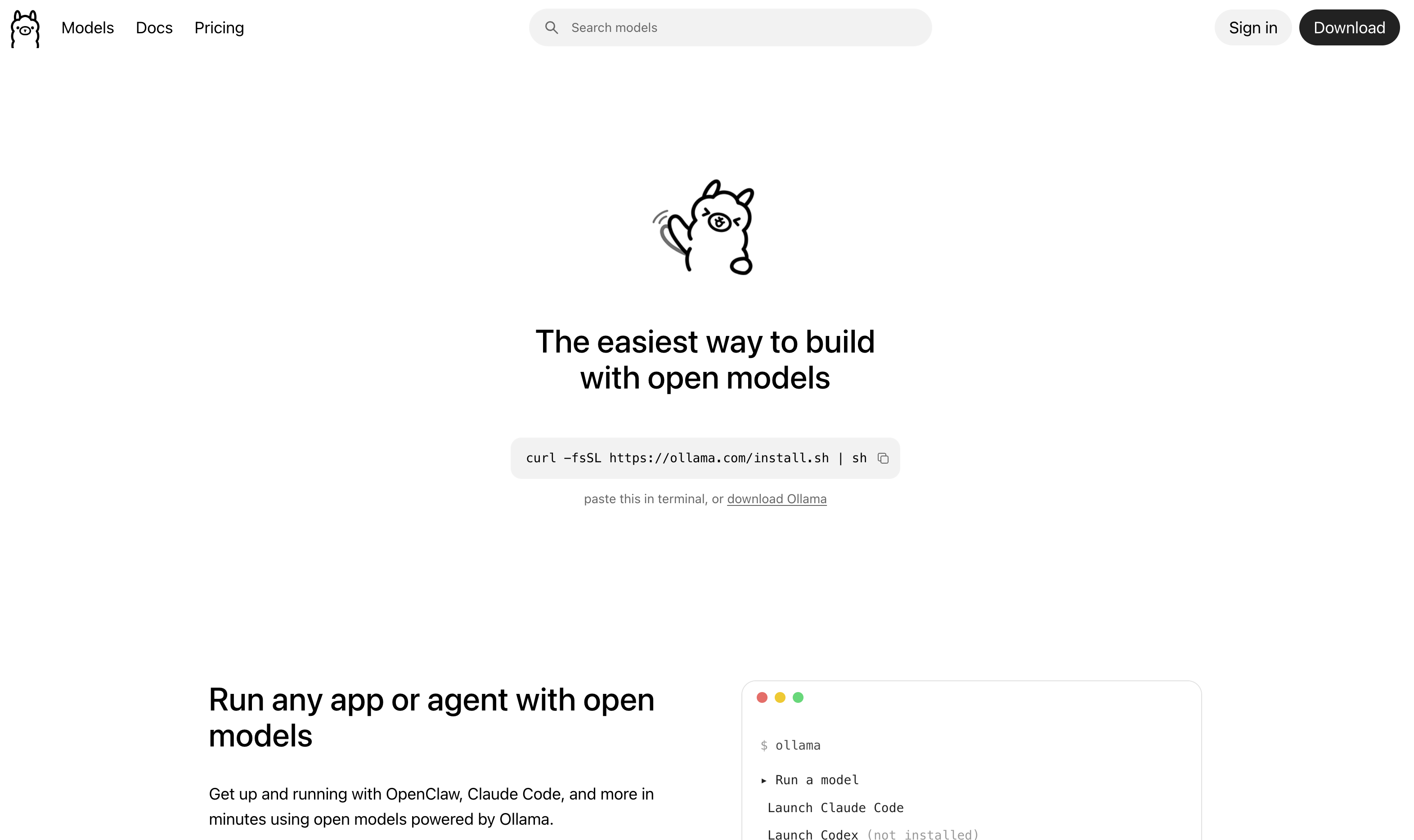
Open ollama.com. The homepage highlights “one-line install, build with open models,” with Sign in and Download top-right. We want to log in for a key — click Sign in.
Step 2: Log in
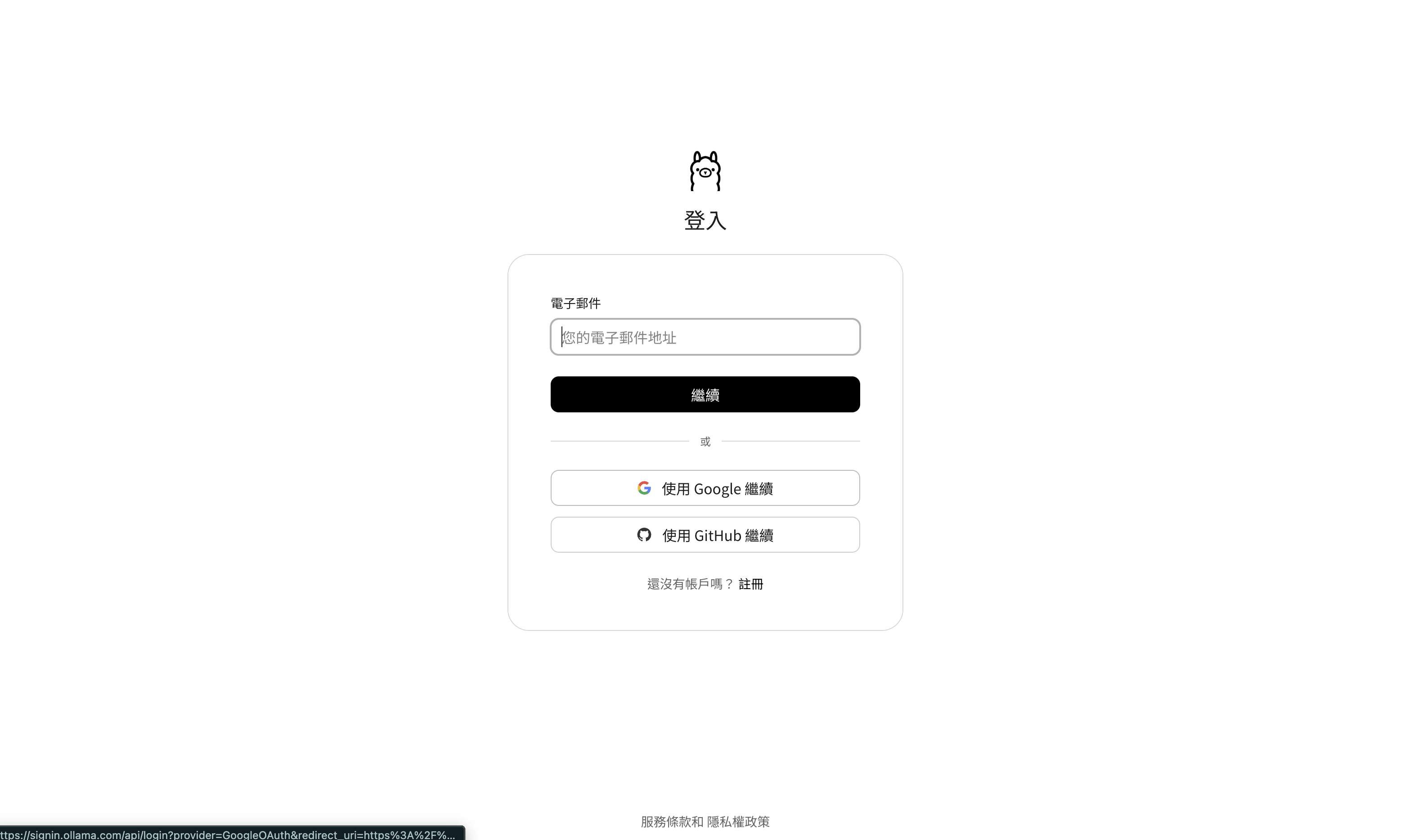
The login page offers Email, Continue with Google, Continue with GitHub. Google is fastest.
🚨 It wants phone verification?
On first sign-up, Ollama may ask for a one-time phone verification (enter number, get an SMS code). That’s a normal anti-bot step — verify once. For Taiwan numbers, choose +886.
Step 3: Go to Settings, find Keys
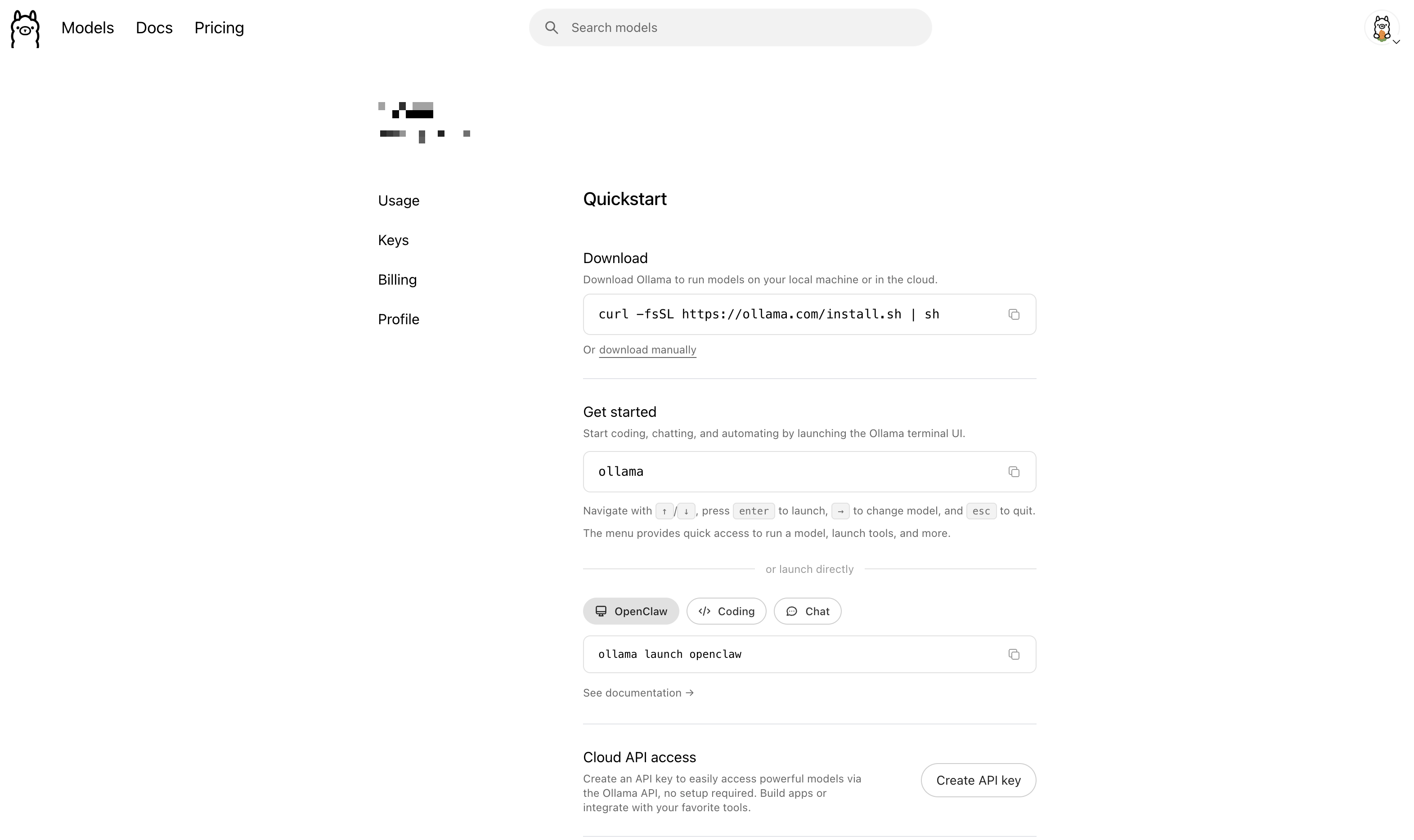
After logging in, go to Settings. You’ll see a Quickstart page with a left nav: Usage / Keys / Billing / Profile. The Cloud API access block at the bottom also has a Create API key entry.
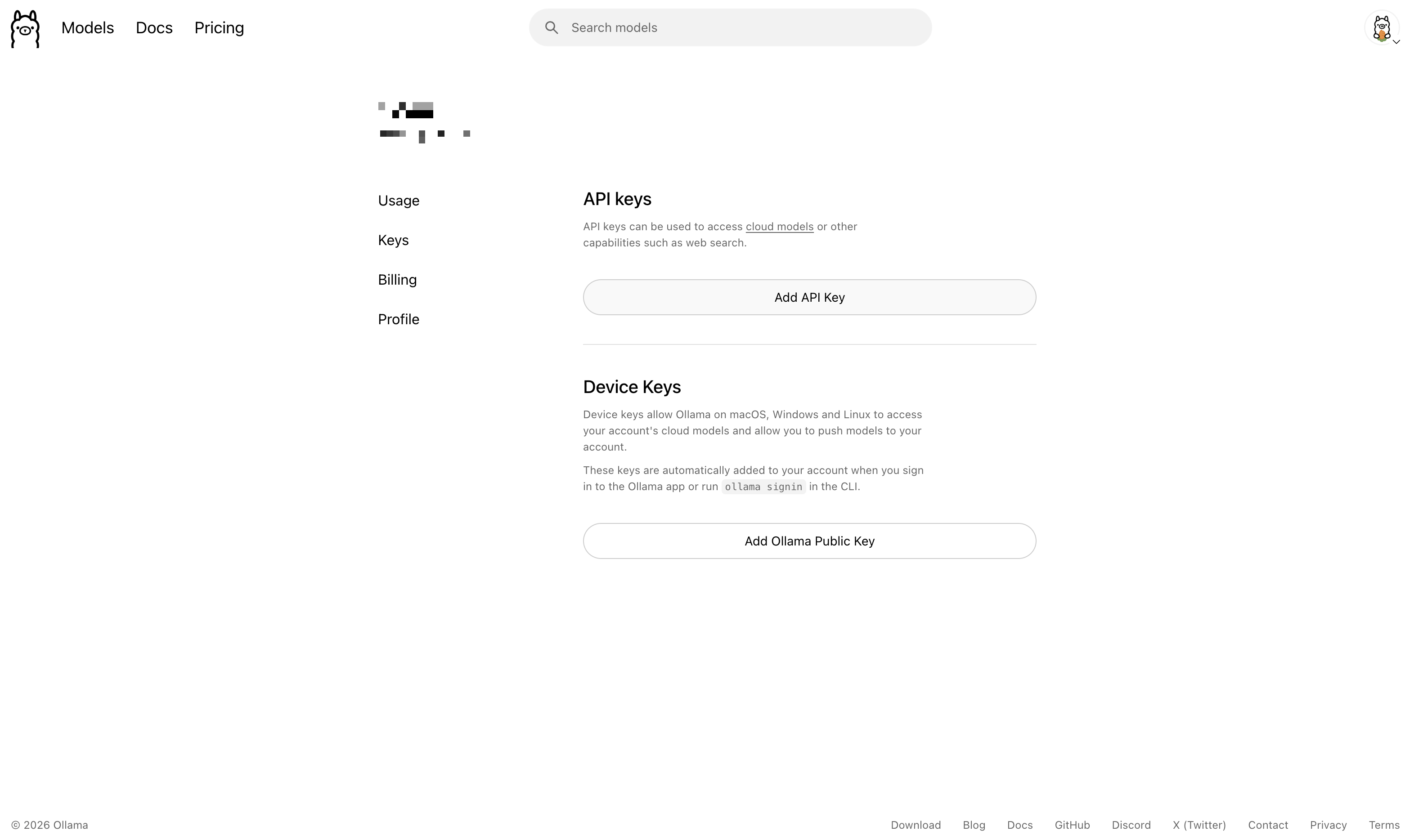
Click the Keys tab on the left. There are two things here — don’t confuse them:
- API keys: keys for external tools/programs to call cloud models (this is what we’re creating).
- Device Keys: automatically added when you install the Ollama app on Mac/Windows/Linux or run
ollama signin.
Step 4: Create an API key
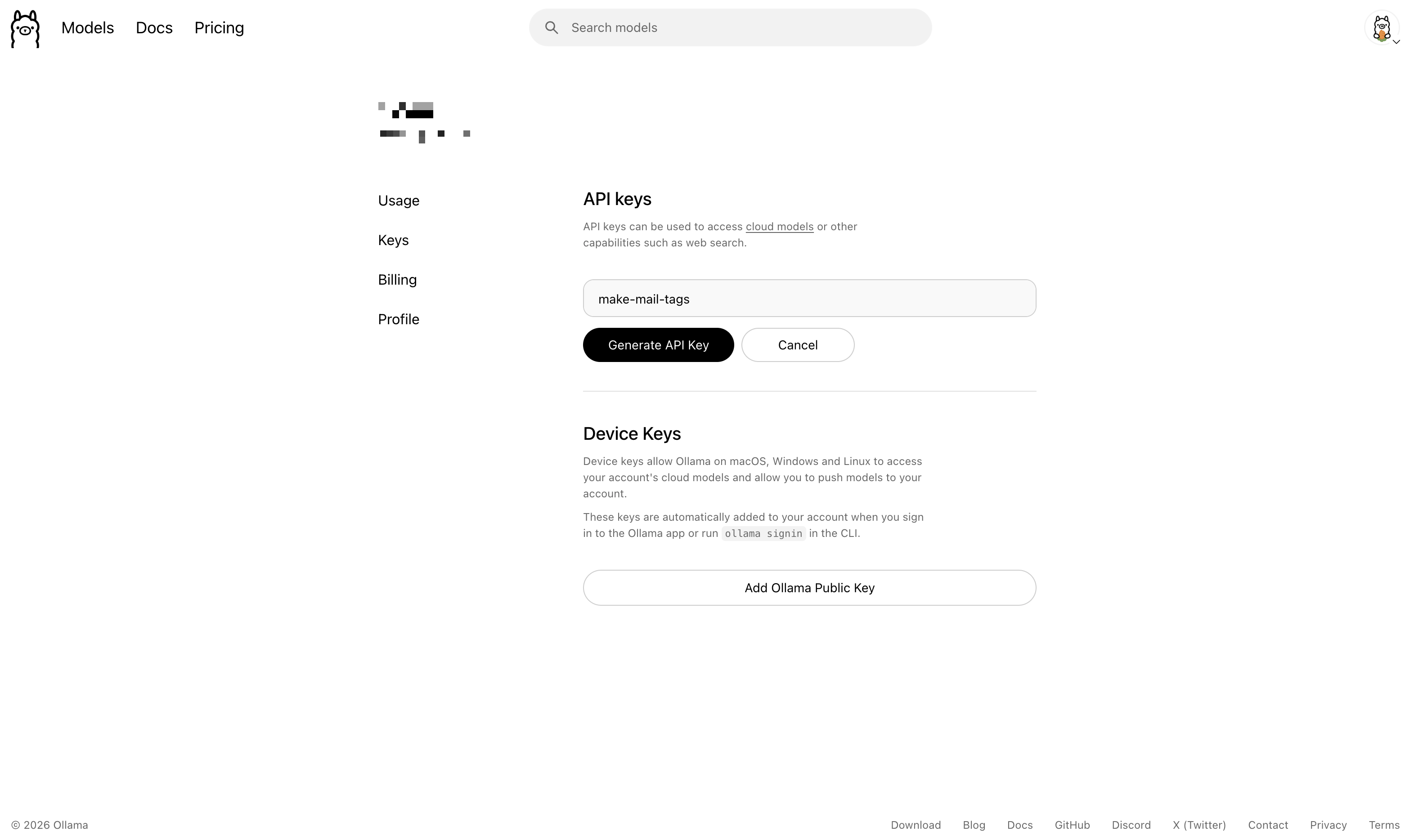
In the API keys section, click Add API Key, and a form appears:
- Give the key a recognizable label, e.g.,
make-mail-tags— the name is just for you to recognize which project it’s for. - Click Generate API Key.
Step 5: Copy the key (shown only once!)
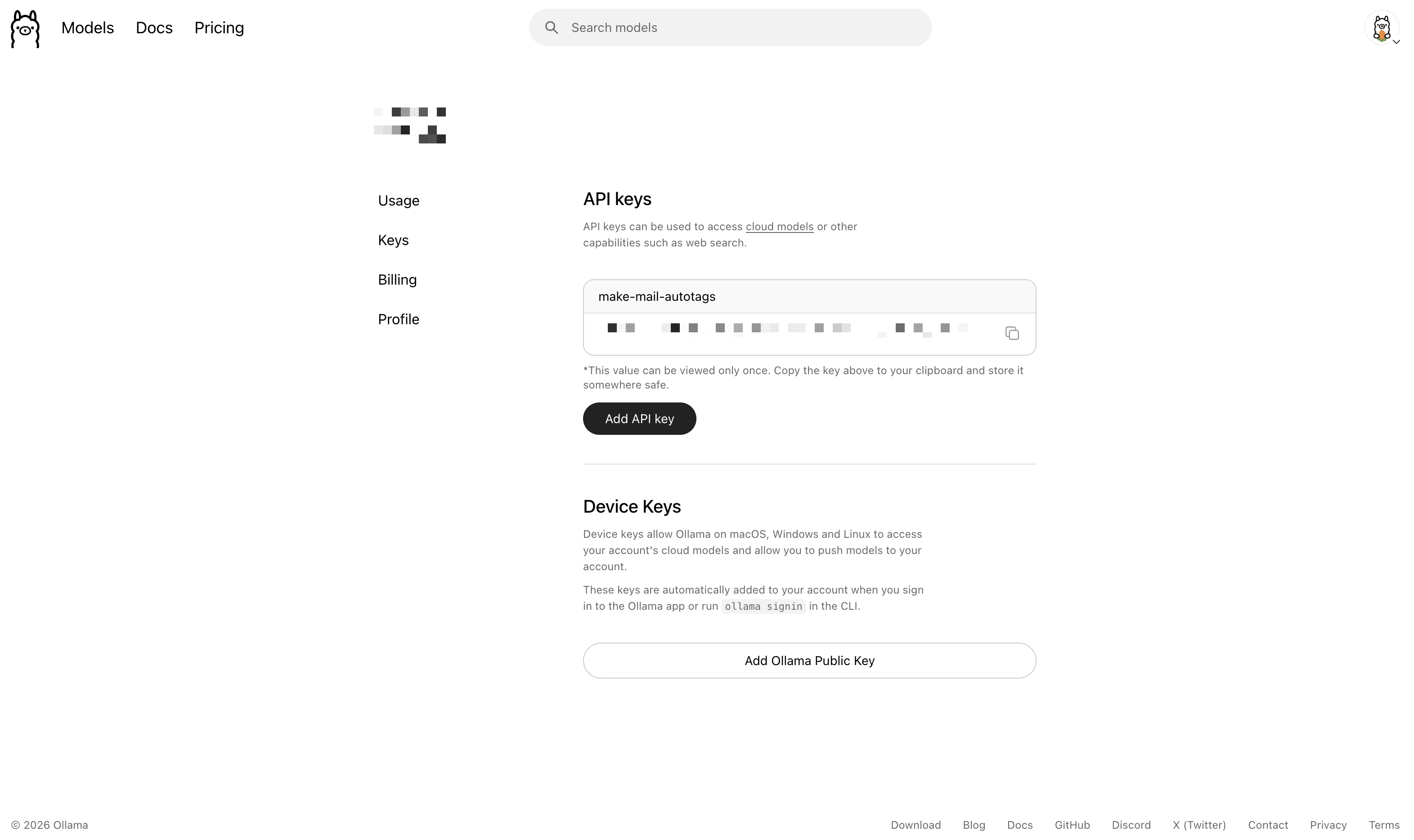
After generating, the screen shows the full key value and warns “This value can be viewed only once.”
So copy it right then and store it somewhere safe (a password manager or .env). Close it and you can never see it again.
🚨 The key name (label) is not the key itself
Note: the name you chose (like make-mail-tags) is not the key and not a secret — it’s just a label to help you recognize “what this one is for” later. The real secret is the long string that appears only after Generate, shown only once.
Done! How do you use this key?
You now have an Ollama cloud API key. You can:
- Put it into Make / n8n as another LLM provider (e.g., set Ollama as a fallback for OpenRouter in a Gmail auto-classification flow).
- Call Ollama’s cloud models from your own code.
Paired with OpenRouter (see “OpenRouter Sign-Up”), you’ll have keys from two different providers backing each other up — a big boost to automation reliability.
這篇文章對你有幫助嗎?
💬 問答區
卡關了?直接在這裡問,其他讀者和作者都能幫忙解答。
載入中...
Found this useful? Share it with a friend who’s also getting their hands dirty
Share on LINE