How to Join a Claude Team You've Been Invited To: From the Invite Email to Shared Projects
A coworker or boss says "I invited you to our Claude team." Now what? This screenshot walkthrough covers the member side: open the email and click Accept invite, check you're accepting with the right account, decide whether to keep your personal account, then see what the team gives you (organization skills, connectors, shared projects) and how to pin a shared project in your sidebar.
 卡住很正常——點段落旁的 😵 卡關 讓我們知道,或直接往下滾到問答區發問。
也可以用 👍 看懂 / 😢 看不懂 告訴我們哪裡寫得好、哪裡要改。
卡住很正常——點段落旁的 😵 卡關 讓我們知道,或直接往下滾到問答區發問。
也可以用 👍 看懂 / 😢 看不懂 告訴我們哪裡寫得好、哪裡要改。
In one line: Joining a Claude Team takes three things: open the email and click Accept invite, check that the email after “Accepting as” is the one you want, then decide whether to keep your personal account (if unsure, pick Keep both accounts). Once inside, projects your team shared with you live under Projects → Shared with you, and the pin icon at the top right puts one in your sidebar.
Keywords: join Claude Team, Claude team invite, Accept invite, Accepting as, Keep both accounts, Shared with you, shared projects, organization skills, connectors
Who is this for?
This is the member-side follow-up to How to Set Up a Claude Team Plan. That article is for the admin who creates the team (payment, invites, allowed domains). This one is for the person being invited: you don’t pay or configure domains, you just accept the invite and learn what’s available once you’re in.
If you’re the admin, here is the screen you see on the Members page after clicking Add member (the screenshot’s UI is in Chinese): enter the person’s email, pick a role and seat tier, and click Add 1 member. They’ll get an invite email.
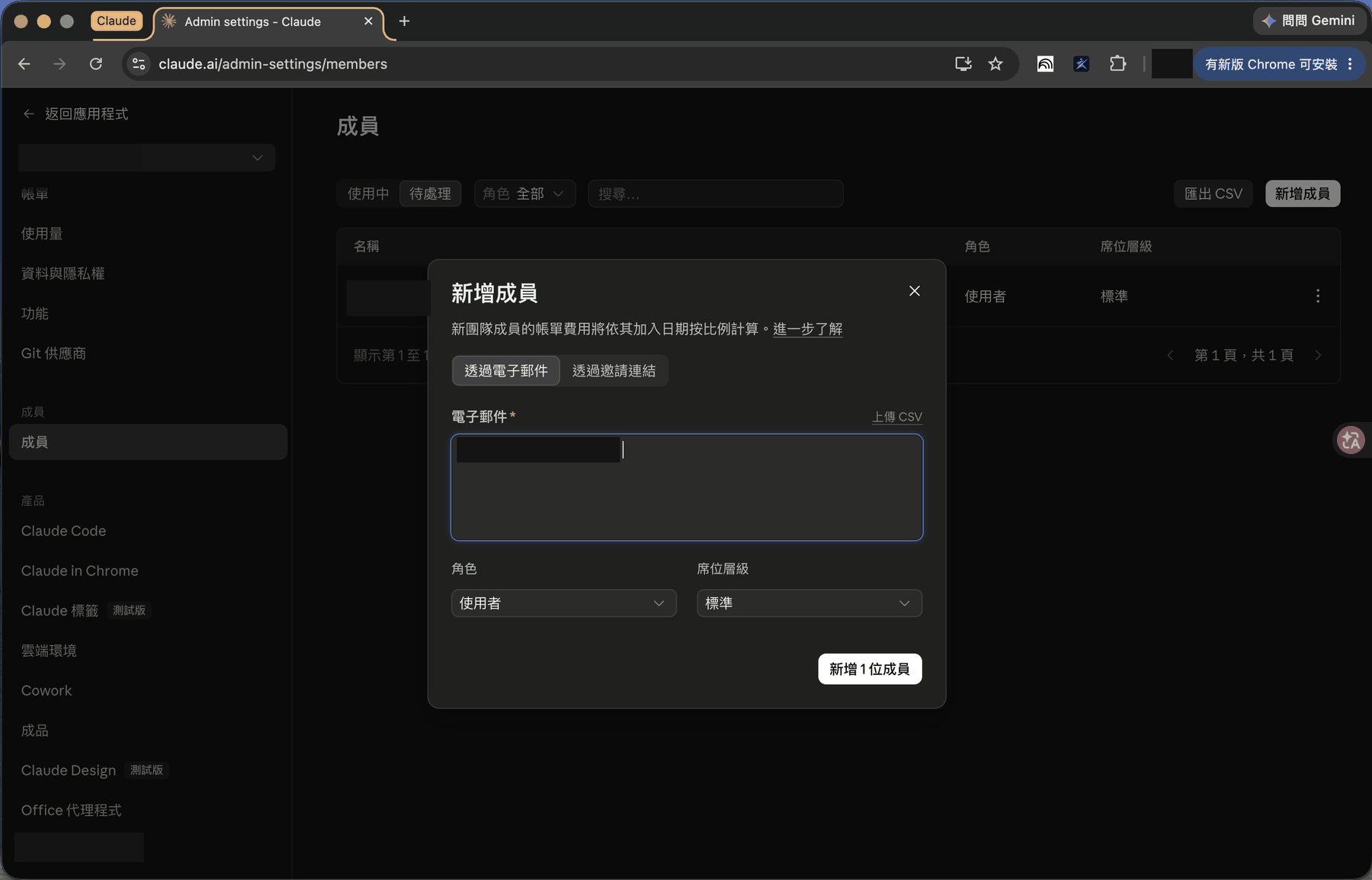
💡 The invite goes to the exact email the admin typed. If you want to join with Gmail, the admin has to invite your Gmail address, and
gmail.commust be on the team’s allowed domains (the admin article covers this).
Before you start
- Which inbox got the invite? Look there for an email titled something like You’re invited to join (team name) on Claude. Check spam if you don’t see it.
- Which Claude account is your browser signed into? The next step uses the account you’re currently signed in with, and signing in with the wrong one is the most common slip.
Step 1: Open the email and click “Accept invite”
The Accept invite button in the email takes you to a join page in your browser.
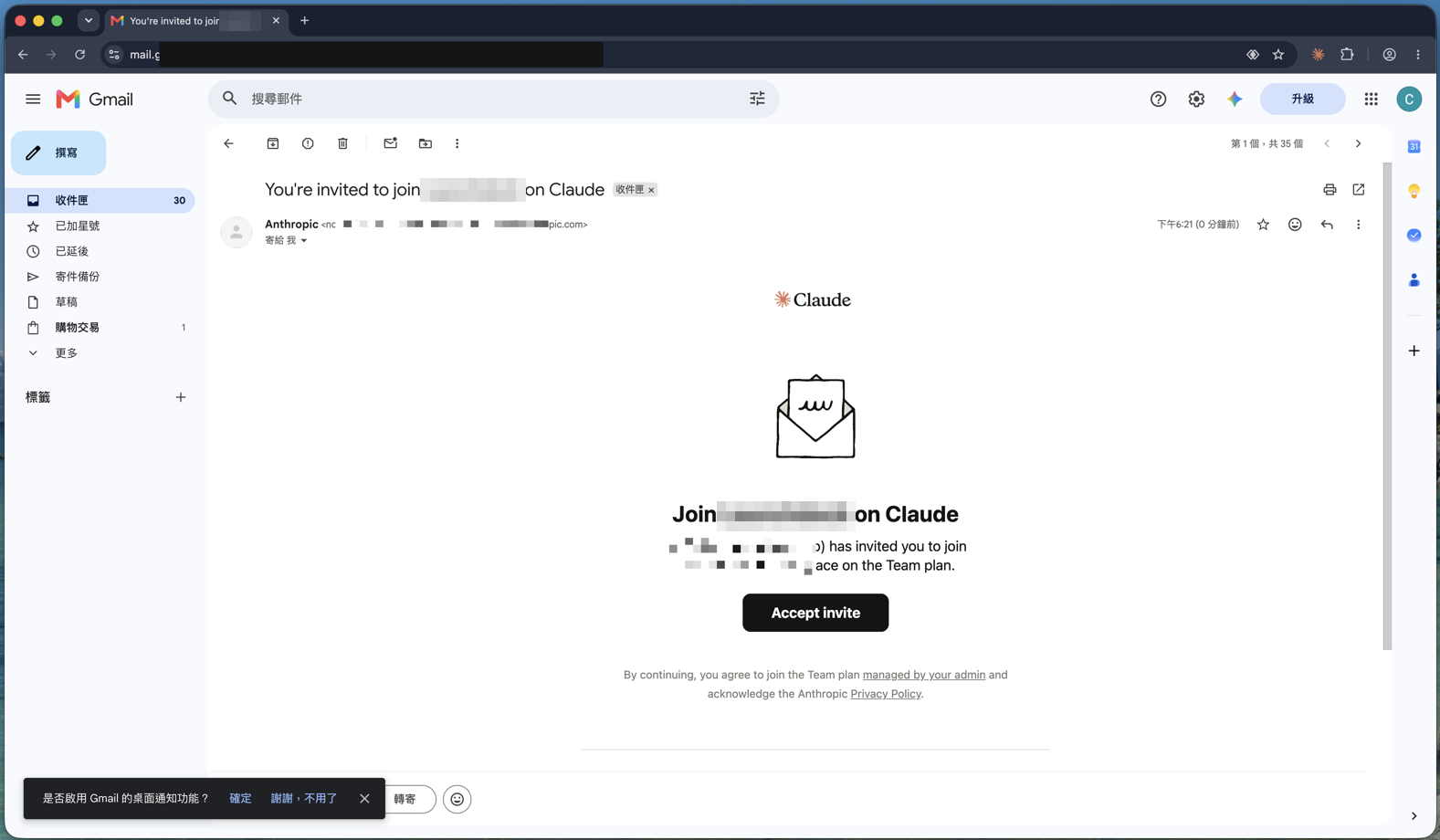
If you need to sign in or a verification code appears, see the sign-in step in How to Set Up a Claude Team Plan.
Step 2: Check “Accepting as”, then click Accept invite
The join page shows Join (team name), who invited you, and the email after “Accepting as”.
Before you click, make sure that email is the one you want. If it isn’t (say you want to join with your work email but your browser is signed into a personal one), sign out, switch to the right account, and click the link in the invite email again.
If it looks right, click Accept invite. If you don’t want to join, click Decline below it.
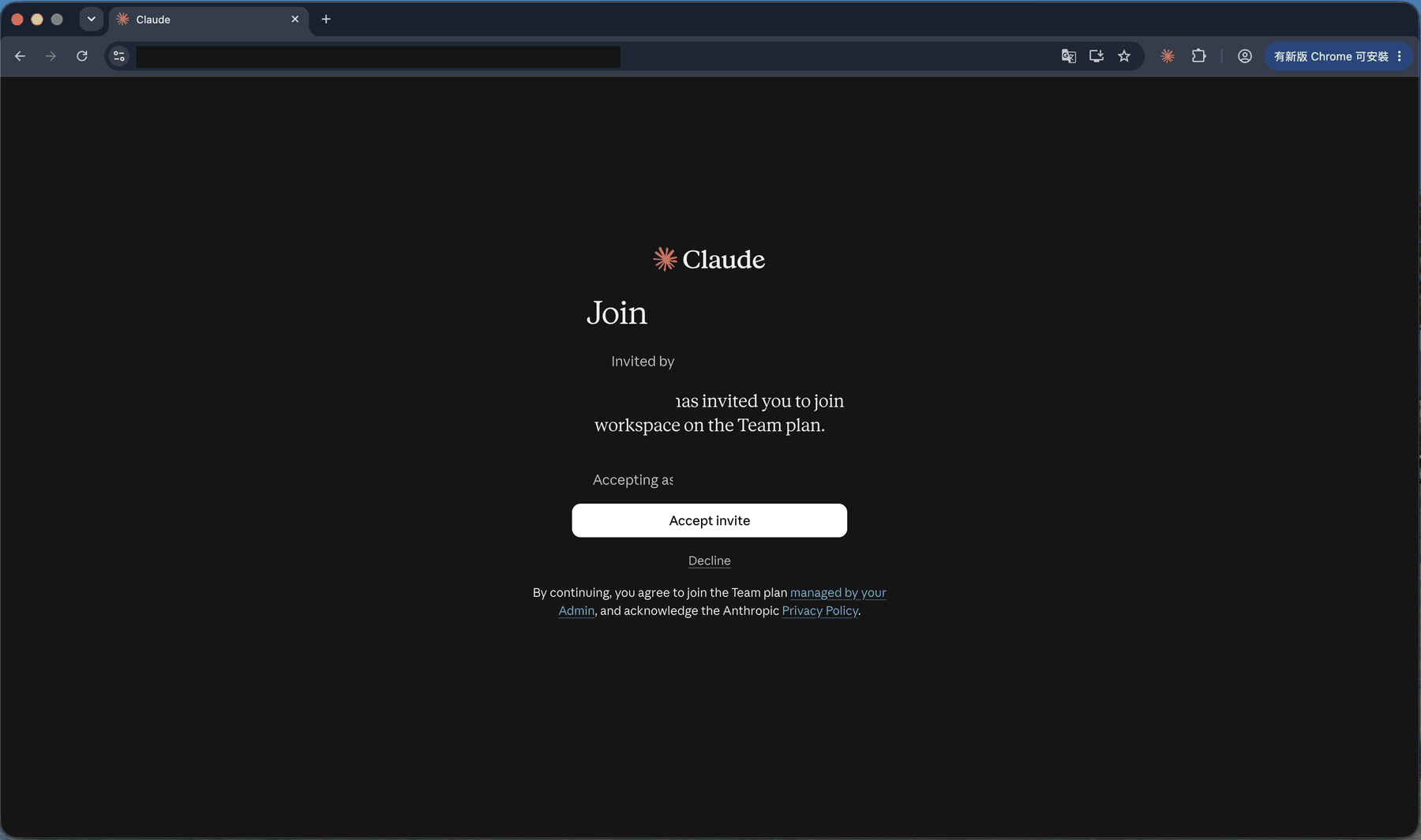
The fine print at the bottom is worth one read: continuing means you agree to join a Team plan managed by your Admin and acknowledge Anthropic’s Privacy Policy.
Step 3: Decide whether to keep your personal account
If you already have a personal Claude account (with the same email), a “You’ve joined (team name)!” dialog appears and asks you to choose:
- Keep both accounts: keep your personal and team accounts and switch between them anytime.
- Use (team name) only: your personal account closes. If you pay for a personal plan (Max in the screenshot), it is refunded, usually within about 24 hours, and you’ll then choose what happens to your chats and projects.
Pick one and click Continue.
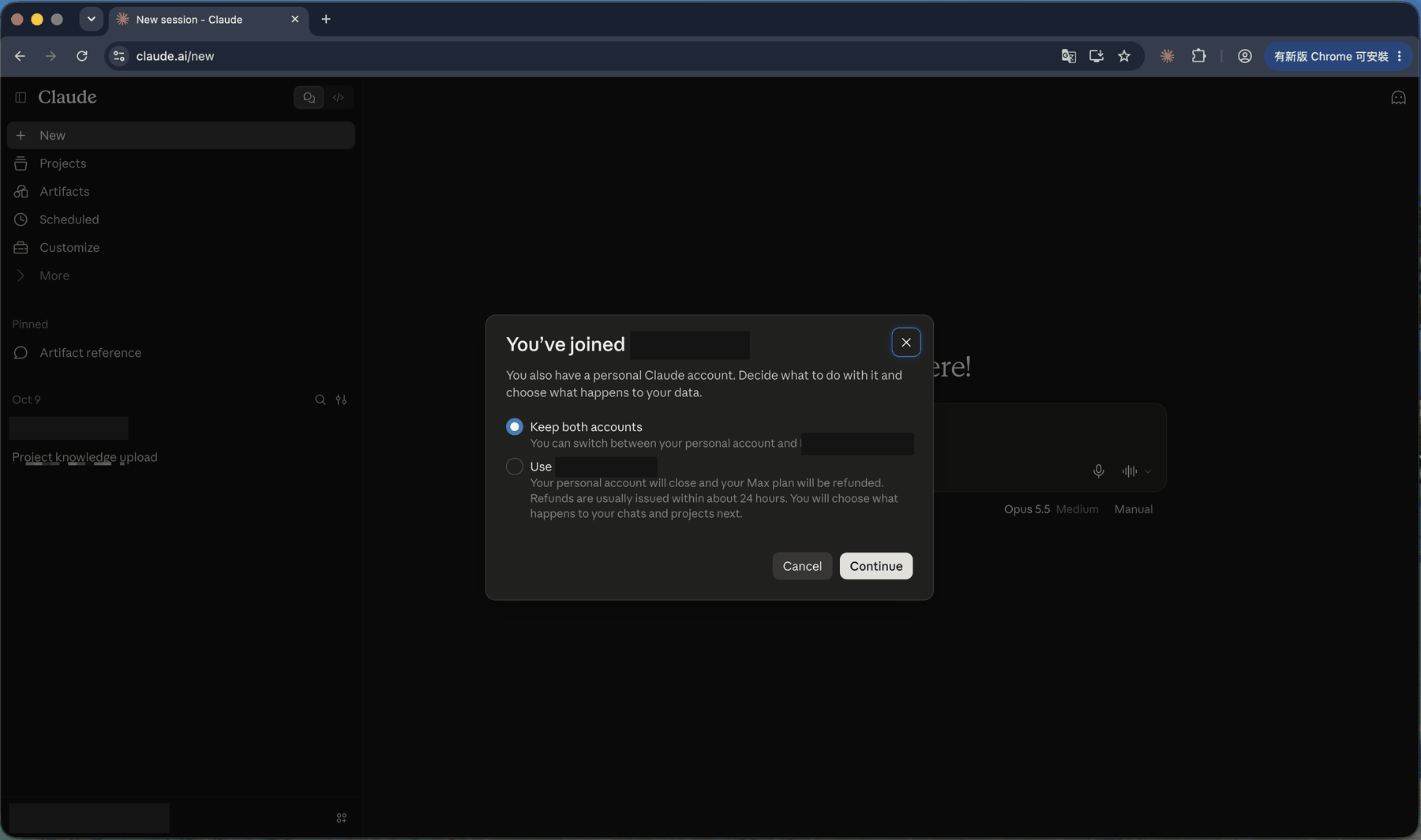
If you’re unsure, keep the default, Keep both accounts. It’s the safe choice: nothing gets closed, and you can change your mind later.
“Team only” makes sense when your personal subscription was only for work and the company now pays, so you don’t want to pay twice. But it closes your personal account, so check first that there’s nothing private in it you want to keep.
Step 4: “You’re here!” means you’re in
You land on the familiar Claude home page, now headed You’re here!, and a notice appears at the bottom right:
Your accounts will stay separate. Switch between them anytime.
Your personal and team accounts stay separate, and you can switch whenever you like, so chats don’t get mixed. The switcher is in the account area at the bottom left.
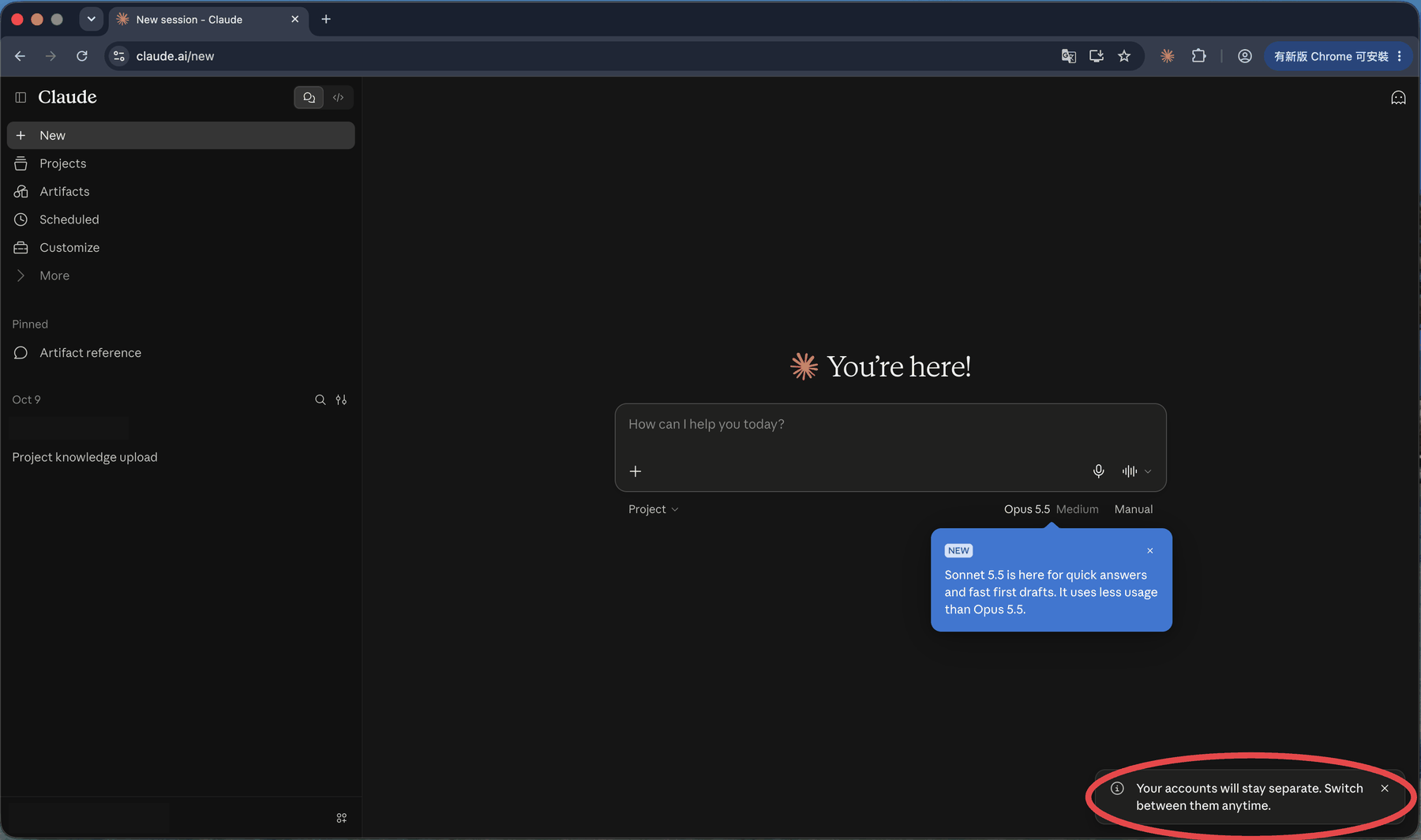
💡 If your old chats seem to have vanished after joining, relax. You’re probably in the team account. Switch back to personal and they’re there (as long as you chose Keep both accounts).
After joining: what does the team give you?
In the left sidebar, Customize and Projects are where the team’s value shows up.
Customize: skills and connectors
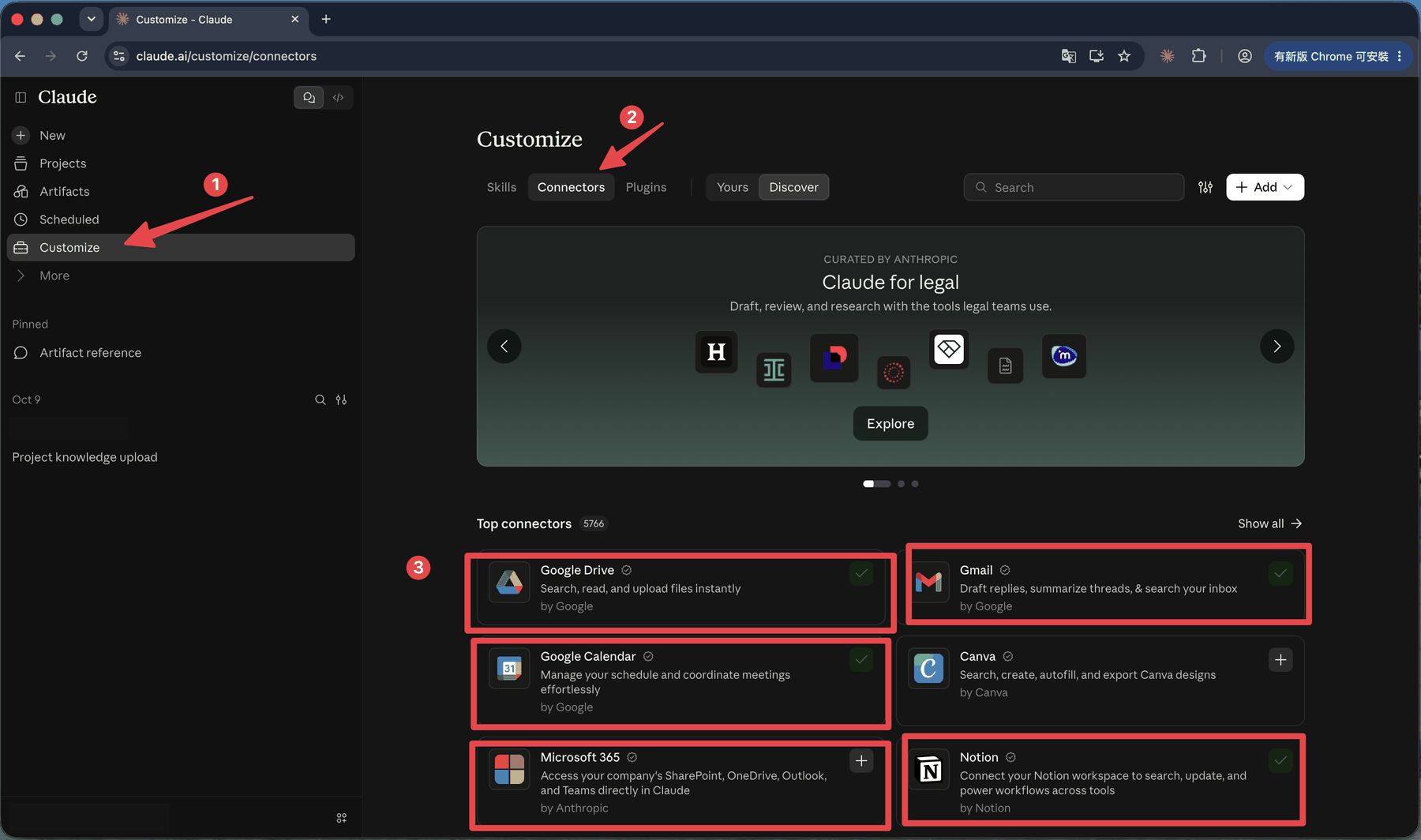
Click Customize and you’ll see three tabs: Skills, Connectors, Plugins.
Connectors let Claude reach services like Google Drive, Gmail, Google Calendar, Notion, and Microsoft 365. A check mark means connected; ”+” means not yet.
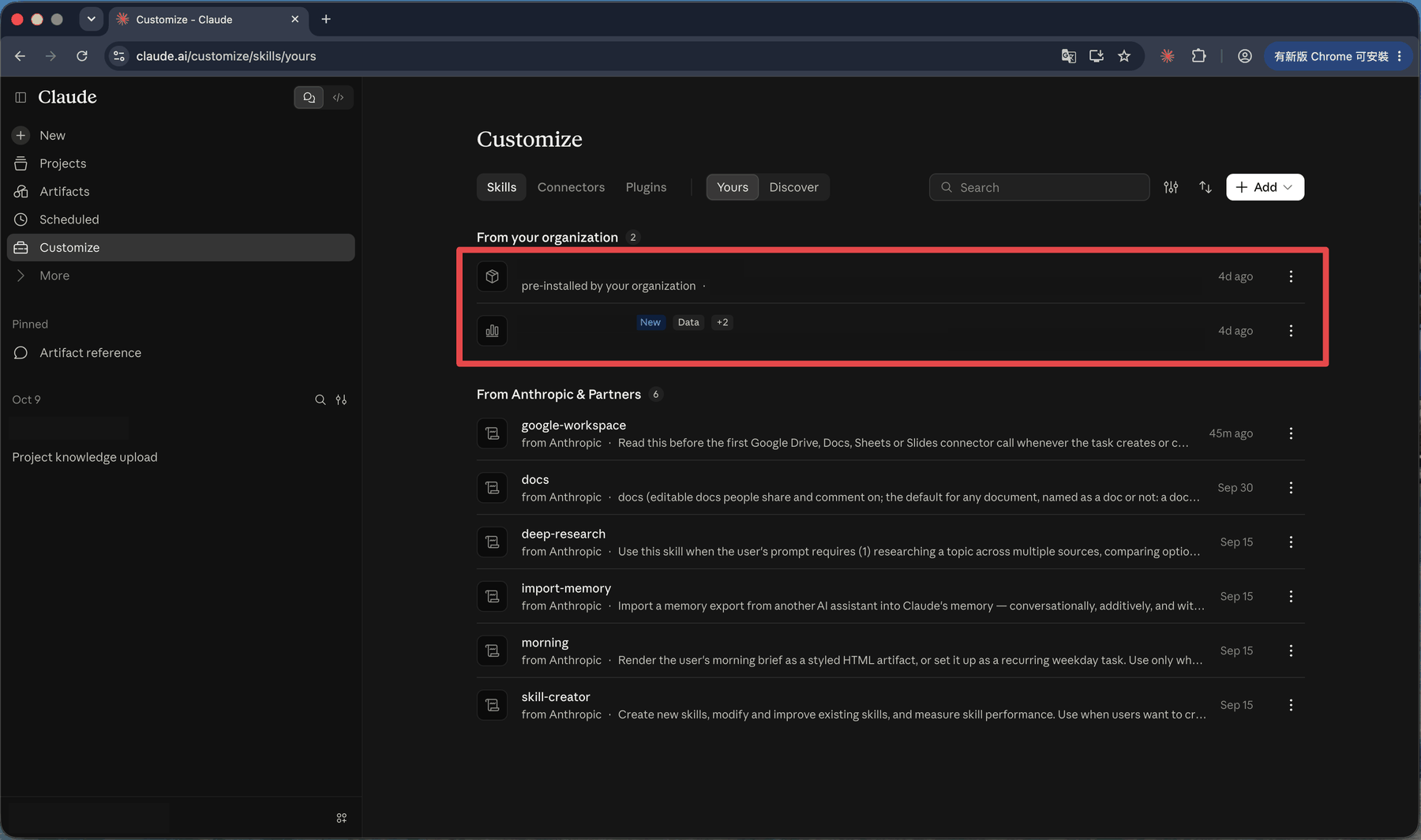
On the Skills tab, besides Anthropic’s own, you may see a From your organization section marked pre-installed by your organization. These are skills your admin installed for the whole team, ready to use without you finding or installing anything.
⚠️ Connectors let Claude read data in the services you connect (emails, Drive files). Before connecting, ask yourself: is this a work account or a personal one? Connect work content with your work account.
Projects: yours, the organization’s, and shared with you
Click Projects and you’ll see three tabs:
| Tab | What’s in it |
|---|---|
| Your projects | Projects you created |
| Organization | Projects shared across the whole organization |
| Shared with you | Projects a coworker shared with you directly |
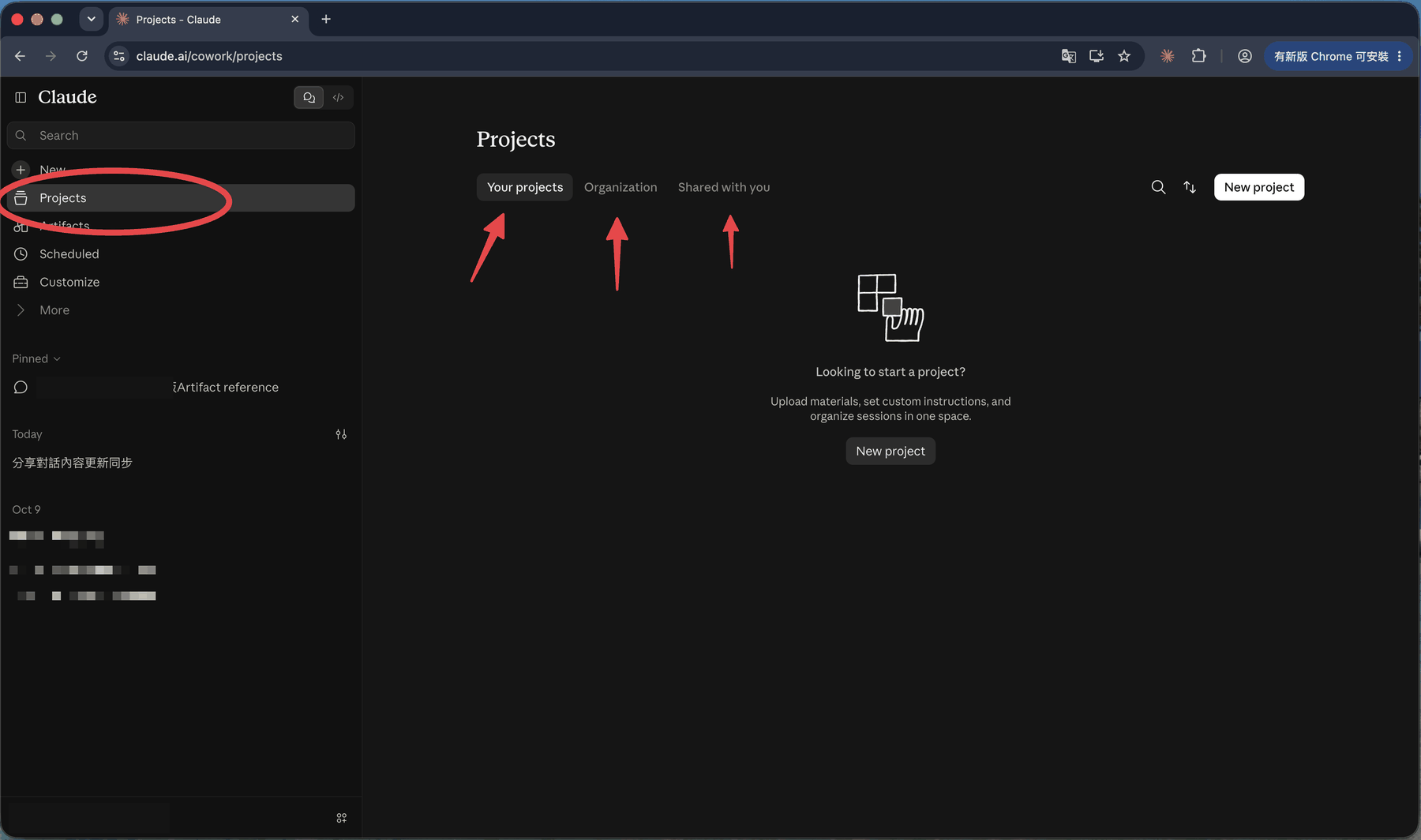
When a coworker shares a project with you, it shows up under Shared with you, with who created it and when.
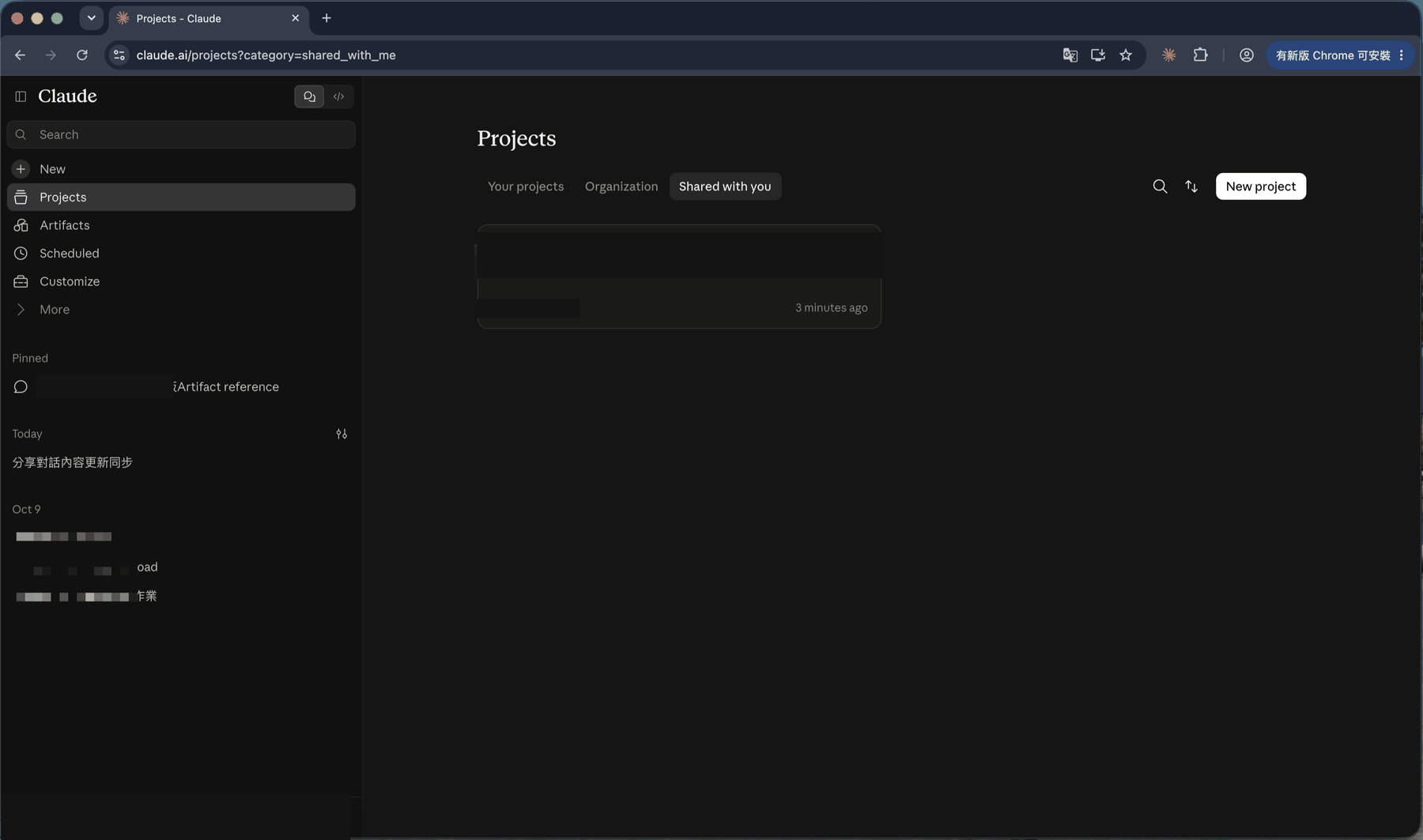
Pin a shared project in your sidebar
If you use a shared project often, going through Projects each time gets old. Once you’re on the project page:
- Click the pin icon at the top right
- Look at the left sidebar: the project now appears under Pinned, one click away from then on
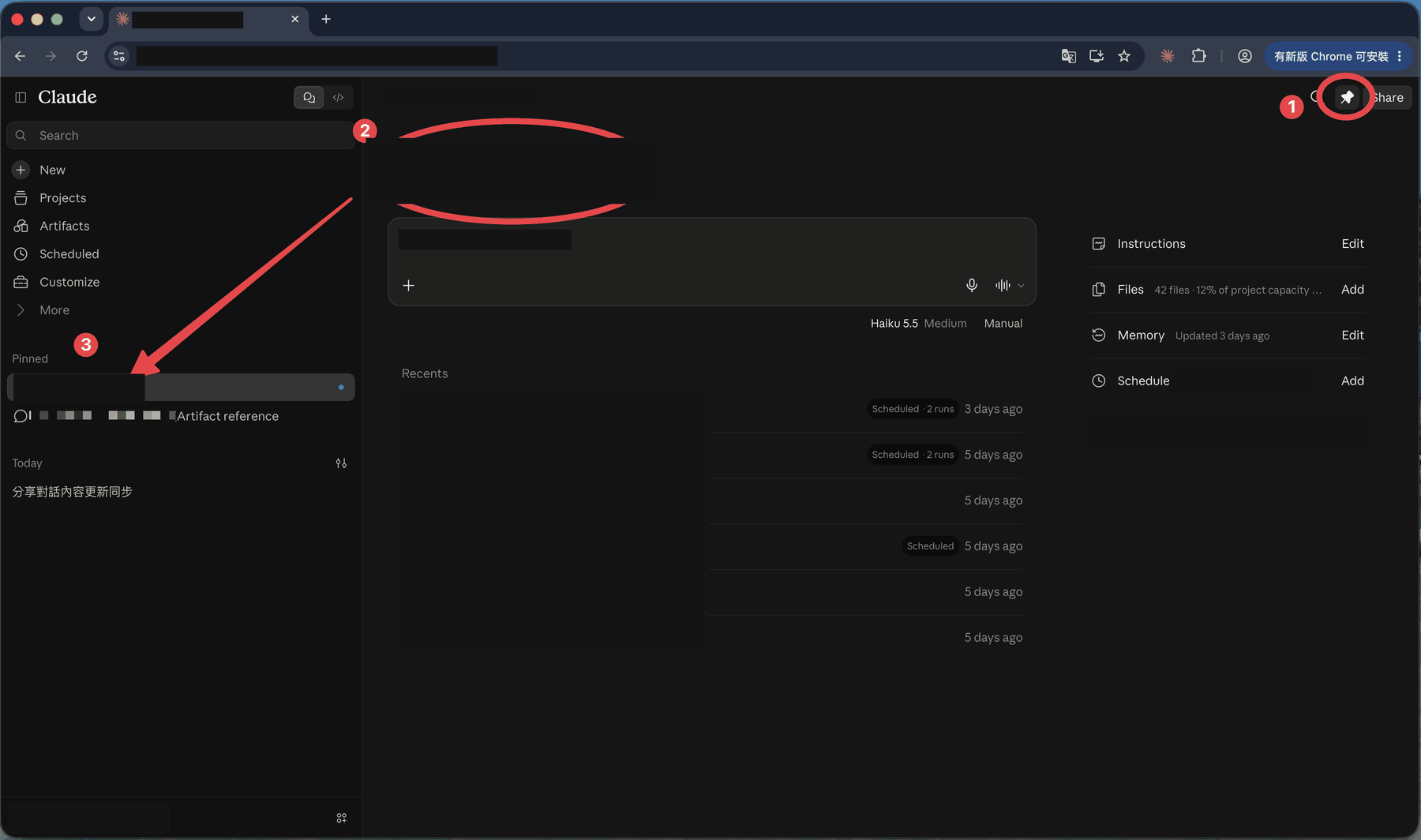
The right side of the project page also shows Instructions, Files, Memory, and Schedule. The project page also carries a small note worth remembering:
Shared · Created by … All sessions are private unless shared · Memory is private to you
In plain terms: the project is shared, but the chats you start in it are private unless you share them, and memory is yours alone. Coworkers don’t see what you asked just because you’re in the same project.
🚨 Common problems and fixes
I didn’t get the invite email
Check spam and other tabs (Promotions, Social). Still nothing? Ask the admin to confirm the email they invited is spelled correctly.
I clicked Accept invite and joined with the wrong account
The email after “Accepting as” is the account you join with. Sign out of Claude, switch to the right account, and click the link in the invite email again.
The link says “Invalid invite link”
The link is no longer valid. Ask the admin to send you a new invite.
My old chats disappeared after joining
They didn’t. You’re in the team account. Switch back to personal from the bottom left.
I chose “team only” and regret it
That option closes your personal account, and before you click is the best time to decide. If you’ve already chosen it, contact Anthropic support about restoring it. We haven’t tested this case and won’t promise anything here.
What you can do now
- Read the invite email and join page, and know to check “Accepting as” first
- Choose between Keep both accounts and team-only without regret
- Find what the team gives you: org-installed skills, connectors, shared projects
- Pin a frequently used shared project in your sidebar
Next step: if your admin hasn’t set organization instructions yet, see How to Set a System Prompt in ChatGPT, Claude, Gemini & Grok. You can use the same idea to give your own projects instructions so every chat starts from the same rules.
這篇文章對你有幫助嗎?
💬 問答區
卡關了?直接在這裡問,其他讀者和作者都能幫忙解答。
載入中...
Found this useful? Share it with a friend who’s also getting their hands dirty
Share on LINE