Create Your First Firebase Project
Want to add cloud login or data sync to a front-end-only site? Step one is creating a project in the Firebase Console. This article takes you from the welcome page to the project overview, and explains what Firebase does for you when you have no backend.
 卡住很正常——點段落旁的 😵 卡關 讓我們知道,或直接往下滾到問答區發問。
也可以用 👍 看懂 / 😢 看不懂 告訴我們哪裡寫得好、哪裡要改。
卡住很正常——點段落旁的 😵 卡關 讓我們知道,或直接往下滾到問答區發問。
也可以用 👍 看懂 / 😢 看不懂 告訴我們哪裡寫得好、哪裡要改。
In one line: Sign in to the Firebase Console with a Google account, click “Create a Firebase project,” give it a name, keep clicking continue — and you have a project. This is the starting point for every cloud feature that follows.
Keywords: Firebase, Firebase Console, create project, Google Analytics, project overview, backend-as-a-service, BaaS
What Firebase does for you when you have no backend
If your site is front-end only (just HTML/JS, no server of your own) but you want user login, cross-device sync, or a bit of cloud data, building your own backend is heavy. Firebase outsources that layer:
| What you want | Build your own backend | With Firebase |
|---|---|---|
| User login | Write accounts, store passwords, do OAuth | Authentication wires up Google login in one click |
| Store / sync data | Stand up a database, write an API | Firestore — read/write from the front-end, real-time |
| Operations | Babysit a server | Fully managed, no maintenance |
The shared first step for all of these is having a Firebase project.
Before you start
- A Google account (turning on two-step verification first is recommended).
- A website project you want to add cloud features to (a course booking system,
line-booking-course, here).
Step 1: Create the project
Sign in to the Firebase Console and click “Create a Firebase project” on the welcome page.
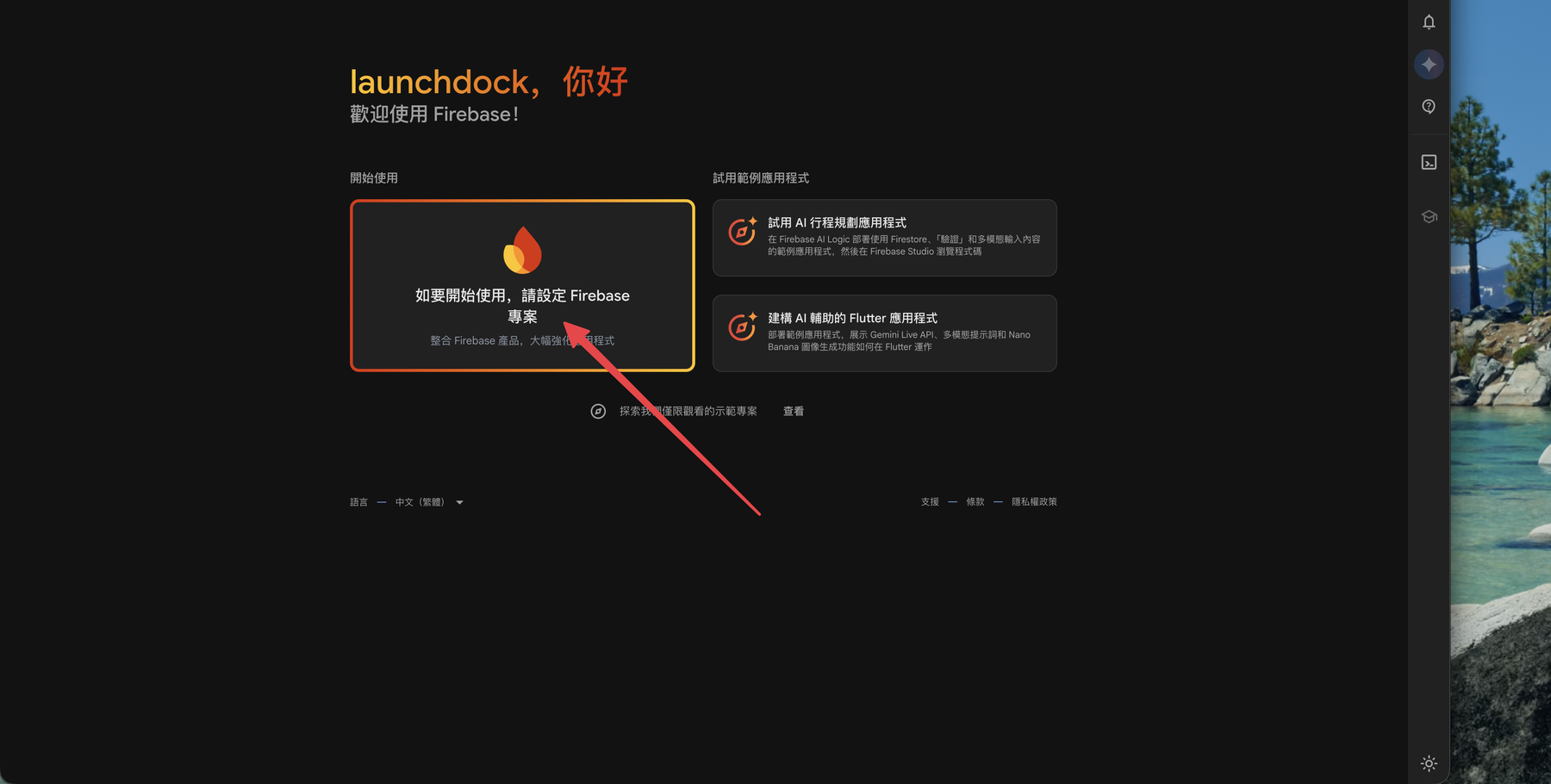
Enter a project name (line-booking-course here). The name is just for your reference; Firebase auto-generates a globally unique project ID beneath it.

🚨 Do I have to enable Google Analytics?
No. The next steps ask whether to enable Google Analytics — for a small personal project you can turn it off and just click “Continue / Create project.” You can enable it later; it doesn’t affect login or the database.
Step 2: Reach the project overview
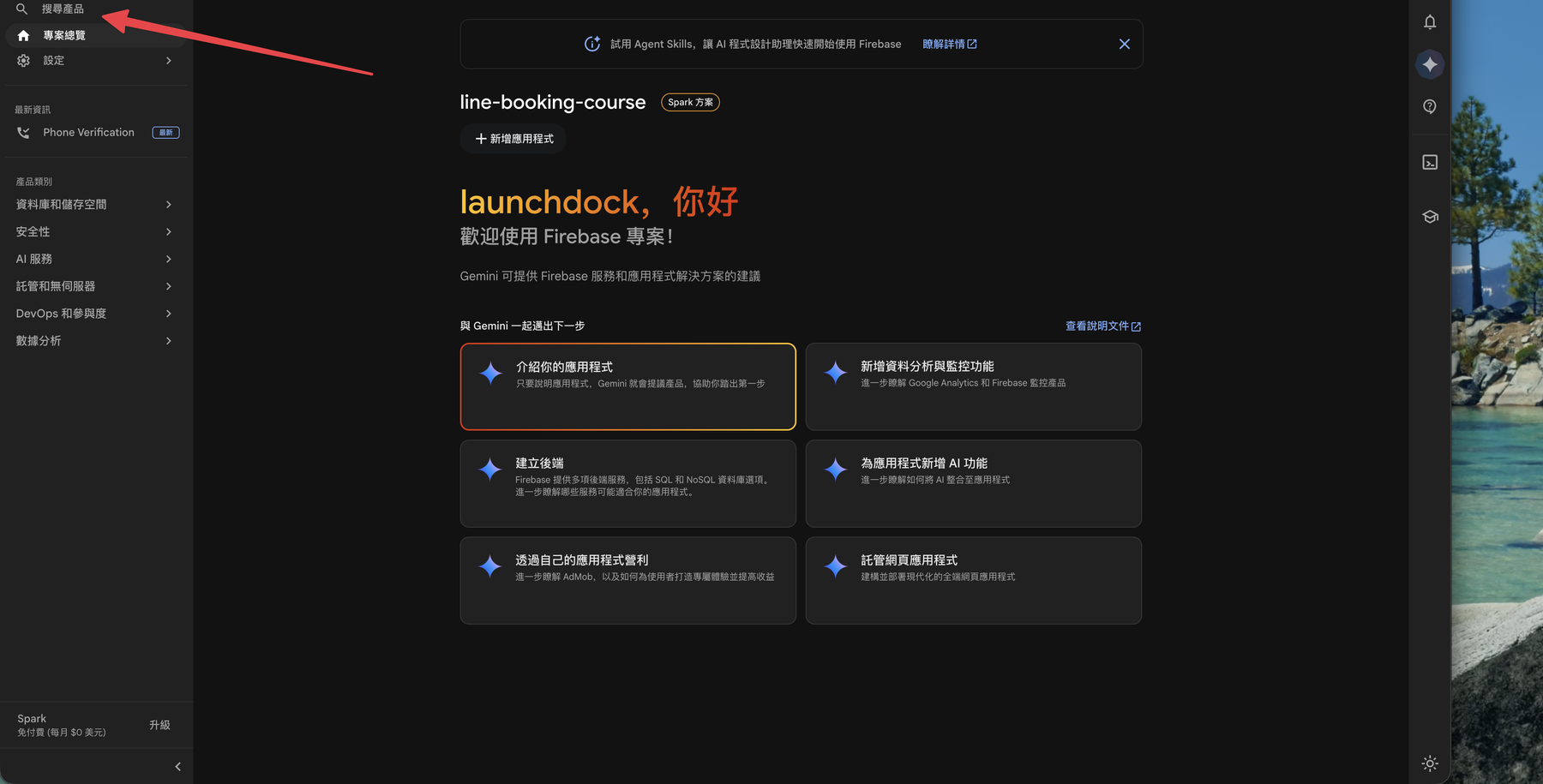
Once created, you arrive at the project overview. The left side lists all Firebase products (Authentication, Firestore, Hosting…), and the center lets you add apps. This page is your control center from here on.
Recap
- Firebase outsources “login, database, operations” for a front-end-only site.
- The first step for any Firebase service is creating a project.
- Google Analytics is optional and doesn’t affect core features.
- After creating, you land on the project overview — your control center.
Next: With a project in place, turn on login → Enable Google Sign-In in Firebase
這篇文章對你有幫助嗎?
💬 問答區
卡關了?直接在這裡問,其他讀者和作者都能幫忙解答。
載入中...
Found this useful? Share it with a friend who’s also getting their hands dirty
Share on LINE