Ollama + OpenClaw: No API Key Needed — Start Chatting with AI in Minutes
No API Key setup required. Use Ollama's free cloud credits to get OpenClaw talking in minutes. Want to run open-source models locally? Full instructions at the end.
 卡住很正常——點段落旁的 😵 卡關 讓我們知道,或直接往下滾到問答區發問。
也可以用 👍 看懂 / 😢 看不懂 告訴我們哪裡寫得好、哪裡要改。
卡住很正常——點段落旁的 😵 卡關 讓我們知道,或直接往下滾到問答區發問。
也可以用 👍 看懂 / 😢 看不懂 告訴我們哪裡寫得好、哪裡要改。
My Situation Recommended Path 🐣 Haven’t installed anything, starting from scratch Follow Step 1 → 2 → 3 in order — about 10 minutes to start chatting ✅ Already have Ollama, want to connect OpenClaw Jump to Step 2: Install OpenClaw 🚀 Both installed, just want to start Jump to Step 3: First Conversation
What’s Special About Ollama + OpenClaw?
Ollama was originally a tool for running open-source AI models locally, but it also has an incredibly useful feature: built-in cloud model support with no API Key required.
With just an Ollama account, you can directly use its free cloud model credits. Combined with ollama launch openclaw, the entire flow looks like this:
Install Ollama → ollama launch openclaw → Choose a cloud model → Start chattingNo API Key applications, no payments, no downloading multi-GB models — get OpenClaw talking in minutes.
What Is Ollama?
Ollama is a local AI model management tool that also supports cloud models. Think of it as a “local AI Studio” — whether running online or downloaded to your machine, one tool handles it all.
Ollama = Model Manager (cloud + local)
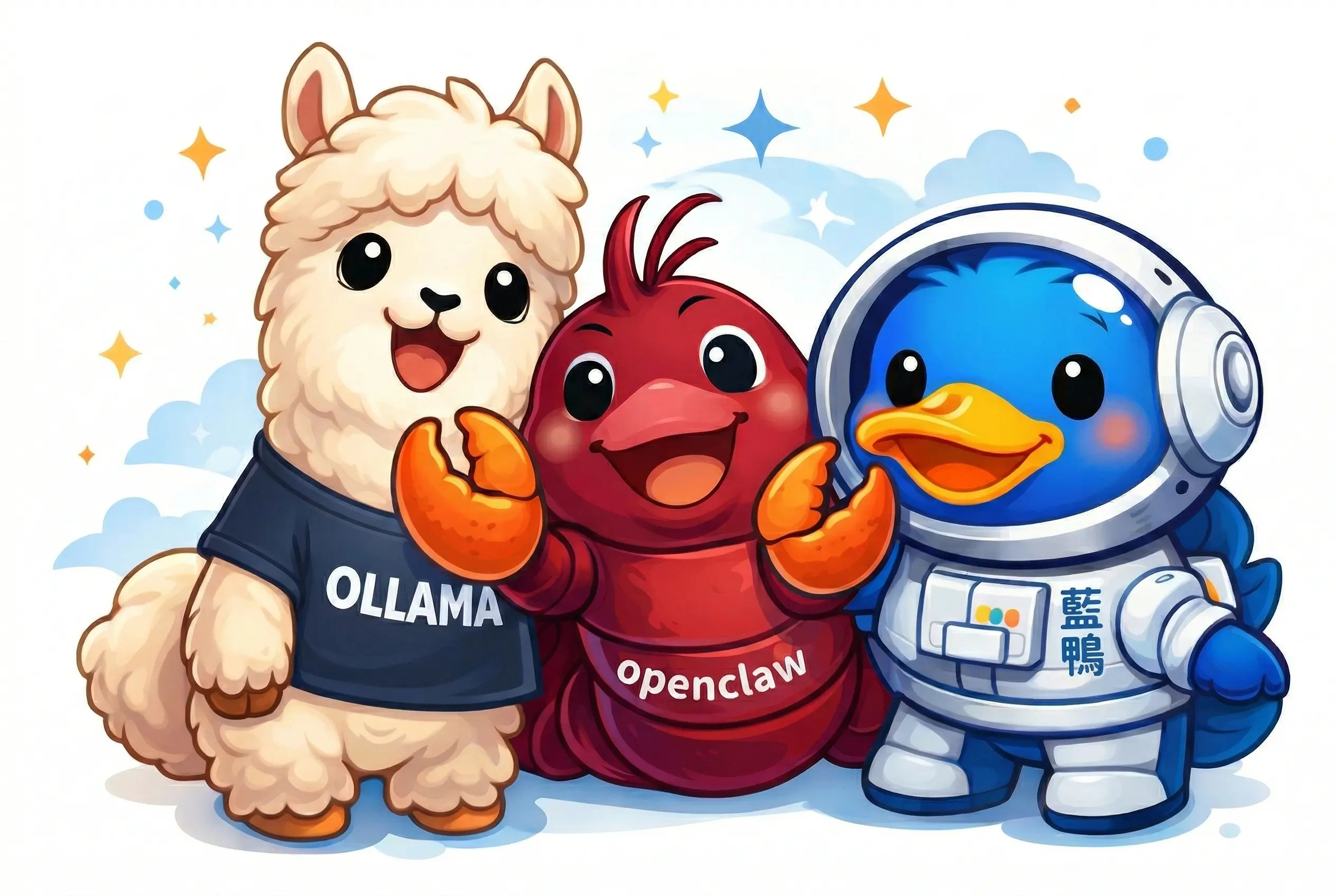
OpenClaw = AI Agent Framework (skills, automation, conversations)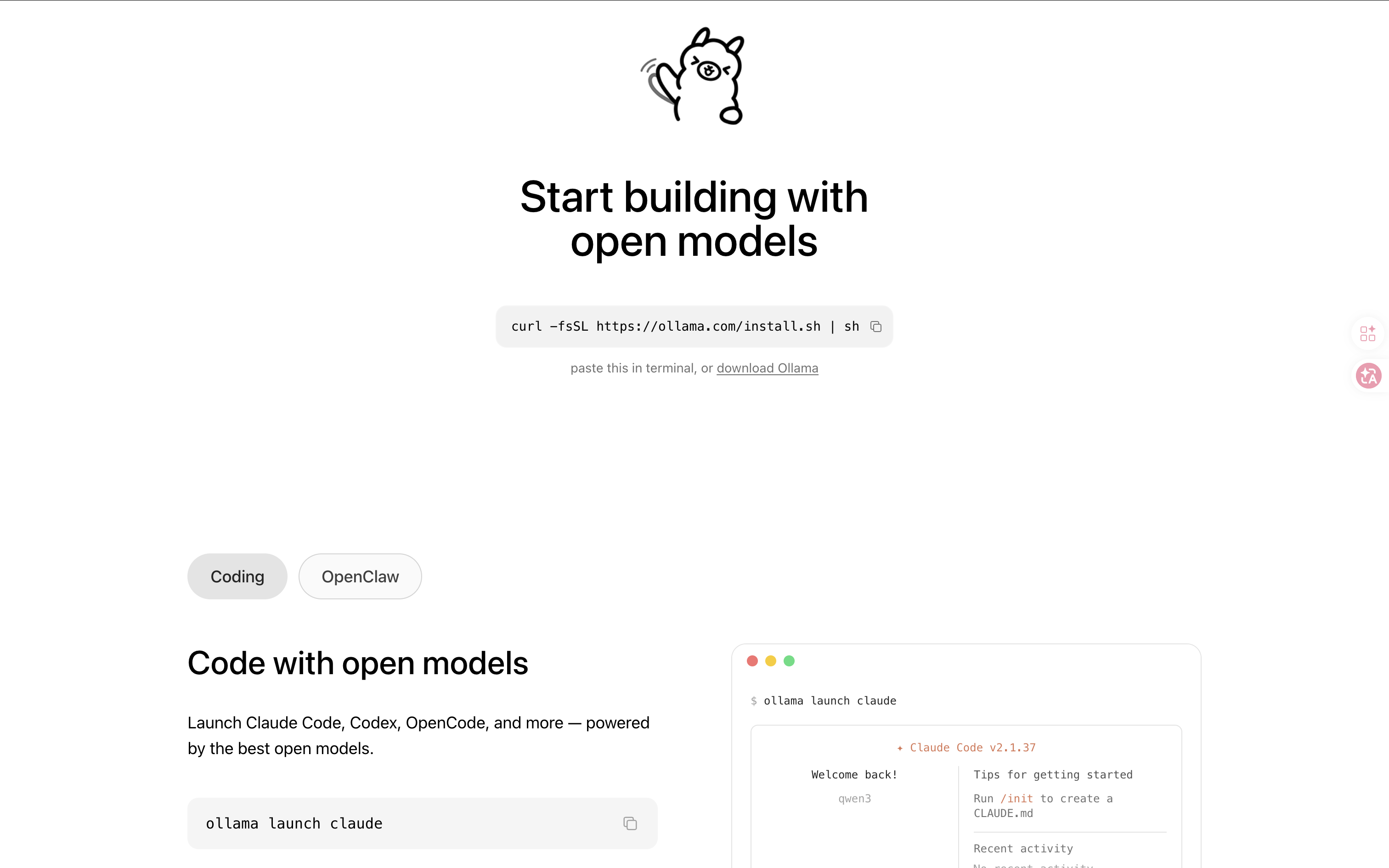
Step 1: Install Ollama
macOS
- Go to ollama.com/download
- Click “Download for macOS”
- Open the downloaded
.dmgfile and drag Ollama to the Applications folder - Open Ollama
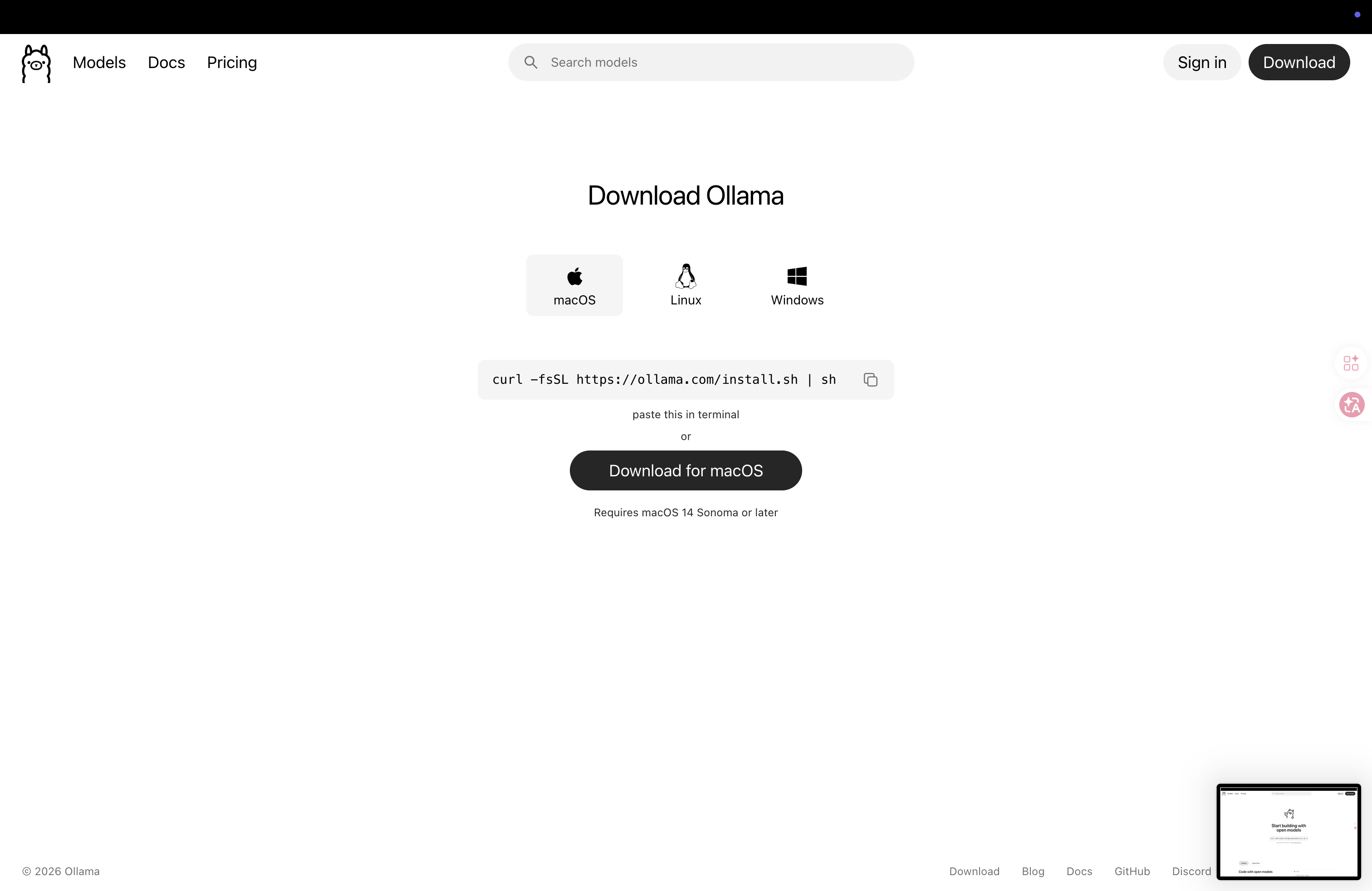
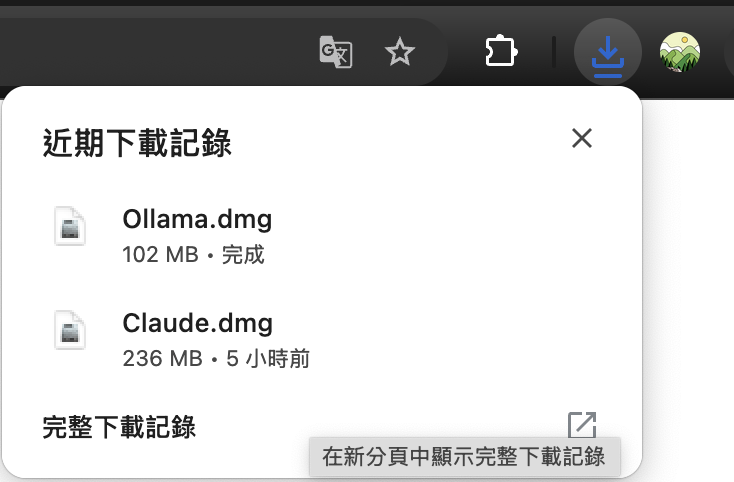
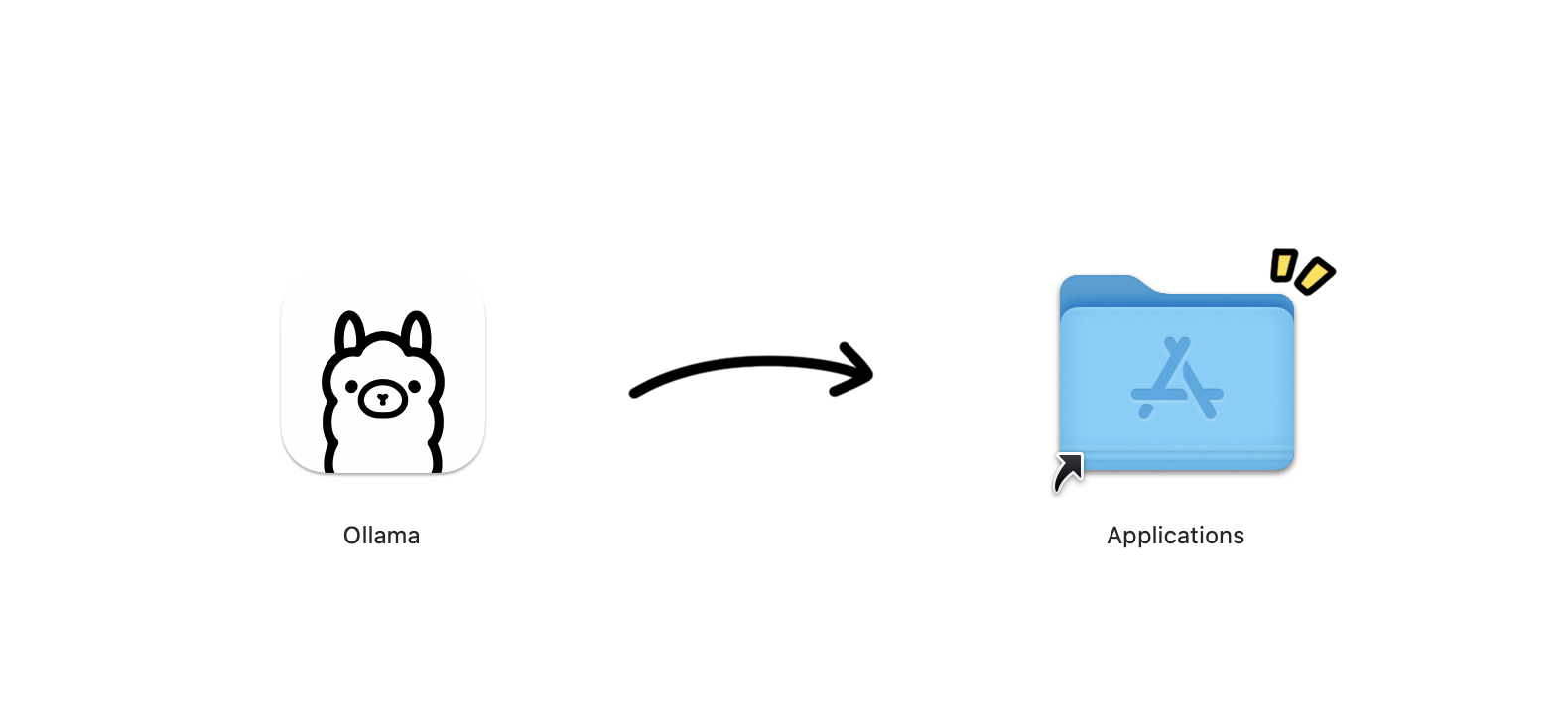
🚨 macOS Security Note: If you see “Ollama can’t be opened because it is from an unidentified developer,” go to “System Settings → Privacy & Security,” scroll to the bottom, and click “Open Anyway.”
Windows
- Go to ollama.com/download
- Click “Download for Windows” and run the
.exeinstaller - Follow the installation wizard. After installation, Ollama will start automatically in the background
Linux
sudo apt install -y zstd
curl -fsSL https://ollama.com/install.sh | sh
Verify Installation
ollama --versionSeeing a version number means installation was successful:
ollama version 0.6.xStep 2: Install OpenClaw and Launch
One-Click Launch
Open your terminal
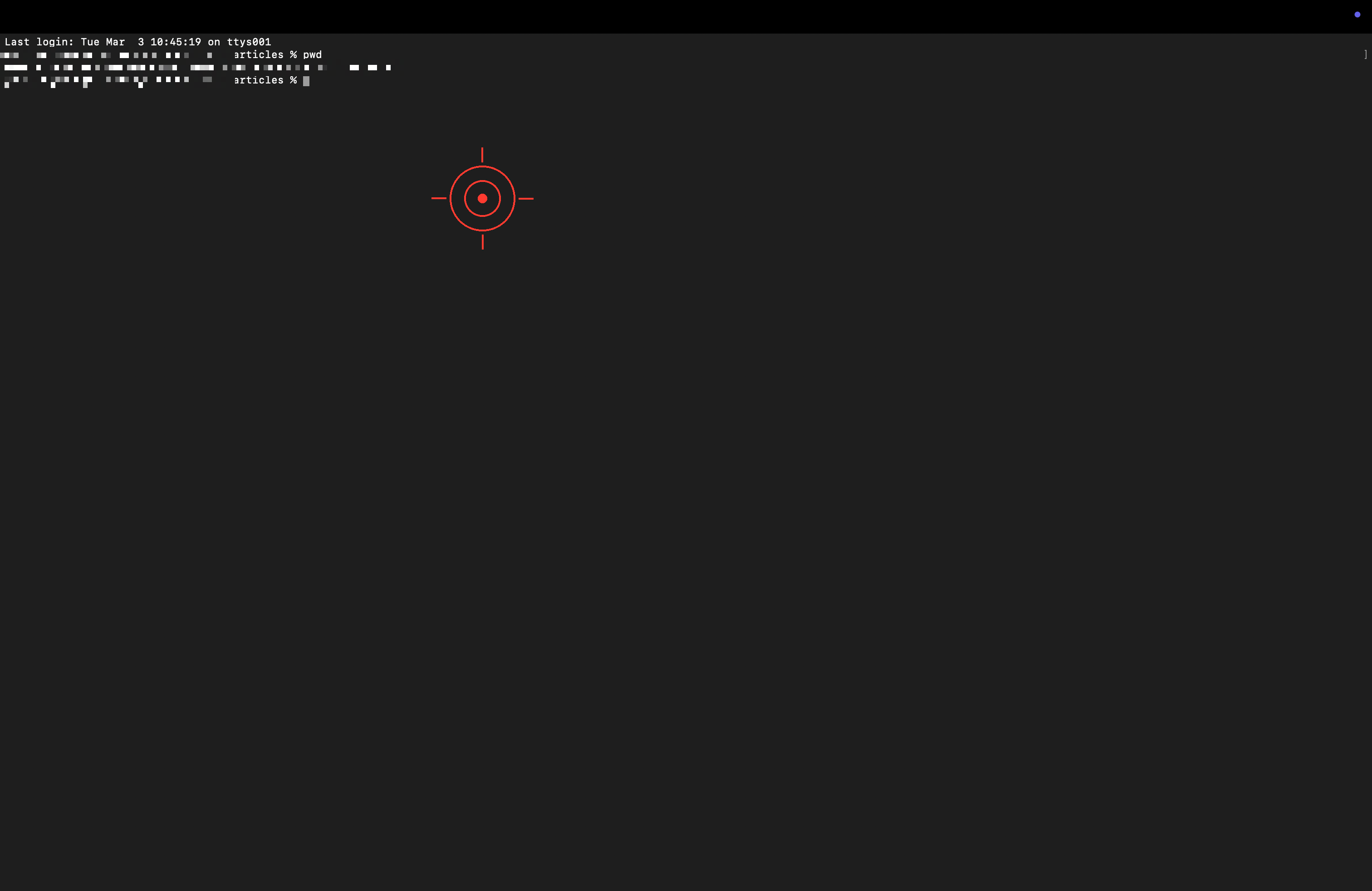
Enter:
ollama launch openclaw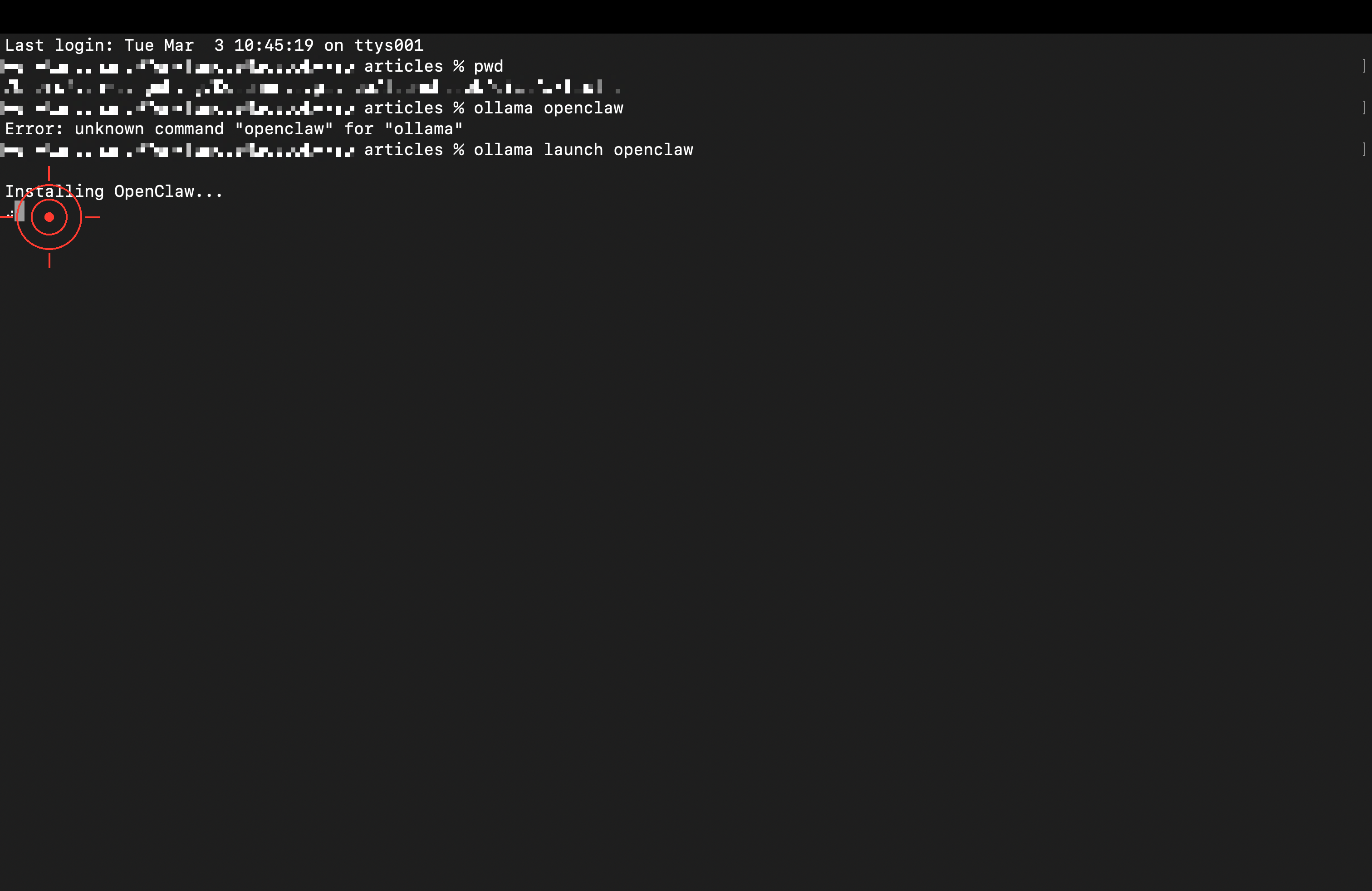
First-Time Installation Auto-Detects and Starts Setup
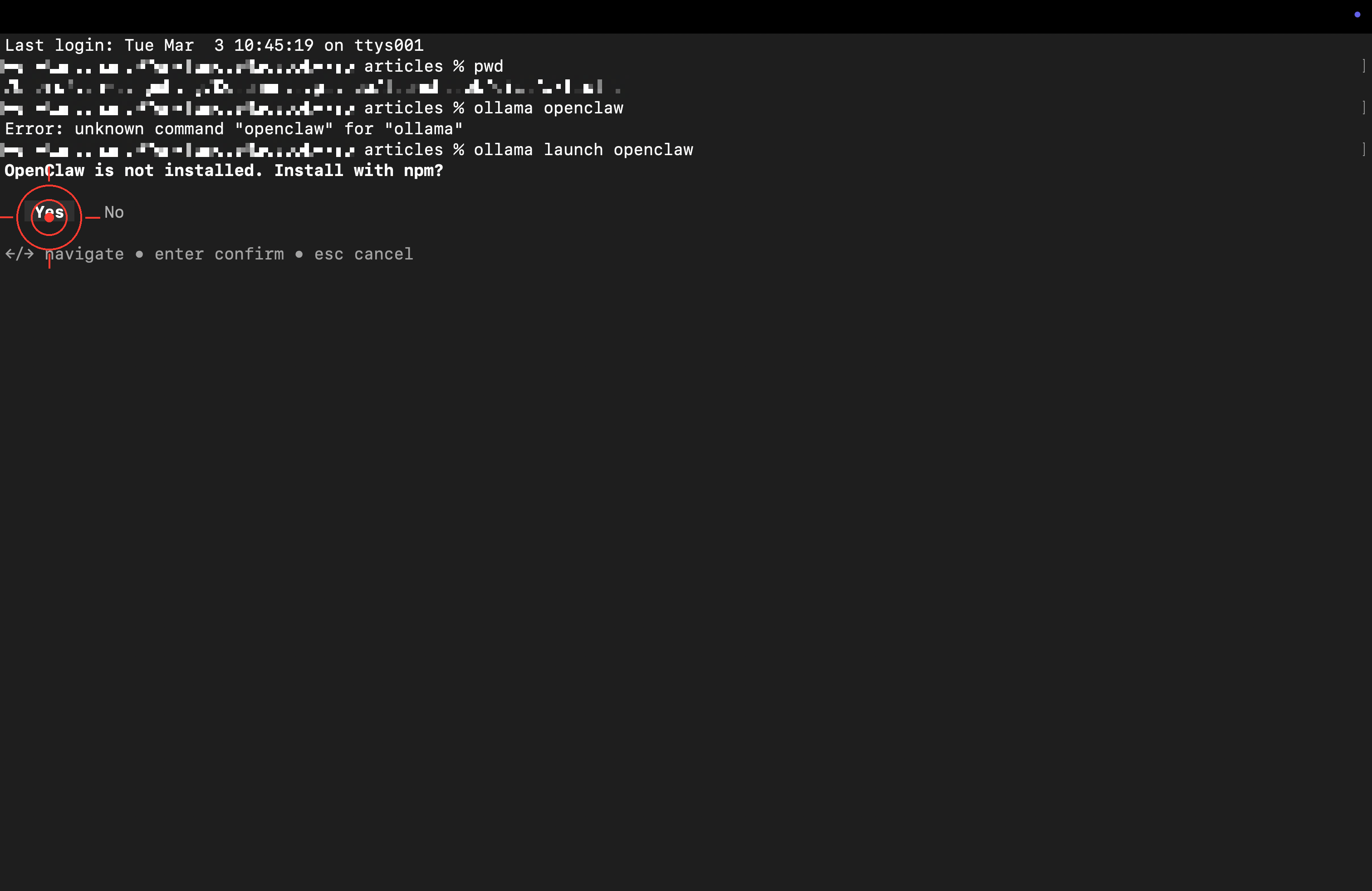
When asked whether to install via npm, press Enter to confirm.
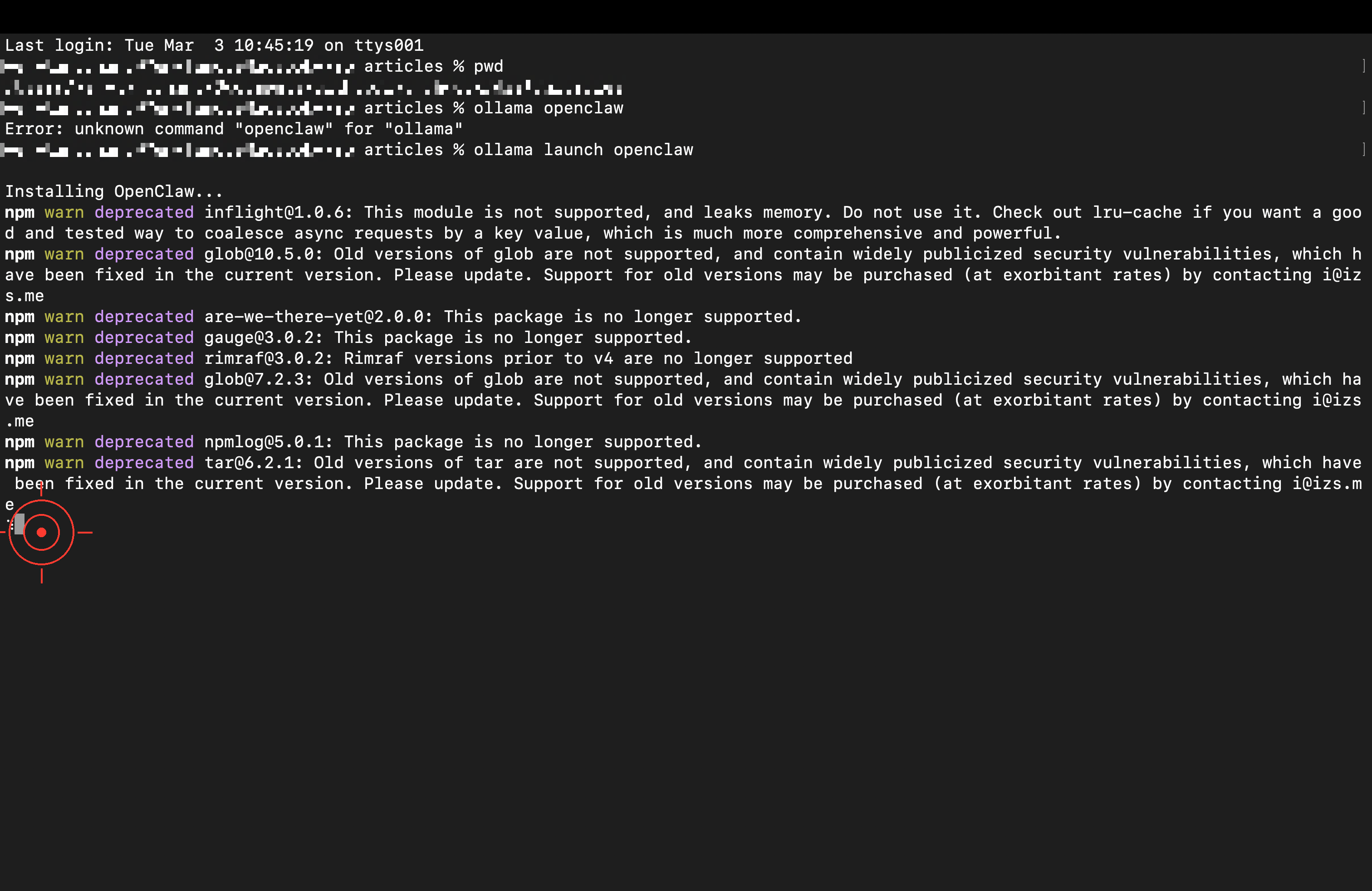
Automatic download and installation complete.
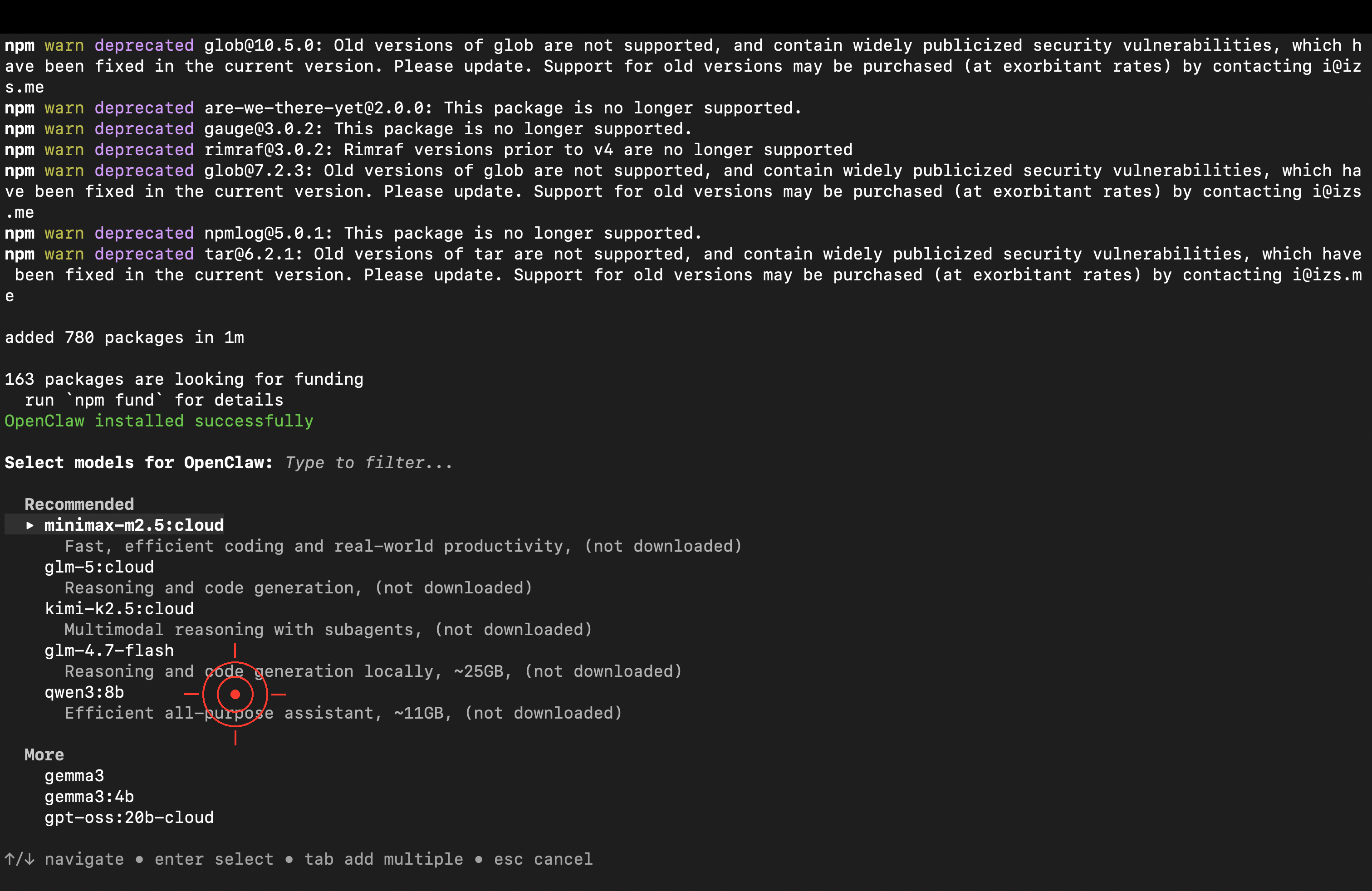
Choose a Cloud Model — Quick Start
After installation, a model selection menu will appear. Choose “Cloud” — no need to download a model locally.
Model Highlights kimi-k2.51T parameters, strongest for Agent tasks minimax-m2.5Latest version, great for coding & productivity glm-4.7General purpose, stable and reliable
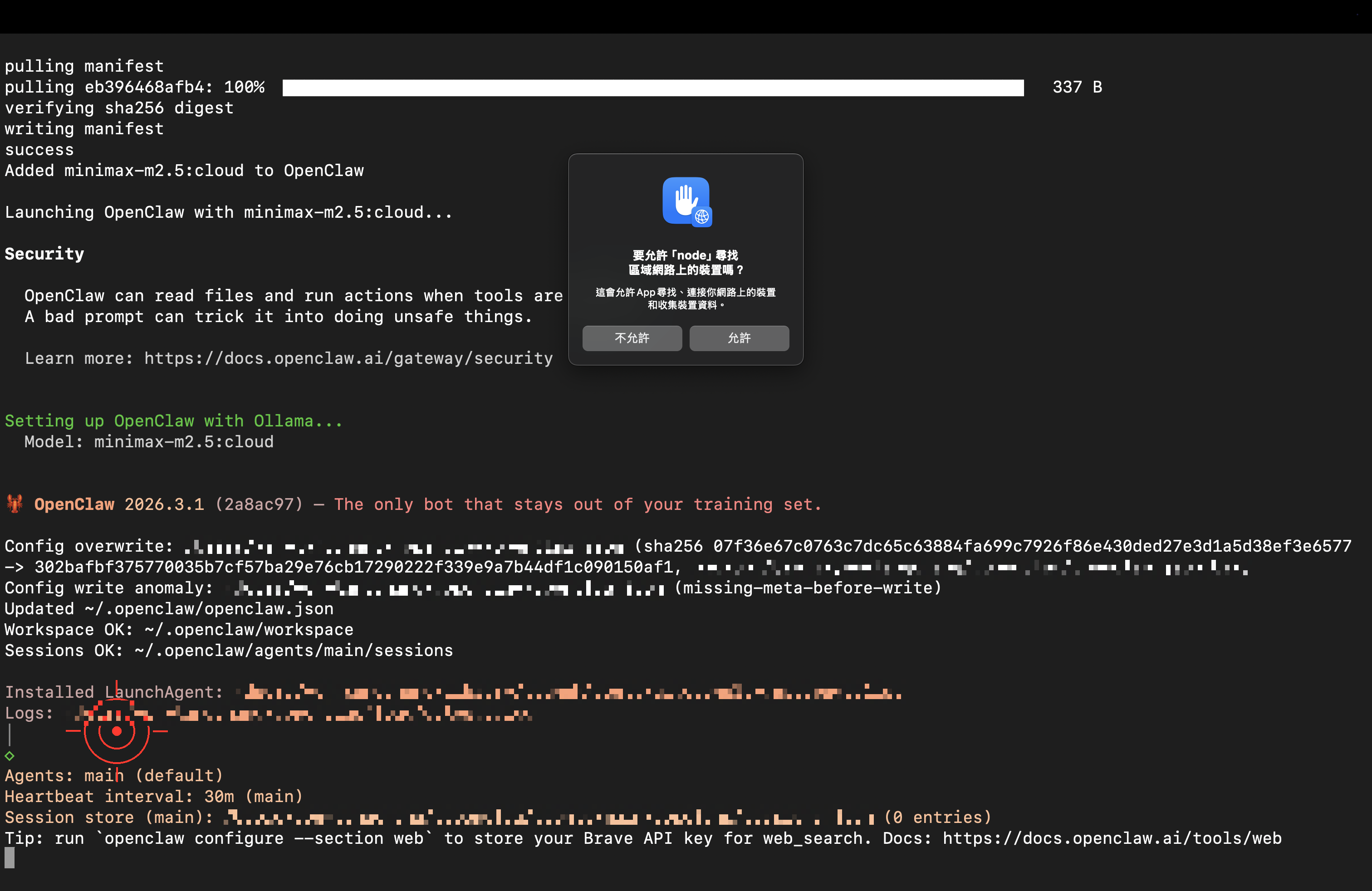
macOS may show a security prompt — click “Allow.” (Node.js is the actual runtime for OpenClaw.)
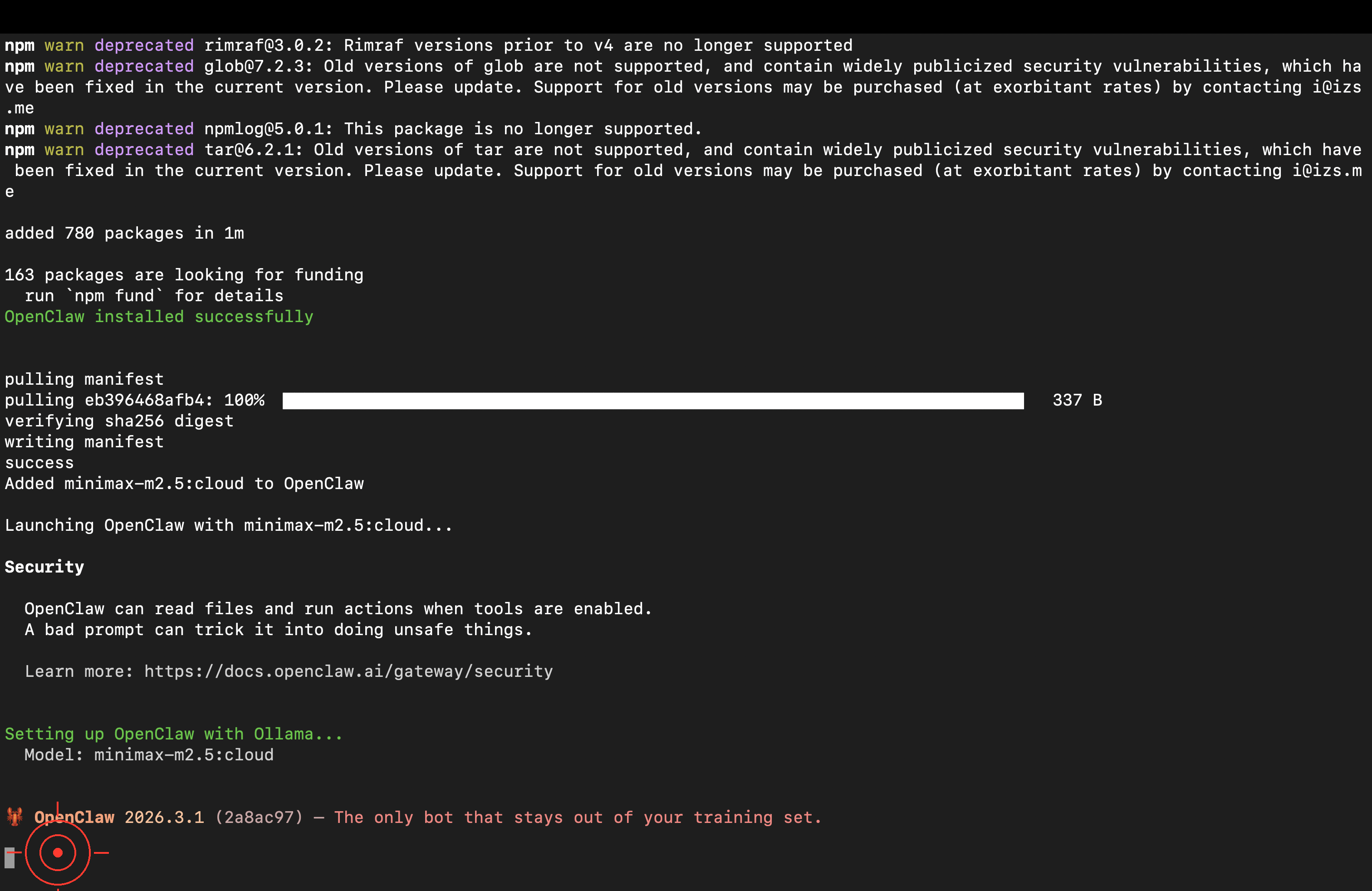
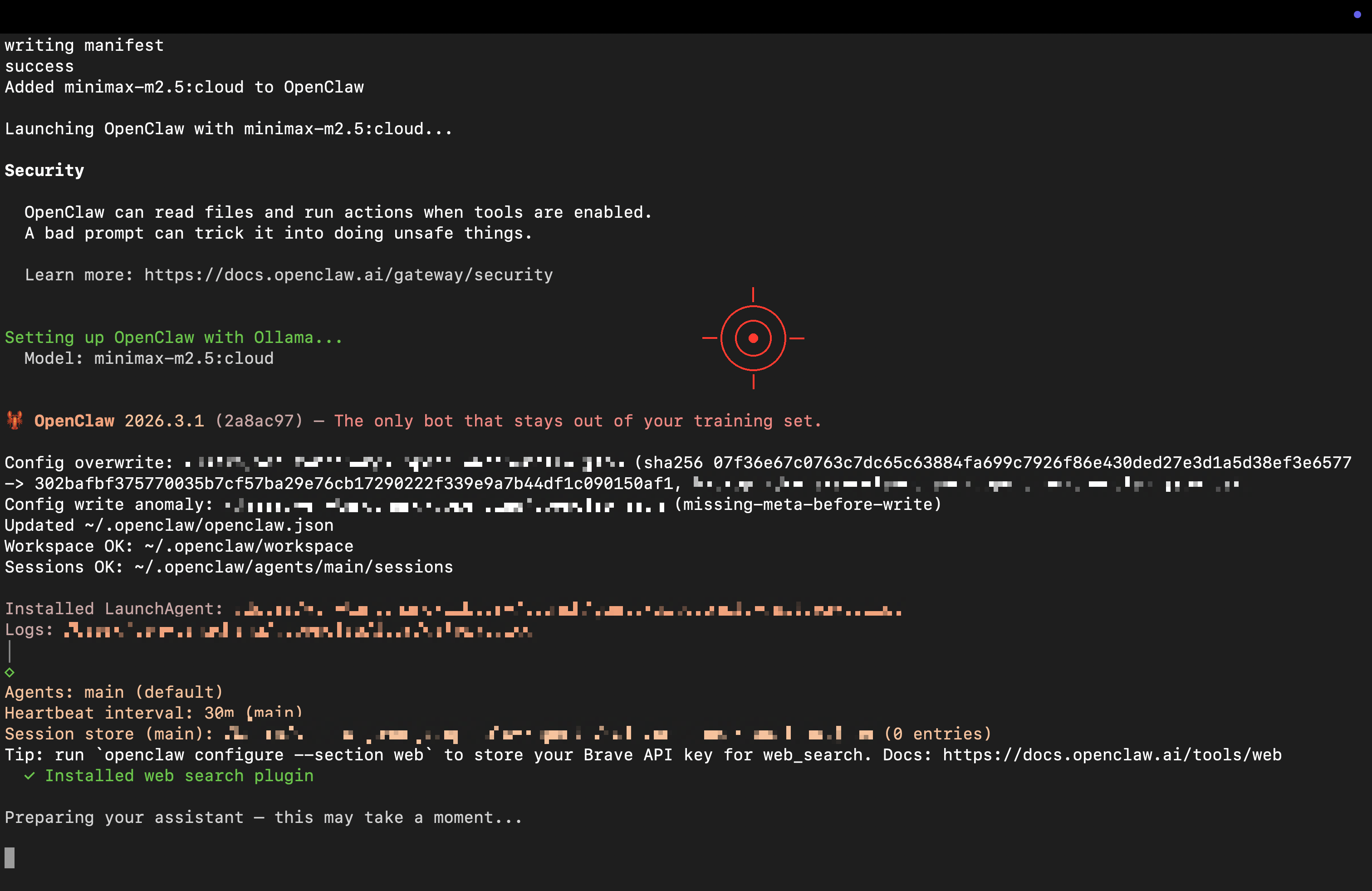
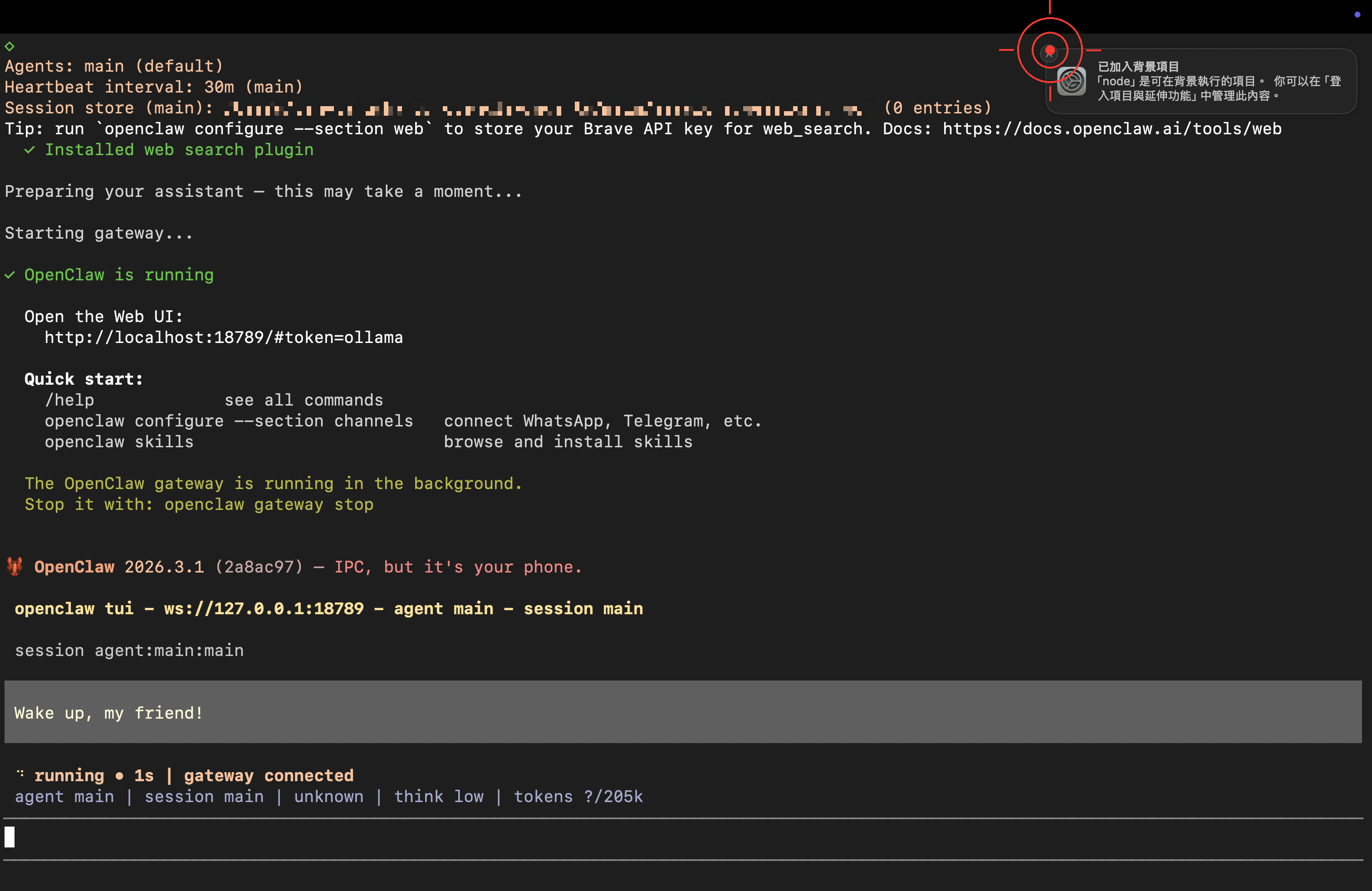
When you see the ready screen, OpenClaw has launched successfully!
Step 3: First Conversation — Name Your Lobster 🦞
OpenClaw is up and running! Time for the first important thing: say hello to your AI assistant and let it introduce itself.
Try typing:
Hi! I'm the owner here. Please introduce yourself — who are you
and what can you do?
Also, come up with a cool nickname for yourself!
Or more directly:
Hello, tell me:
1. What are you best at helping people with?
2. If you could pick a nickname, what would it be?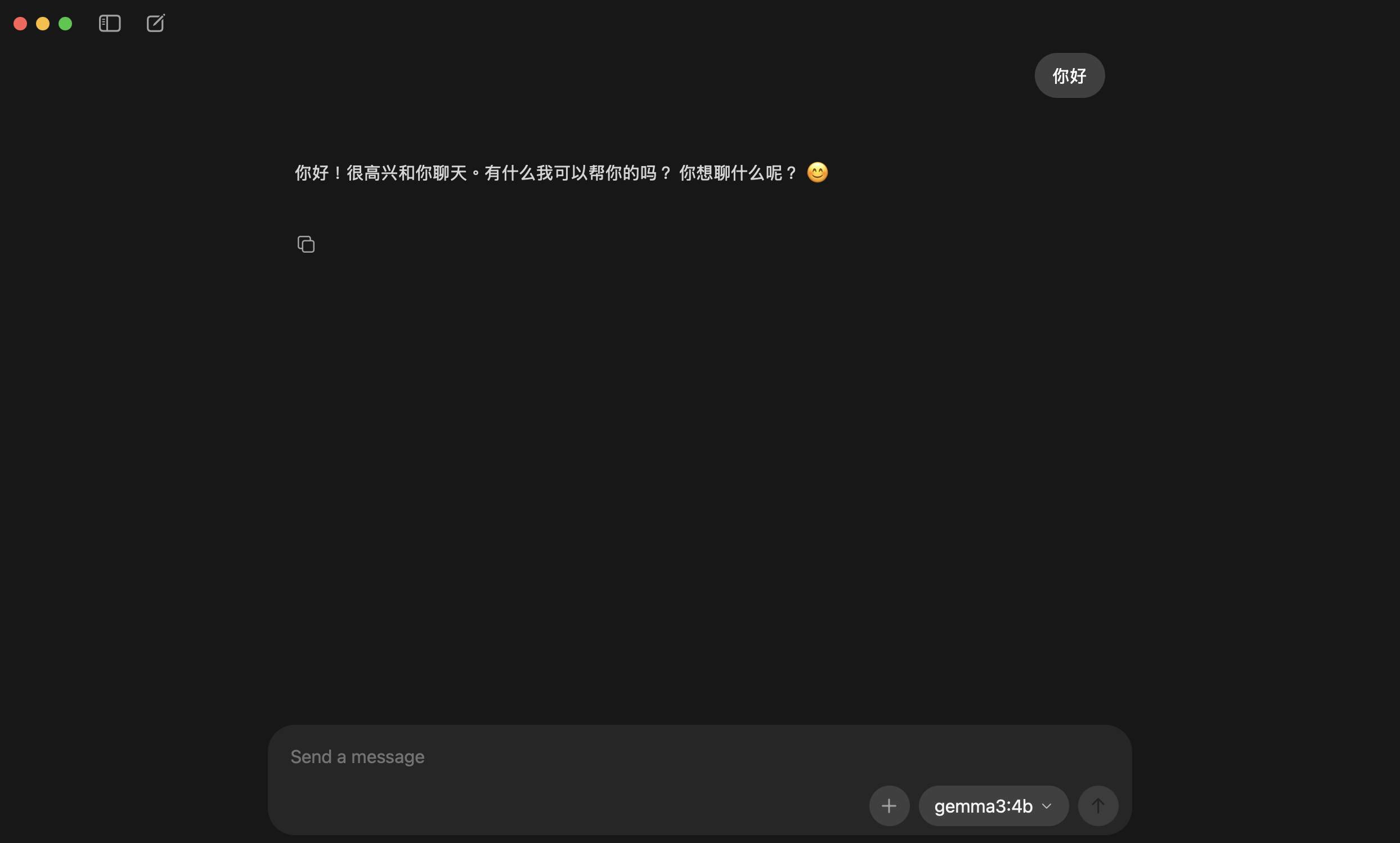
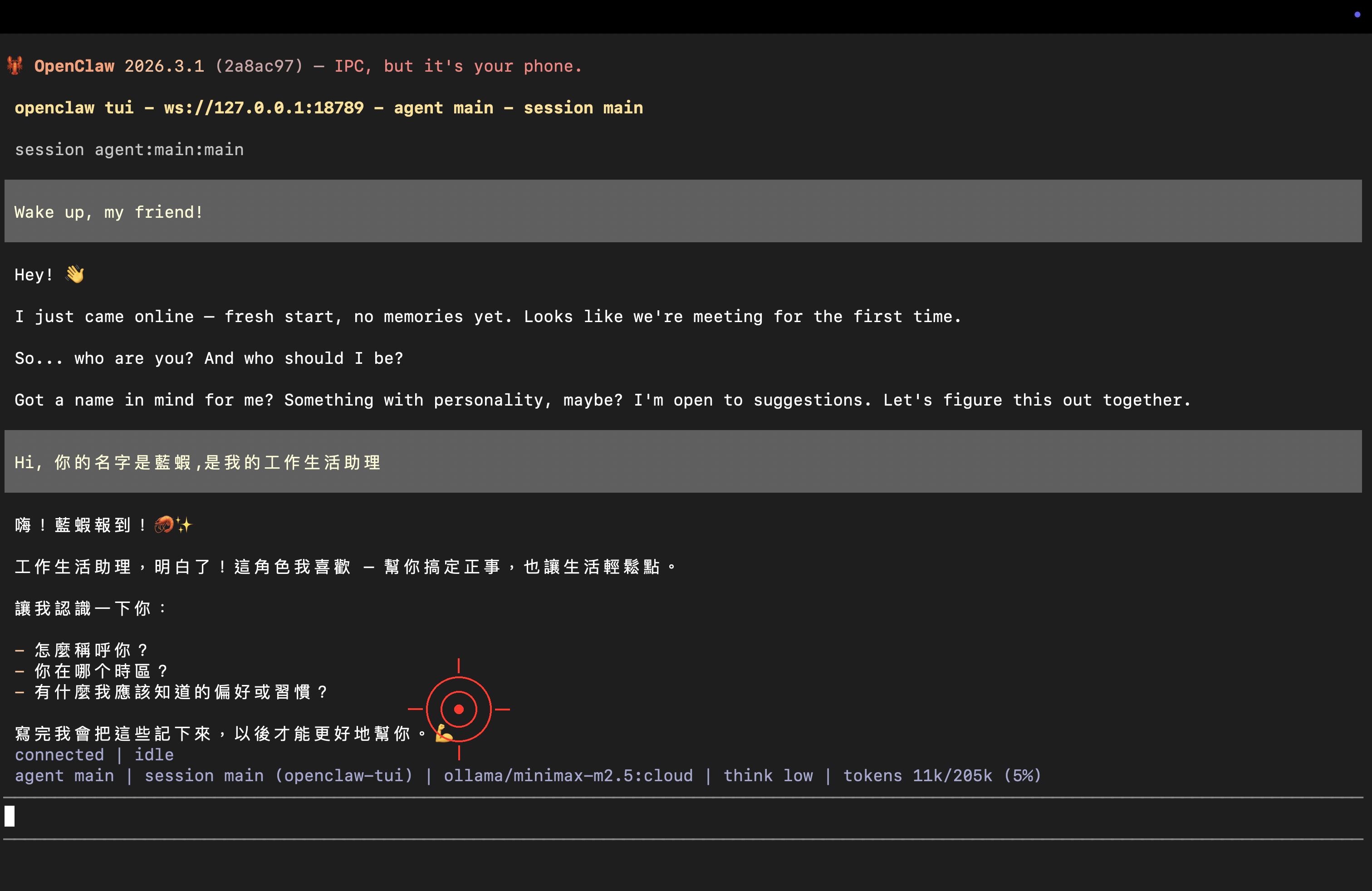
Congratulations 🎉 Your Lobster is officially live! You can keep chatting, or read on for Ollama free credits info and advanced setup.
Ollama Free Credits Explained
Ollama’s cloud models come with free credits (official info). To check your current usage:
- Go to ollama.com/settings
- Log in with your Google account
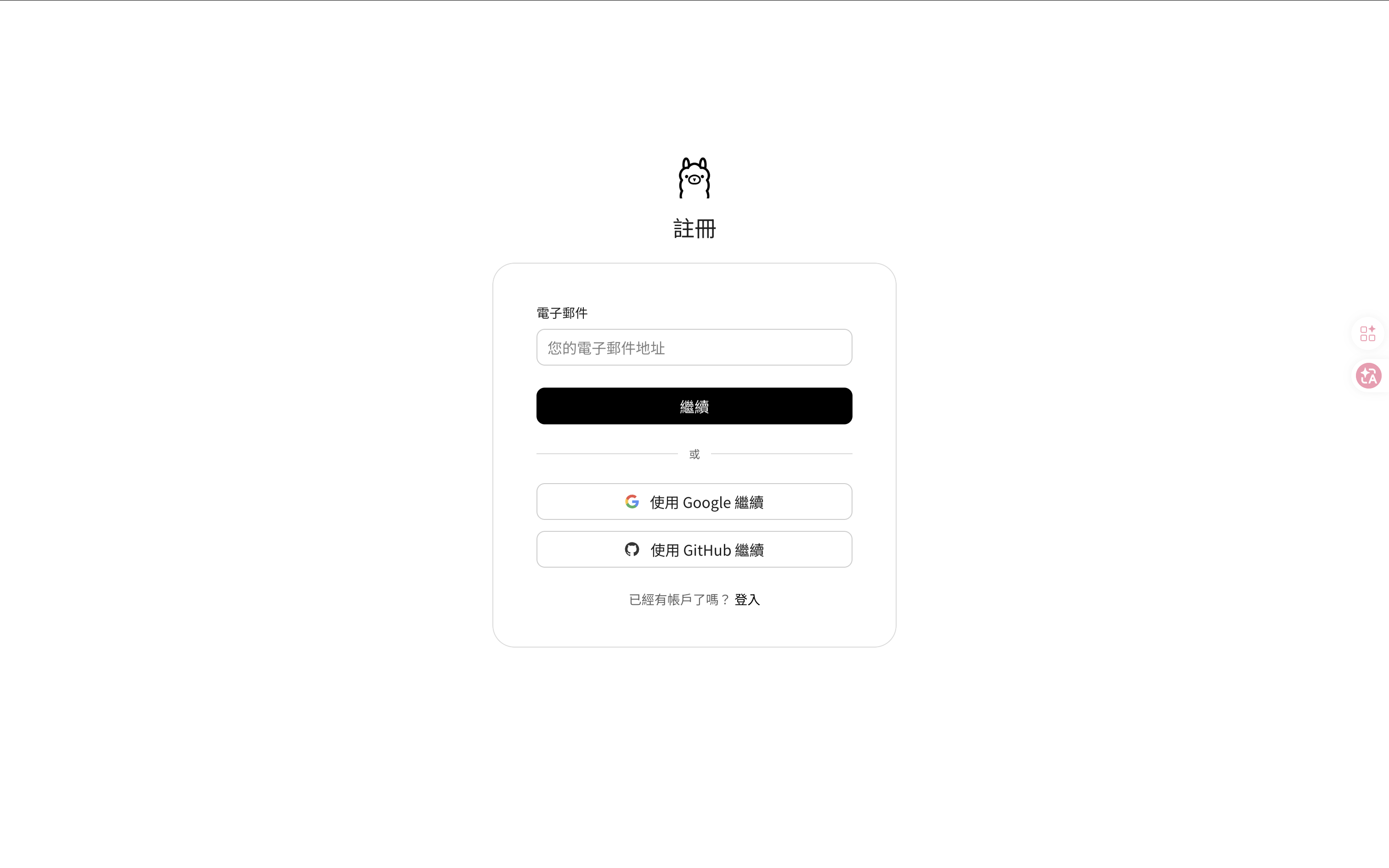
- View your remaining free credits and usage
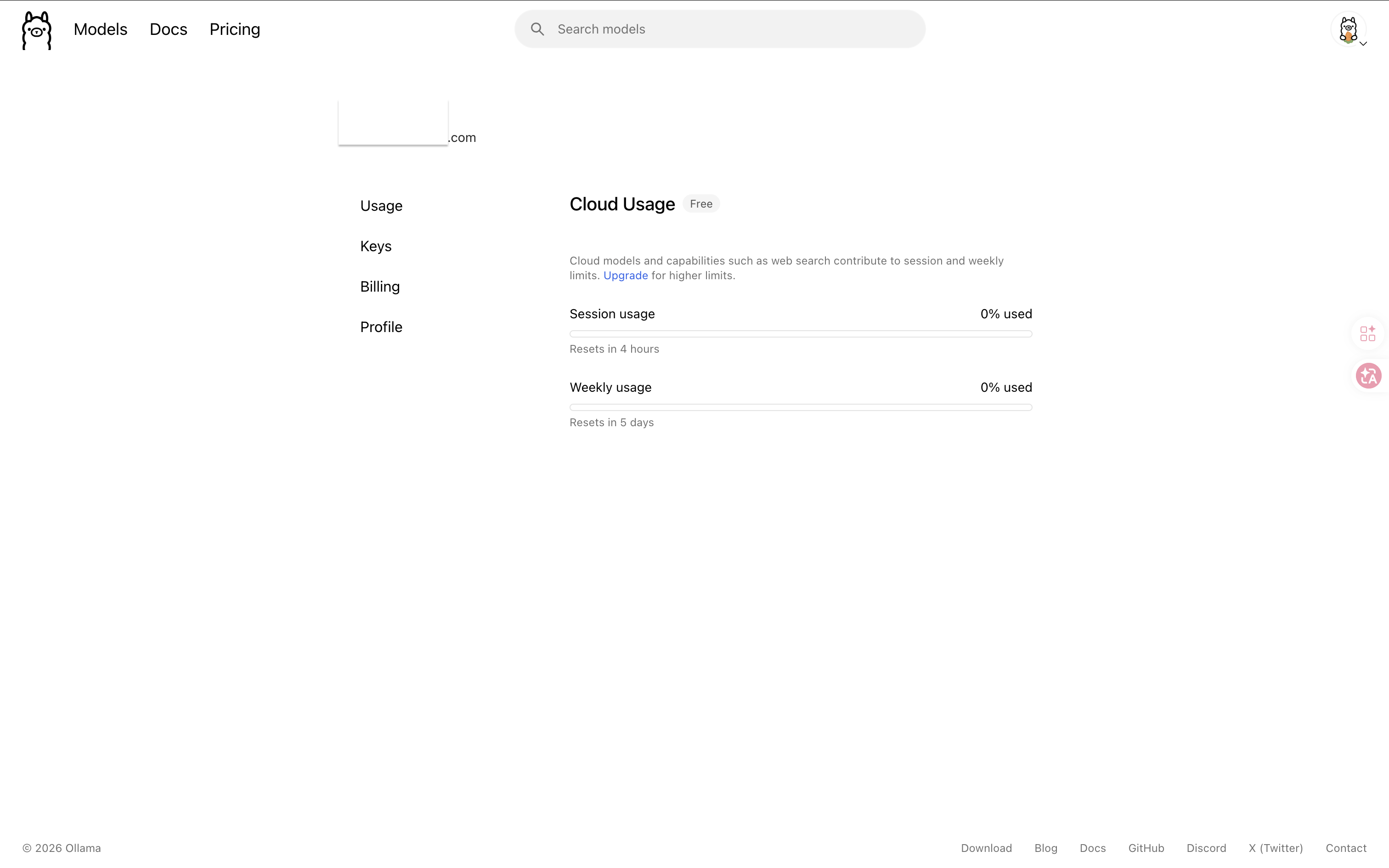
What if you run out of credits? You can switch to other cloud APIs (like Gemini Flash), or refer to the appendix for running open-source models locally.
Advanced: Manual Config Setup (Optional)
ollama launch openclawalready gets you chatting. You only need this step if you want to manually control model selection, mix local and cloud models, or integrate existing API Keys.
Verify Ollama API Is Available
# Test if Ollama API is accessible
curl http://localhost:11434/api/tags
If it returns JSON (containing a model list), Ollama is running properly.
🚨 Can’t connect?
- macOS / Windows: Make sure the Ollama app is running (you should see its icon in the system tray)
- Linux: Run
ollama serveto start the service
Configure OpenClaw config.yaml
Add Ollama to OpenClaw’s config file config.yaml:
providers:
  ollama:
    type: ollama
    base_url: http://localhost:11434
    # Ollama doesn't require an API Key — leave empty or omit

models:
  default:
    provider: ollama
    model: qwen2.5:7b
    temperature: 0.7
💡 If you just want to open the settings page without starting immediately, use
ollama launch openclaw --config.
Mix with Existing Cloud APIs
If you’ve previously configured cloud APIs, you can keep them and add Ollama as an extra option:
providers:
  google:
    type: google
    api_key: ${GOOGLE_API_KEY}
  ollama:
    type: ollama
    base_url: http://localhost:11434

models:
  default:
    provider: google
    model: gemini-2.0-flash
  local:
    provider: ollama
    model: qwen2.5:7b
    temperature: 0.7
This lets you choose between cloud or local models for different Skills.
Test the Connection
# Start OpenClaw
openclaw start

# Send a test message
openclaw chat "Say hello to me"
If you see the model’s response, your config is correct and Ollama is connected ✅
Advanced: Ollama + Cloud API Hybrid Setup
The smartest approach is to use both — local models for everyday tasks (free), cloud APIs for important work (higher quality).
Set Up Fallback in OpenClaw
providers:
  ollama:
    type: ollama
    base_url: http://localhost:11434
  google:
    type: google
    api_key: ${GOOGLE_API_KEY}

models:
  default:
    provider: ollama
    model: qwen2.5:7b
    fallback:
      provider: google
      model: gemini-2.0-flash

  heavy:
    provider: google
    model: gemini-1.5-pro
This configuration means:
- Default uses Ollama (free) — if Ollama goes down or is too slow, automatically falls back to Google
- Heavy tasks use the
heavyprofile — goes directly to cloud
Specify Models in Skills
# skills/daily-summary.yaml
name: Daily Summary
model: default  # Uses local Ollama (free)

# skills/code-review.yaml
name: Code Review
model: heavy  # Uses cloud Gemini Pro (smarter)
Troubleshooting
🚨 OpenClaw can’t connect after Ollama starts
Symptom: OpenClaw reports Connection refused or Cannot connect to Ollama
Solution:
# 1. Confirm Ollama is running
ollama ps

# 2. Verify the API port
curl http://localhost:11434/api/tags

# 3. If running OpenClaw in Docker, change to
base_url: http://host.docker.internal:11434
🚨 Model response is very slow
Possible causes:
- Model too large for your RAM → Switch to a smaller model
- Running inference on CPU → Check if GPU acceleration is enabled
- Computer is doing other things → Close those 87 Chrome tabs 😅
Recommendation: First test the speed directly with ollama run model-name. If it’s slow natively, that’s not an OpenClaw issue.
🚨 Poor quality responses in your language
Solutions:
- Switch to
qwen2.5:7borqwen2.5:14b(best choice for Chinese) - Explicitly specify response language in your Soul settings
- Provide few-shot examples to help the model learn your preferred style
🚨 Not enough disk space
# Check model disk usage
ollama list

# Delete models you don't need
ollama rm llama3.1:70b
Appendix: Running Open-Source Models Locally
Run out of credits, want to go fully offline, or just curious about open-source models? This section explains how to download models to your computer. If you just want to keep using Ollama’s free cloud credits, you can skip this entire section.
Check Your Computer Specs First
| Item | Minimum Requirement | Recommended |
|---|---|---|
| RAM | 8 GB | 16 GB or more |
| Disk Space | 10 GB available | 20 GB or more |
| GPU | Not required (CPU works too) | NVIDIA / Apple Silicon GPU for better speed |
| OS | macOS 12+ / Windows 10+ / Linux | Latest version |
Recommended Models (March 2026)
| Rank | Model | Why Choose It |
|---|---|---|
| 🥇 Top Pick | qwen2.5:7b | Strongest multilingual capabilities, medium size (~5 GB) |
| 🥈 Lightweight | llama3.2:3b | Smallest and fastest, runs on low-spec machines (~2 GB) |
| 🥉 Balanced | gemma2:9b | Made by Google, excellent English (~5 GB) |
More models available at ollama.com/search.
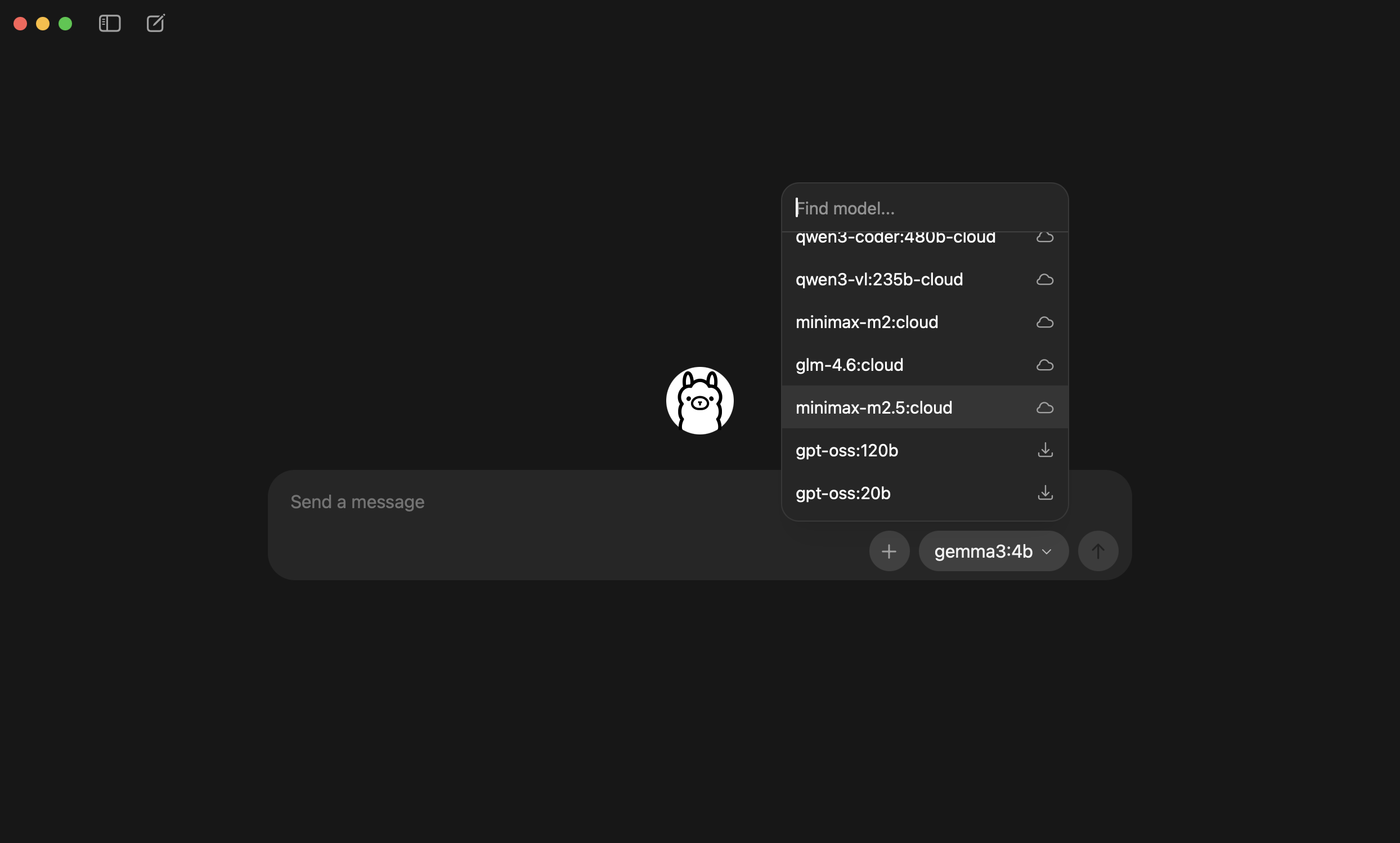
Download and Test a Model
# Download (using Qwen 7B as an example)
ollama pull qwen2.5:7b
The download takes a few minutes to over ten minutes depending on your internet speed.
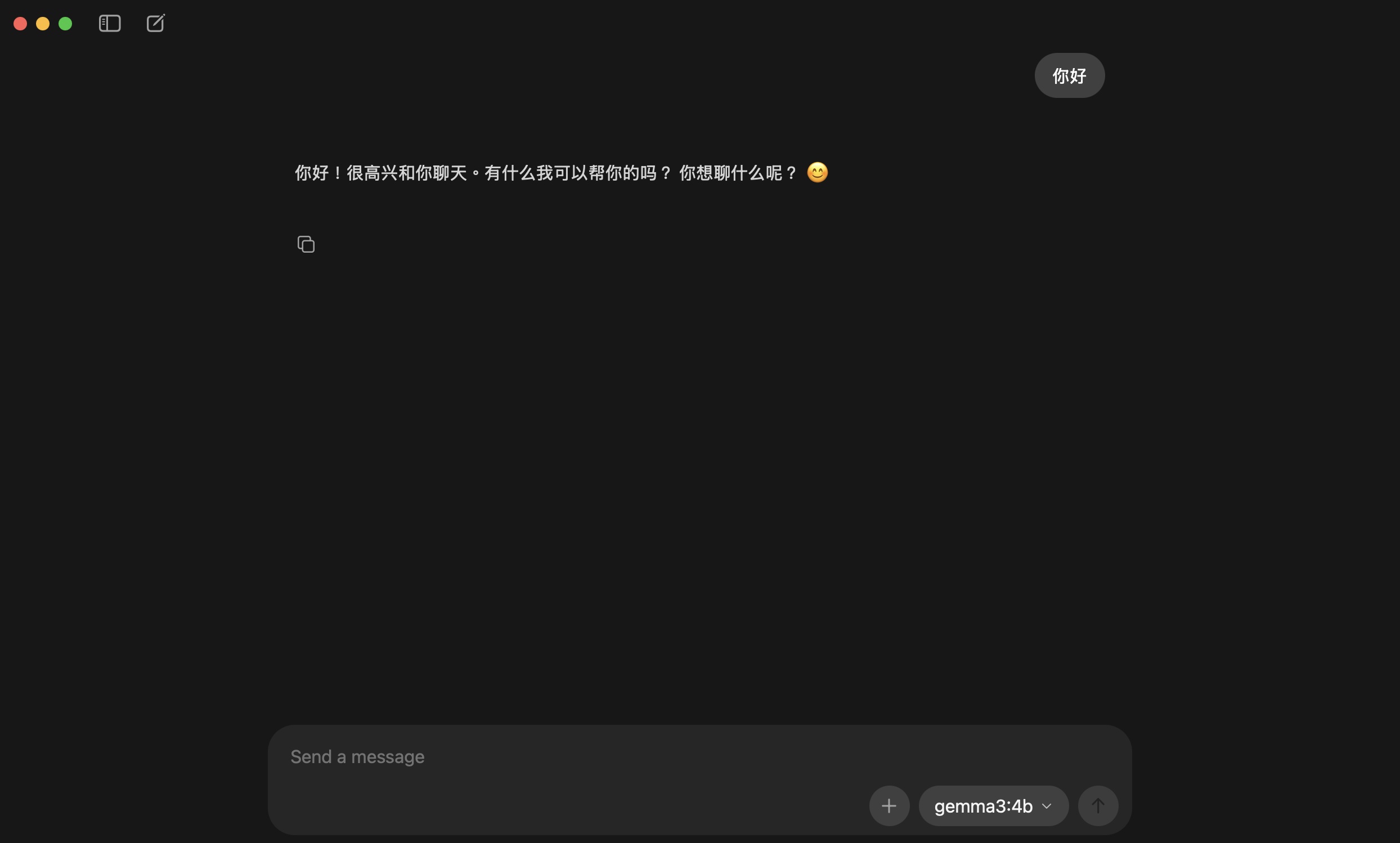
# Test
ollama run qwen2.5:7b
Once you see the chat interface, type a greeting and the model will start responding. Type /bye to exit.
Use Local Models with OpenClaw
Change your config.yaml to use the local model:
models:
  default:
    provider: ollama
    model: qwen2.5:7b
Verify GPU Acceleration
Apple Silicon (M1/M2/M3/M4)
Good news: Ollama automatically uses Apple GPU acceleration — no extra setup needed.
# Check model runtime info to verify GPU usage
ollama ps
If you see gpu related info, GPU acceleration is enabled.
NVIDIA GPU (Windows / Linux)
You need to install the NVIDIA CUDA Toolkit:
# Verify NVIDIA driver
nvidia-smi
If the command returns GPU info, Ollama will automatically detect and use the NVIDIA GPU.
No GPU?
It still works! Just a bit slower. Recommendations:
- Use smaller models (
llama3.2:3bis quite fast on CPU) - Lower
temperatureto reduce inference time - Close other memory-hungry apps
Memory Management
Ollama automatically unloads models from memory after 5 minutes of inactivity. If you want to manage manually:
# View currently loaded models
ollama ps

# Manually stop a model (free up memory)
ollama stop qwen2.5:7b
Local Model Speed Reference
Choose the best combination based on your hardware:
| Your Setup | Recommended Model | Expected Speed |
|---|---|---|
| 8GB RAM, no GPU | llama3.2:3b | 5-10 tokens/sec |
| 16GB RAM, Apple M1 | qwen2.5:7b | 15-25 tokens/sec |
| 16GB RAM, NVIDIA RTX 3060 | qwen2.5:14b | 20-30 tokens/sec |
| 32GB+ RAM, NVIDIA RTX 4090 | llama3.1:70b | 30+ tokens/sec |
Local vs Cloud vs Hybrid: Which Should You Choose?
| Use Case | Recommended Approach | Reason |
|---|---|---|
| Learning, experimenting | Ollama Cloud (free credits) | Zero setup, ready immediately |
| Light daily use | Ollama + Qwen 7B (local) | Free, acceptable speed |
| Heavy multilingual use | Cloud API (Gemini Flash) | Great quality, low cost |
| Privacy-sensitive data | Ollama (local) | Data never leaves your machine |
| Production workflows | Hybrid mode | Save money while maintaining quality |
| 24/7 Agent | Cloud deployment | Your computer can be turned off |
Next Steps
You now have an AI Agent you can chat with! Here’s what to do next:
- ⚙️ Model Configuration & Switching — Learn finer control over model behavior
- 🧩 Build Your First Skill — Teach AI repeatable workflows
- 🤖 Understanding Agents — Evolve from chatbot to autonomous agent
- 📱 Connect Telegram — Call your local AI from your phone anytime
Questions? Head to the homepage discussion area to chat!
這篇文章對你有幫助嗎?
💬 問答區
卡關了?直接在這裡問,其他讀者和作者都能幫忙解答。
載入中...