Sign Up for Kaggle: Google Login + Phone Verification, Done in One Go
Create an account on Kaggle, the world's largest data-science community: click Register on the homepage, sign in fast with your Google account, and finish with SMS phone verification to unlock full features. Many AI/data-analysis tutorials start by assuming a Kaggle account — this one gets you past that first.
 卡住很正常——點段落旁的 😵 卡關 讓我們知道,或直接往下滾到問答區發問。
也可以用 👍 看懂 / 😢 看不懂 告訴我們哪裡寫得好、哪裡要改。
卡住很正常——點段落旁的 😵 卡關 讓我們知道,或直接往下滾到問答區發問。
也可以用 👍 看懂 / 😢 看不懂 告訴我們哪裡寫得好、哪裡要改。
In one line: Go to kaggle.com, click Register, choose “Register with Google” to sign in with an existing Google account, then enter an SMS code to verify your phone — and you have a Kaggle account that can download datasets and run notebooks.
Keywords: Kaggle, sign up, Register, Sign in with Google, data science, Datasets, Notebooks, phone verification, Persona, SMS code
Why do you need a Kaggle account?
Kaggle is the world’s largest data-science and machine-learning community — it calls itself “The World’s AI Proving Ground.” With over 30 million members, you can:
- Download ready-made datasets: want to practice data analysis? There’s a huge library of free data.
- Run notebooks in the cloud: no need to set up a local Python environment — open a browser and start coding and training models.
- Enter competitions and take free courses: from beginner to hands-on.
Plenty of “grab real data and practice AI” tutorials on LaunchDock start by sending you to Kaggle. Let’s get your account set up first. It’s free and takes about 5 minutes.
Step 1: Go to the Kaggle homepage and click Register
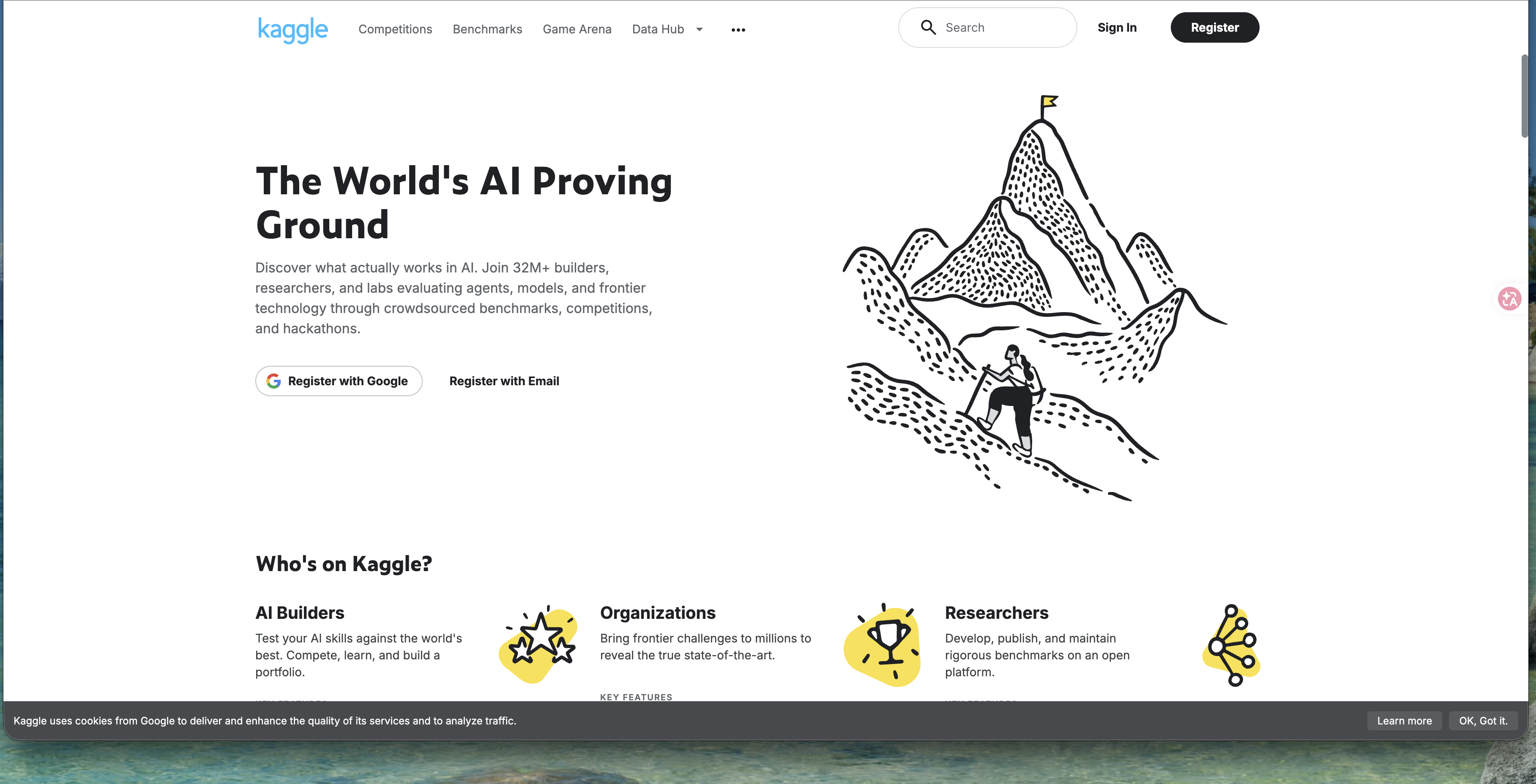
Open kaggle.com. Top-right you’ll see Sign In and a black Register button. First time here? Click Register.
The homepage also drops two quick buttons right in the middle: Register with Google and Register with Email.
Step 2: Choose a sign-in method
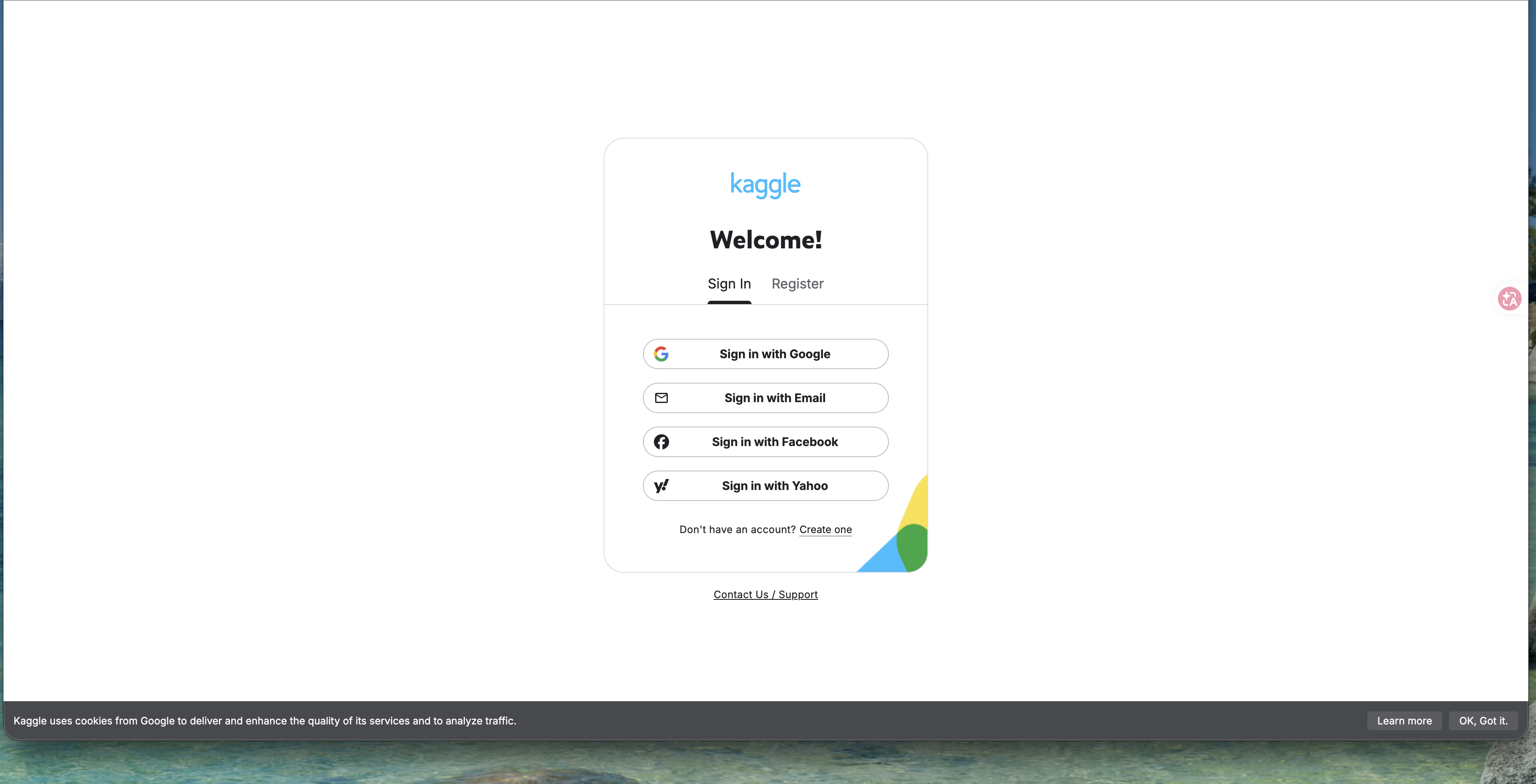
A “Welcome!” card pops up with two tabs: Sign In (existing account) and Register. Below it are four methods:
- Sign in with Google (recommended, fastest)
- Sign in with Email
- Sign in with Facebook
- Sign in with Yahoo
Google is the easiest — no new password to set, just one click. We’ll use Google here.
🚨 I’d rather set my own username and password, not link Google?
No problem — pick Sign in with Email for the classic “enter email, set password, confirm via email” flow. You’ll just have one more password to remember. If you already use Google, linking it is the least hassle.
Step 3: Authorize with Google
After picking Google, you land on Google’s account chooser asking which Google account to continue with. Pick one, and Google shows a consent screen telling you Kaggle will receive your “name and profile picture” and “email address” — that’s normal. Click Continue to authorize.
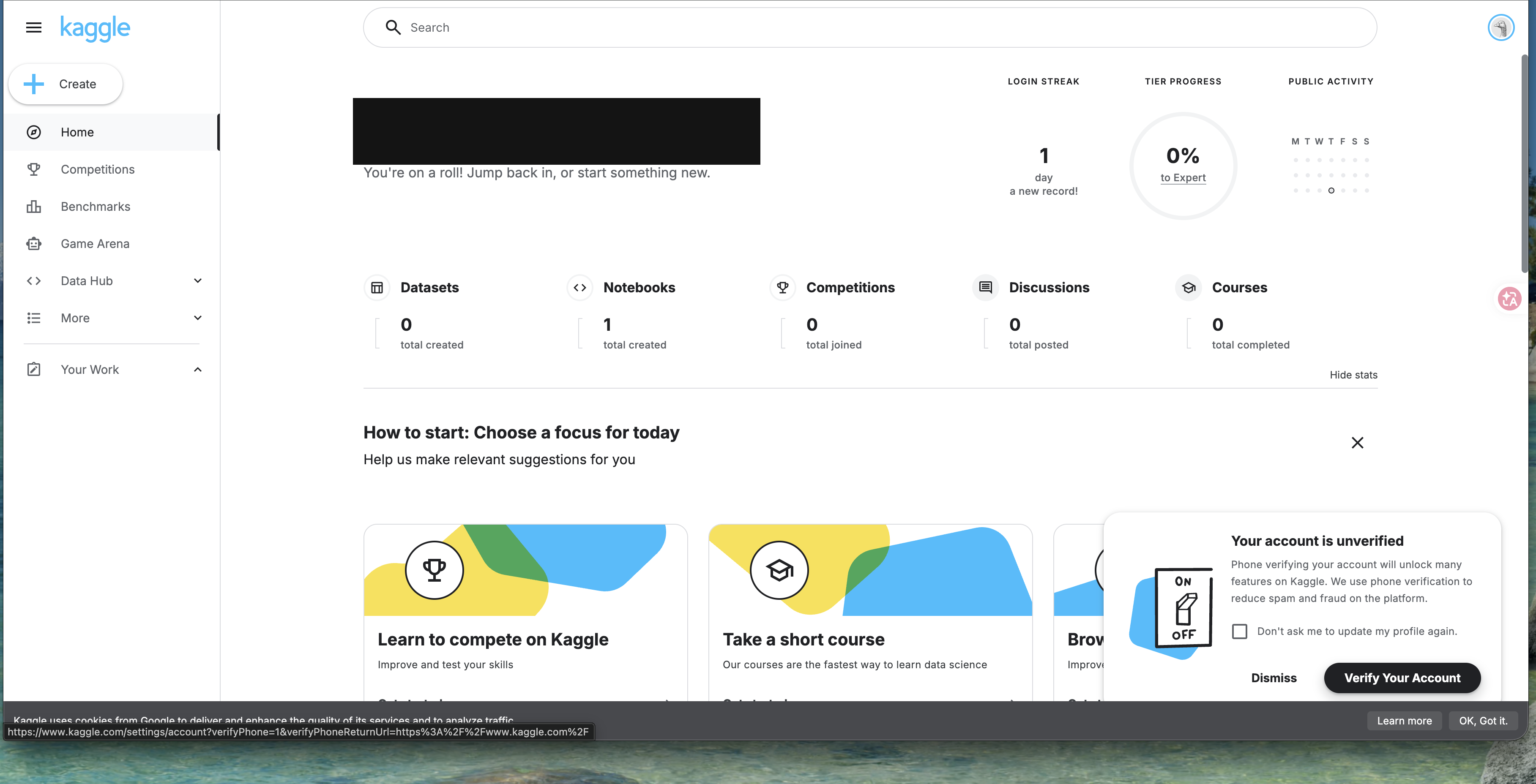
Once authorized, you go straight to the Kaggle dashboard with a “Welcome, …!” greeting, your Login Streak, and stats (Datasets, Notebooks, Competitions…).
Step 4: Phone verification to unlock full features
After login, Kaggle often shows: “Your account is unverified” and invites you to Verify Your Account.
Kaggle uses phone verification to block spam accounts and bots. Click it, and a third-party service called Persona takes over:
- Enter your phone number (for Taiwan, choose +886).
- Persona sends a 4-digit SMS code.
- Type the 4 digits into the four boxes and click Continue.
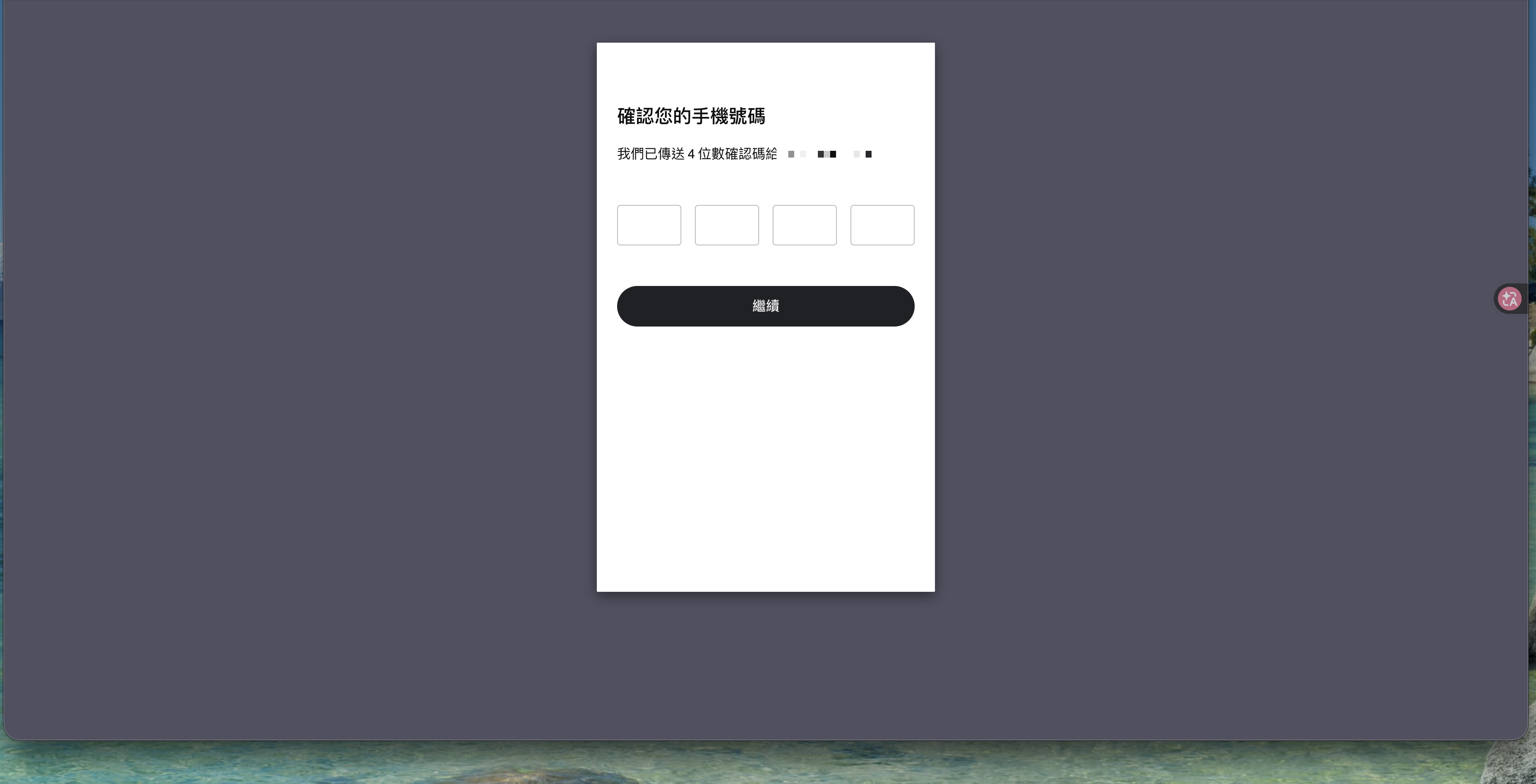
Once verified, your Kaggle account is complete — you can download datasets, create notebooks, and enter competitions.
🚨 Not getting the SMS code?
- Check the country code (Taiwan mobiles use +886, and the leading 0 usually isn’t typed again).
- Wait 1–2 minutes; SMS can be slow.
- Still nothing? There’s usually a “resend” option on screen — tap it and try again.
Done! What next?
You now have a working Kaggle account. Start with:
- Browse Datasets and download something you find interesting (sales, weather, movie ratings).
- Open a Notebook — Kaggle gives you a free cloud compute environment, no local Python needed.
- When you have time, the free short courses under Courses are great for beginners.
Later, whenever a LaunchDock tutorial needs “real data to practice AI / data analysis,” you’ll be ready to follow along.
這篇文章對你有幫助嗎?
💬 問答區
卡關了?直接在這裡問,其他讀者和作者都能幫忙解答。
載入中...
Found this useful? Share it with a friend who’s also getting their hands dirty
Share on LINE